

Wi-Fi Signal Monitor
Free Windows app that turns your Wi-Fi signal into a live 2-minute graph — one measurement per second through netsh, no admin rights. Signal in percent, a plain-word quality rating, SSID/BSSID and receive/transmit speeds, so you can find the best spot for the router or your laptop.
What the app finds and shows
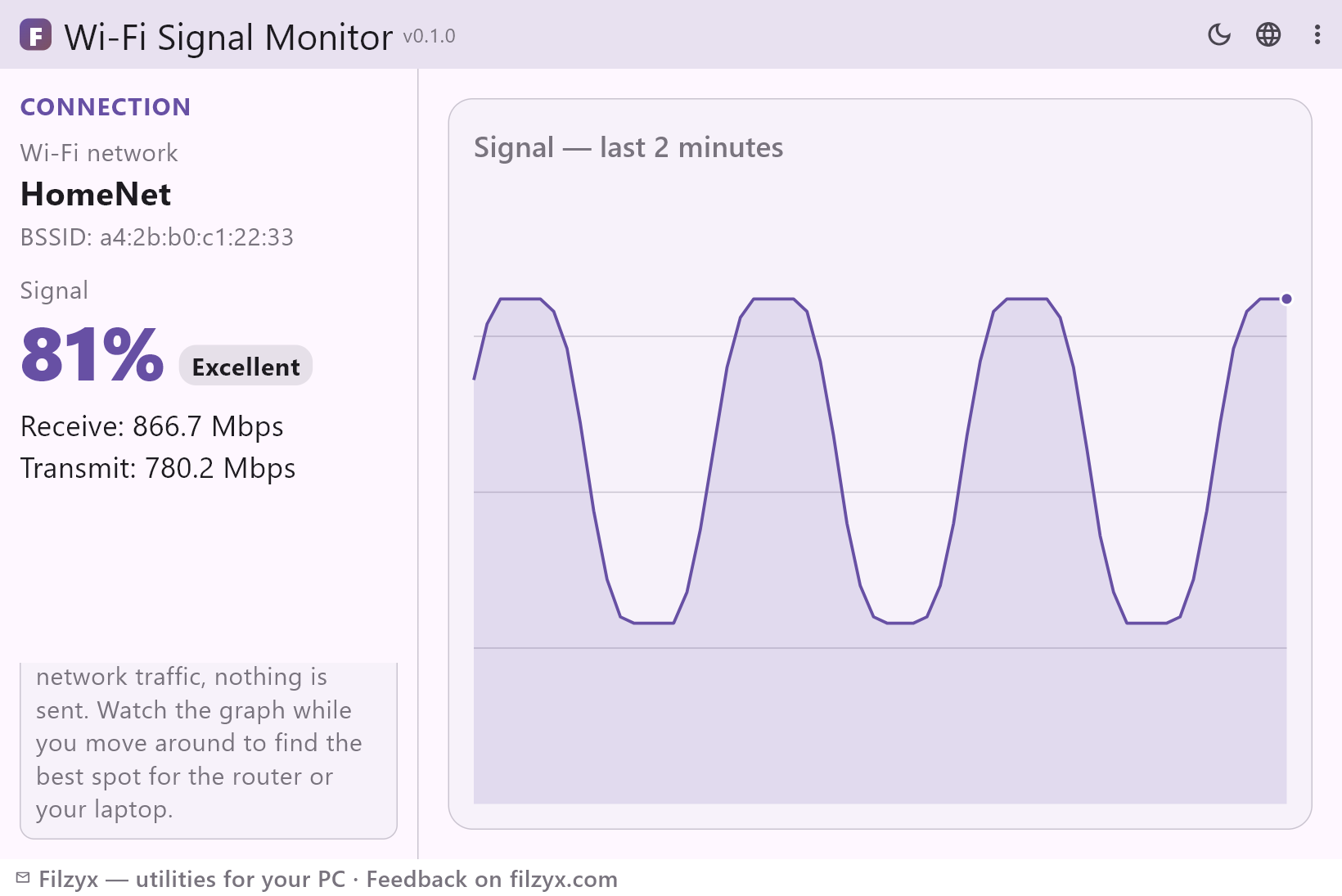
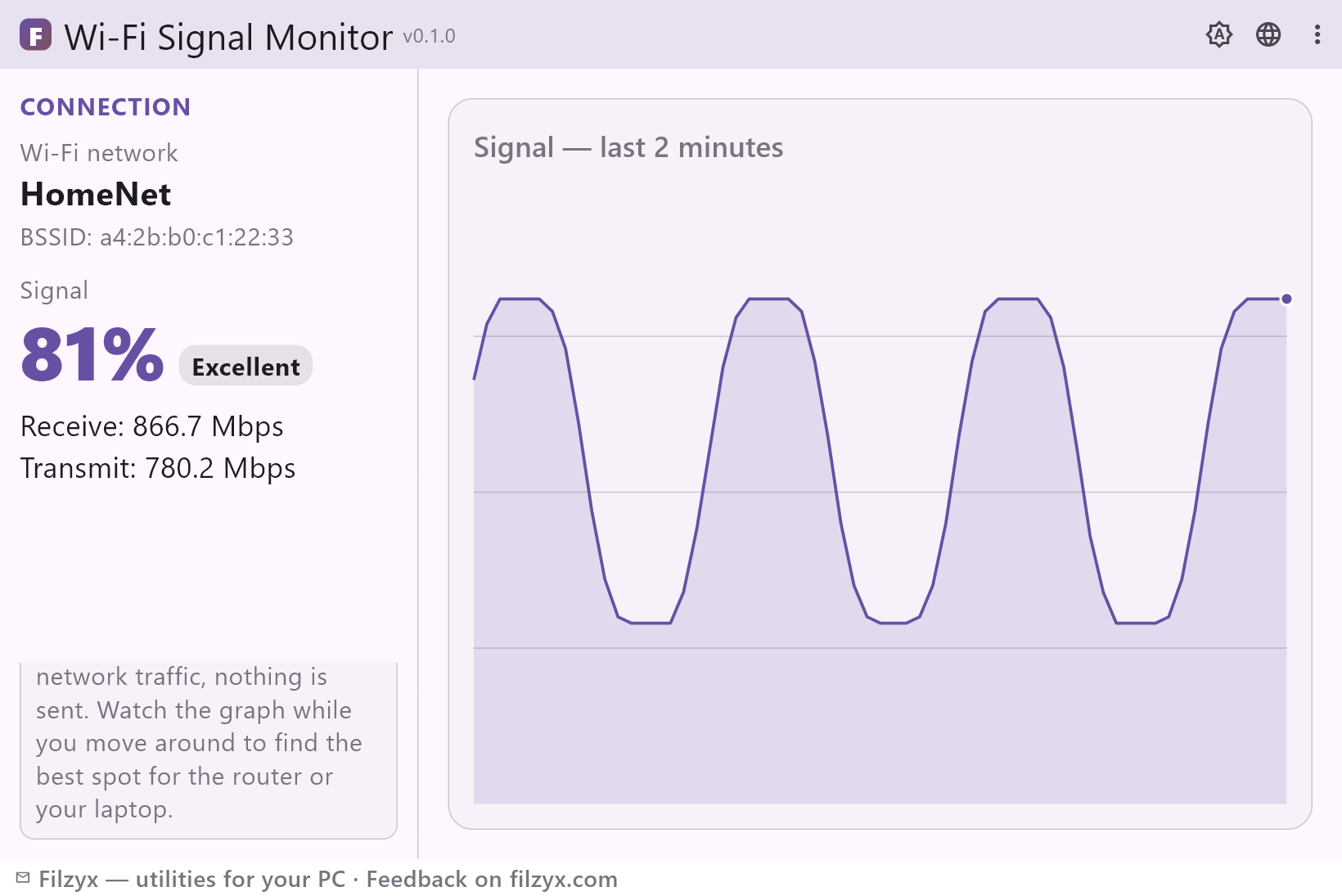
Live graph — last 2 minutes
One sample per second is added to a rolling 2-minute graph: start moving around and watch exactly where the line dips or recovers. The current level is drawn as a percentage of the maximum.
Settings: One sample per second, 2-minute window
Connection details
Next to the graph the app shows the network you are attached to — SSID, BSSID (which specific access point answers) and the negotiated receive and transmit speeds. Handy for checking whether you are on the router itself or on a distant repeater.
Settings: SSID, BSSID, Rx/Tx Mbps
Quality verdict
The percentage is translated into a plain word — Excellent, Good, Fair or Poor — so you can judge a spot at a glance without interpreting numbers, and compare two rooms by their verdict.
Settings: Excellent / Good / Fair / Poor
How to see your Wi-Fi signal level in 3 steps
- Open Wi-Fi Signal Monitor — it starts reading the signal right away, with no setup and no administrator rights.
- Watch the live graph fill in: one sample per second, the last 2 minutes on screen, the current level in percent and as Excellent, Good, Fair or Poor.
- Walk around with the laptop or compare spots: note where the line drops 10–20% and pick the place where it stays highest.
The tray icon shows 4 bars — and remembers nothing
Windows does show Wi-Fi signal: the tray icon with 4 bars and, when you hover it, a rough percentage. Four bars cannot tell “good” from “excellent”, there is no history, and a dip that lasts two seconds is gone before you look. The built-in alternative, `netsh wlan show interfaces`, prints the exact signal percentage — but you have to remember the command, and it is a one-shot snapshot in a console window, not something you can watch while carrying the laptop around. Wi-Fi Signal Monitor keeps the same netsh reading and turns it into a rolling 2-minute graph with a live percentage and a quality word, so short drops become visible instead of anecdotal.
What the graph is for
Finding the best spot: open the app and walk slowly from room to room — the line shows exactly where walls eat the signal. Placing the router: put the laptop where you actually work and move the router, not the other way around; the graph reacts immediately. After rearranging: a new wardrobe, a mirror or a fish tank can cost you 10–20%, and that becomes visible at once instead of after a vague “the internet got worse”. 2.4 vs 5 GHz: 5 GHz is faster but decays sooner through walls — connect to each band and compare the lines to decide which one your devices should prefer. And the evening slowdown puzzle: as the neighbours' networks wake up, interference rises, and a live graph tells you whether your problem is signal strength or congestion.
Local readings only
The app polls the built-in netsh command locally once a second and draws the result. It opens no connections, sends no packets, records no analytics and has no accounts — your network name and BSSID never leave the PC. You can turn the internet off and the measurements keep working; only the Wi-Fi adapter matters. Close the app and nothing is left behind: no history file, no background service.
Features
- Live signal graph: one sample per second, the last 2 minutes on screen
- Signal level in percent plus a plain-word quality rating — Excellent, Good, Fair, Poor
- SSID and BSSID of the connected network and access point
- Negotiated receive and transmit speeds in Mbps
- Reads the signal through the built-in netsh command — no admin rights
- Works on both 2.4 GHz and 5 GHz networks
- Walk-around surveying: find where the signal drops and where it is best
- Check the effect of moving the router or furniture in seconds
- No network traffic and no telemetry — nothing leaves your PC
- Works with the internet off; only the Wi-Fi adapter is needed
- Dark and light themes
- 16 interface languages
Screenshots
Guides
Step-by-step guides for Windows:
-
How to check Wi-Fi signal strength on Windows — free
Step-by-step: read your Wi-Fi signal strength on Windows 10/11 — the tray icon in 4 bars, the exact percentage via netsh, and a free app that draws a live 2-minute graph and helps you find the best spot for the router.
FAQ
- Is Wi-Fi Signal Monitor free?
- Yes — free for Windows 10/11 (x64), with no ads, no accounts and no telemetry.
- Do I need administrator rights?
- No. Signal strength is read through the standard netsh command, which works under a normal user account — the app needs no elevation and shows the first measurement within a second.
- What do the percentage and the words mean?
- The percentage is the signal level Windows reports for your connection; the words translate it into a quick verdict — Excellent, Good, Fair or Poor. Use them as a guide: a spot that stays in the top two is a good place for a router, an office desk or a TV.
- Why does the graph cover 2 minutes and not the whole day?
- It is a rolling window of the last 2 minutes with one sample per second — long enough to catch brief drops while you walk around, short enough to read at a glance. It is a live instrument, not a log.
- Does the app send any data or need the internet?
- No. Everything is measured locally via netsh; the app opens no network connections, sends no telemetry and works with the internet completely off.
- How do I find the best place for my router or laptop?
- Open the graph and walk slowly — note where the line drops by 10–20% and where it stays highest. Then check the two or three candidate spots again after moving furniture or the router; the difference is often dramatic.