
Refresh Rate Test
Free Windows app that reads the current display mode through Win32 and measures what your monitor really delivers — reported Hz, every available mode, real FPS and frame times, plus a moving bar that makes stutter visible.
What the app finds and shows
Reported modes
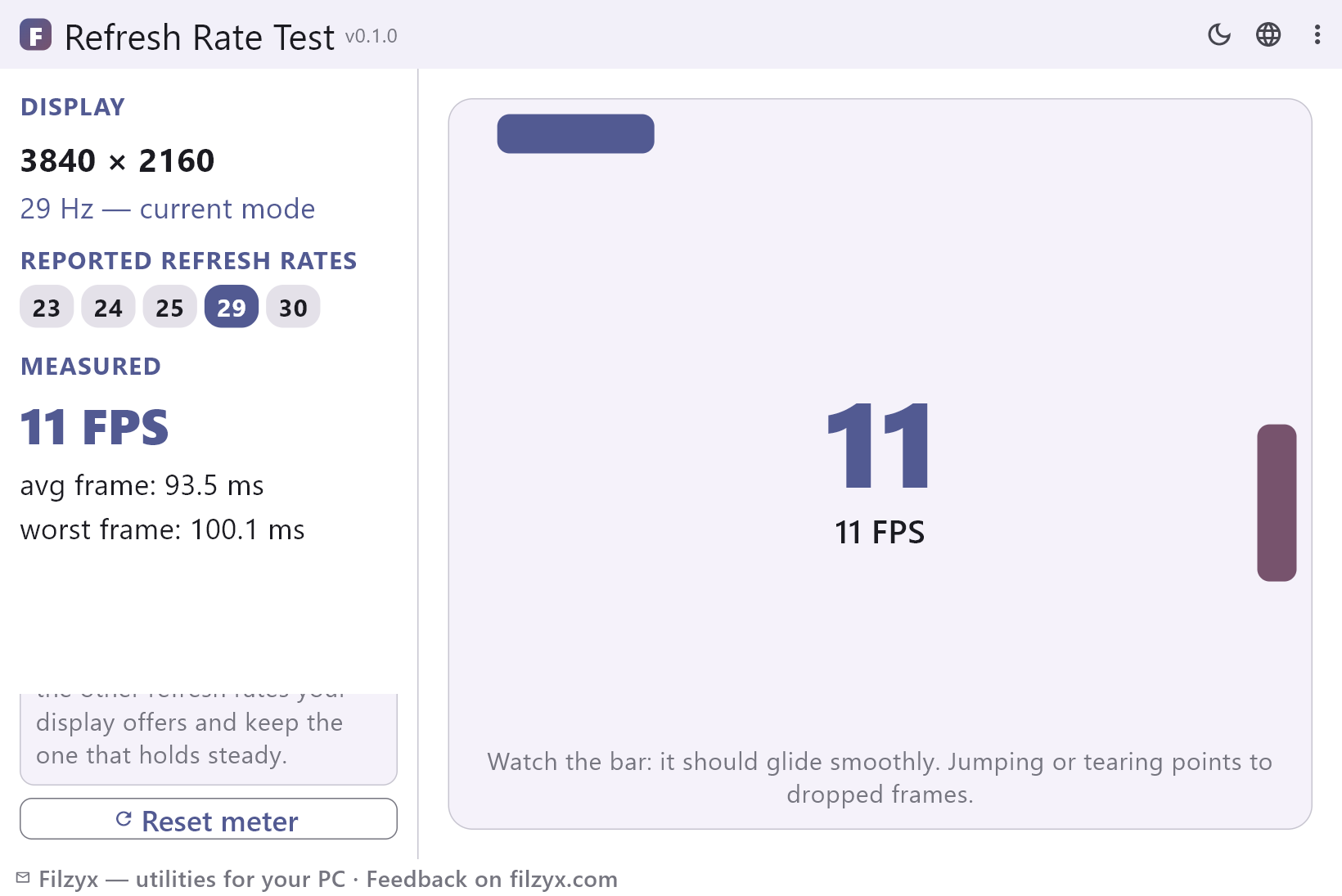
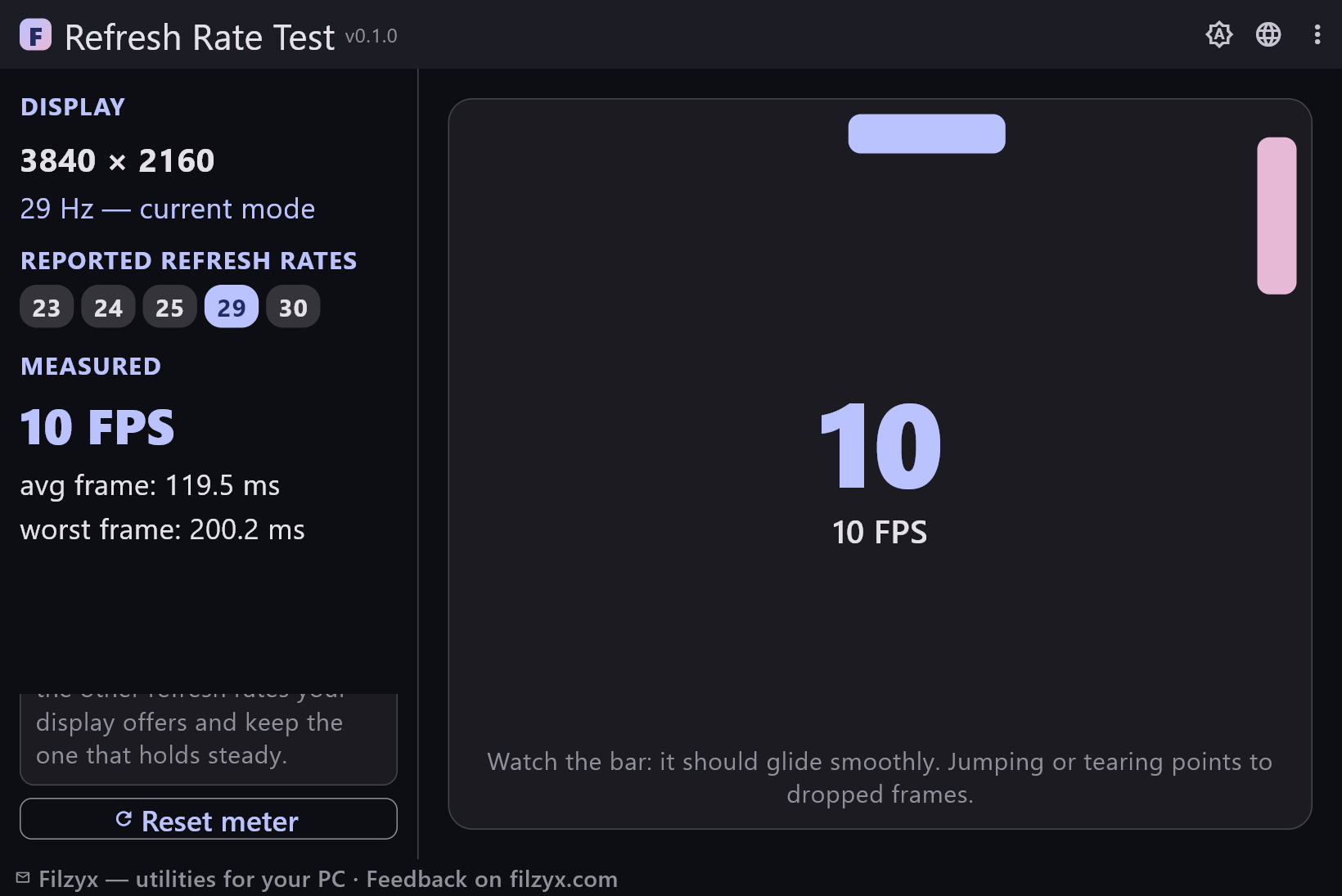
The current mode straight from Win32 plus the full list of refresh rates available at this resolution, with the active one highlighted — what the panel and the driver claim.
Settings: EnumDisplaySettings (Win32)
Live meter
Real frames per second with average and worst frame times, updated every frame and zeroed with one click — the delivered side of the story.
Settings: Reset meter button
Smoothness bar
A bar gliding across the window at a steady pace; if it jumps, hitches or tears, frames are being dropped somewhere between the GPU and the panel.
Settings: Watch while the meter runs
How to check your refresh rate in 3 steps
- Open the app — it reads the current display mode through Win32 and shows the resolution and refresh rate Windows is actually using.
- Compare the current Hz with the full list of refresh rates your display reports for this resolution.
- Watch the moving bar and the measured FPS: the numbers and the smoothness should match the mode you chose.
Windows knows your Hz — it just buries it
The refresh rate does live in Windows: Settings → System → Display → Advanced display has a “Choose a refresh rate” box. The problem is the trip there — two submenus deep on Windows 11 and even less obvious on Windows 10 — and the value shown is only the selected mode, never proof that the panel and cable are delivering it. The classic symptom: a 144 Hz monitor bought for gaming runs at 60 Hz for months, because the safe default mode survives from a fresh install. The app puts the same Win32 information on one screen — current mode, resolution, every mode the display reports — and adds the measured side that the Settings page will never show you.
When you actually need this test
Four moments. First, after buying or unboxing a monitor: set 144/165/240 Hz and confirm the display reports it — and that the mode is not silently capped somewhere else. Second, after a GPU driver update: drivers sometimes fall back to a conservative mode, and 60 Hz after an update is a common surprise. Third, when a game stutters: measured FPS below the reported Hz with spiky frame times points to dropped frames, and comparing the other modes of the same resolution tells you whether the panel or something else is to blame. Fourth, with cables and adapters: HDMI adapters, long DisplayPort cables and docking stations cap the refresh rate at the weakest link in the chain — measuring at each end shows where the ceiling really is.
A local Win32 read — nothing sent anywhere
The app installs no driver and asks for no administrator rights: it calls the display APIs Windows already exposes through a thin FFI bridge and draws the results in its own window. The measurement loop runs entirely on your machine — frames are counted locally and the numbers vanish when the session ends. There is no account, no ads and no analytics; the app does not even open a network connection, so it works on a plane, in a lab or on a corporate machine where everything is blocked. The only thing it writes is a local settings file that remembers your theme.
Features
- Reads the current display mode through Win32: resolution and refresh rate straight from the system
- Lists every refresh rate Windows reports for the resolution you are running
- Highlights the active mode in the list at a glance
- Live FPS meter that counts the frames actually rendered
- Average and worst frame times in milliseconds, updated every frame
- Moving bar that makes stutter and dropped frames visible
- One-click meter reset to isolate a spike
- No driver installation and no administrator rights
- Clear warning when the display mode cannot be read
- Works fully offline: nothing is downloaded, nothing is sent
- Light native call (EnumDisplaySettings) — instant startup and tiny footprint
- 16 interface languages
Screenshots
Guides
Step-by-step guides for Windows:
-
How to check your monitor refresh rate in Windows (free)
Windows hides the refresh rate two menus deep, and online tests only show what the browser can draw. Here is how to check and measure the real Hz on Windows 10/11 — and what to do when the picture stutters.
FAQ
- Is Refresh Rate Test free?
- Yes — free to download and use on Windows 10/11 (x64), with no ads, no account and no telemetry.
- Does the app change my refresh rate?
- No. It only reads the current display mode and measures FPS. Change the mode in Windows Settings → System → Display → Advanced display (or in the GPU driver panel), then reopen the test and compare.
- Why is the measured FPS lower than the Hz I set?
- The meter counts the frames the app's UI loop actually renders. Other programs, window animations, power saving and the cabling all take their share; if the gap is large or frame times spike, try the other modes your display reports.
- Will it show 240 Hz on my monitor?
- It shows what Windows reports: the current mode and every mode available at your resolution. If 240 Hz does not appear in the list, the limit is the mode selected in Windows, the cable or port, or the display's own mode table.
- Do I need administrator rights or drivers?
- No. The app calls the display API Windows already offers (user32.dll) and installs no drivers, services or elevated permissions.
- Does it work offline?
- Fully. All measurements are local; the app sends nothing and needs no internet connection.