

Port Owner
Free Windows app that answers “what is using this port?”: every TCP/UDP endpoint with the process name and PID behind it, searchable and copyable.
What the app finds and shows
Listening ports only
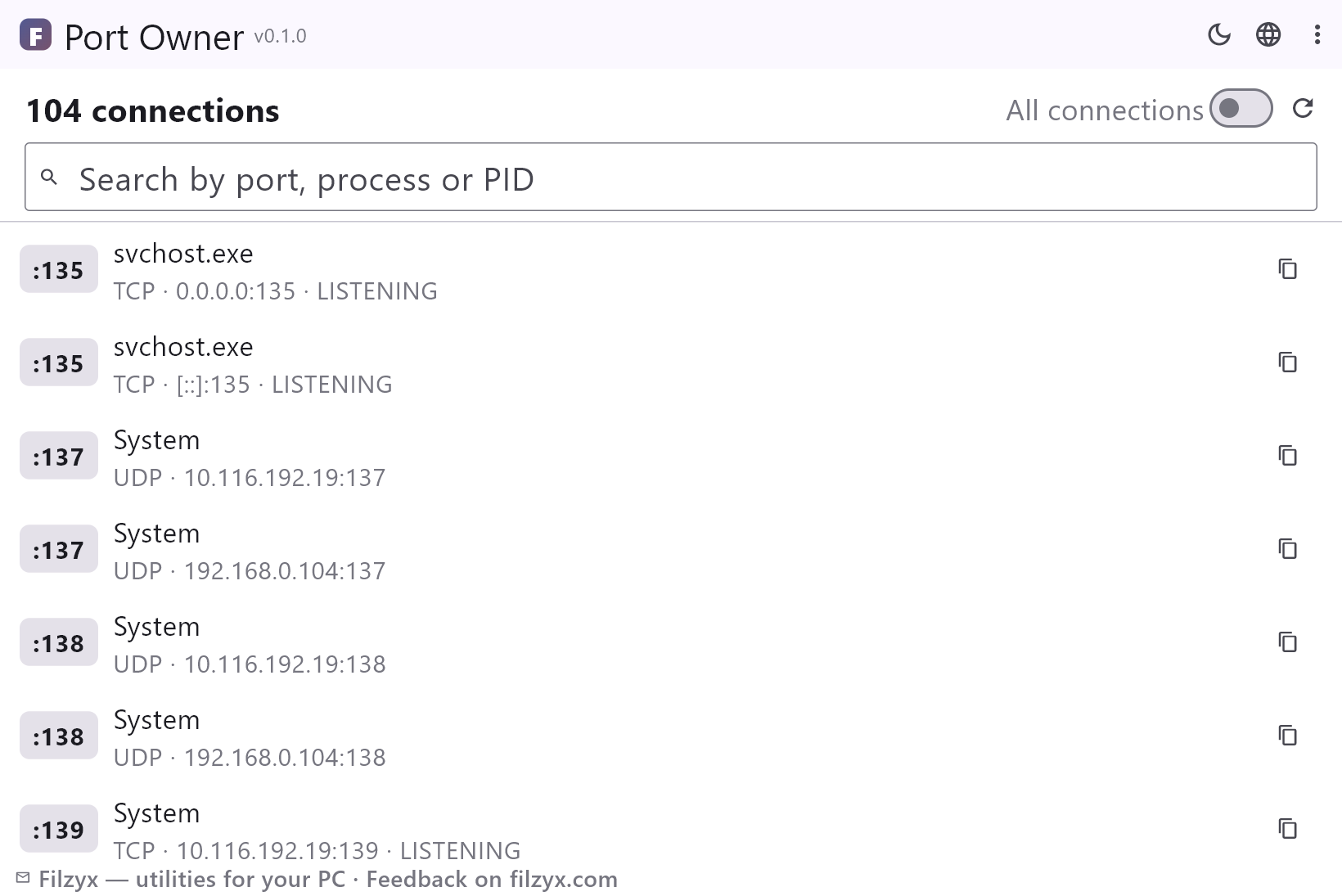
The default view: every port a program is waiting on, listeners first, noise filtered out — the exact list you need for “port already in use”.
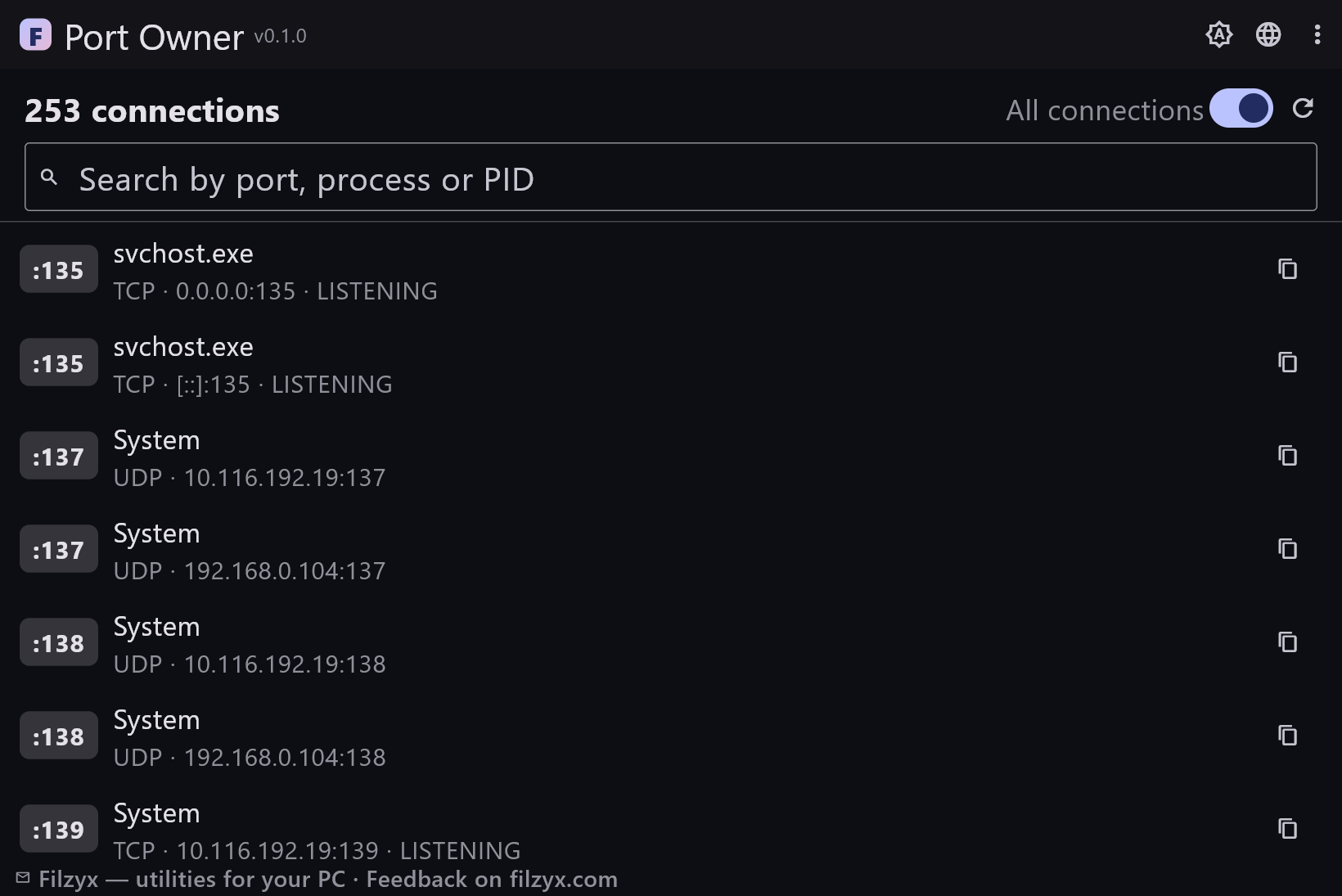
Settings: “All connections” switch
Search by port, process or PID
Type 8080, node.exe or a PID — the list narrows instantly. Works across the whole table on every keystroke.
Settings: Live filtering
One-click copy
The copy button next to a row puts “TCP :8080 — node.exe (1234)” on the clipboard, ready for a bug report or a chat.
Settings: Clipboard-friendly format
How to find what is using a port in 3 steps
- Open the app — listening ports appear with the process name and PID behind each one.
- Type the port number into the search box — e.g. 8080 — to find its owner instantly.
- Copy the result for your bug report, or switch on “All connections” to see established sockets too.
The netstat problem: right data, unreadable form
Windows answers the question honestly — `netstat -ano` prints every endpoint with its PID — but the raw output fights you back: dozens of IPv4 and IPv6 rows, connection states in a column you have to read diagonally, and no process names at all, so you walk the PID over to Task Manager by hand. On localized Windows the headers are translated while the protocol keywords are not. Port Owner does the same query, then joins the PIDs with the process list and renders the result as rows a human can scan, with listeners first.
The three classic moments you need this
One: “port 8080 is already in use” — a leftover node.exe from yesterday's session is holding it; find it in one search and end the right process in Task Manager. Two: a game or service will not start because it “cannot bind port” — check whether the port is really free or claimed by another instance. Three: an unfamiliar listener on an unexpected port — see the owning process immediately instead of guessing. The listening-only view exists exactly for these scenarios: it filters noise down to the sockets that actually block ports.
Read-only, offline, no admin rights
Port Owner runs the standard Windows tools (netstat and tasklist), parses their output and shows it — nothing is opened, blocked or killed. No firewall changes, no admin elevation, no network traffic of its own, no accounts. Killing the right process stays where it belongs: in Task Manager, where you can see the program's window and decide. The tool deliberately never offers a “kill” button: a mysterious listener is often a service you want.
Features
- Every TCP and UDP endpoint with the owning process name and PID
- Listening ports only by default; “All connections” switch for everything
- Live search by port number, process or PID
- Protocol, local address and connection state at a glance
- One-click copy of a row for bug reports
- Refresh re-reads the current socket table
- Read-only: nothing is blocked, killed or changed
- No admin rights, works offline, no accounts
- Reads the standard netstat/tasklist data — nothing invented
- UDP endpoints included (they have no state column)
- Dark and light themes
- 16 interface languages, no ads, no telemetry
Screenshots
Guides
Step-by-step guides for Windows:
-
How to find which process is using a port on Windows (free)
Port 8080 already in use? See which program owns any TCP/UDP port on Windows 10/11 — with the built-in netstat method or a free searchable list with process names and PIDs.
FAQ
- Is Port Owner free?
- Yes — free to download and use on Windows 10/11 (x64), with no ads, no accounts and no telemetry.
- Does it need administrator rights?
- No — a normal user can list TCP/UDP endpoints and process names. Some system processes may show generic names like “System”.
- How do I find which process is using port 8080?
- Open the app and type 8080 into the search box — the row shows the process name and PID. The same works for any port, process or PID.
- What is the difference between LISTENING and ESTABLISHED?
- LISTENING means a program is waiting for connections on that port — these are the ports that “block” other programs. ESTABLISHED is an active connection right now; the default view hides them.
- Can the app close the port for me?
- Deliberately no. It shows the owner; ending the process is a decision you make in Task Manager with full context.
- Does it work without internet?
- Completely — it only reads local Windows data, no network connection is used.