

Image Resizer
Free Windows app that resizes images in batches — by width, height, a bounding box or a percentage — with high-quality resampling and zero fear of ruining your originals.
What the app finds and shows
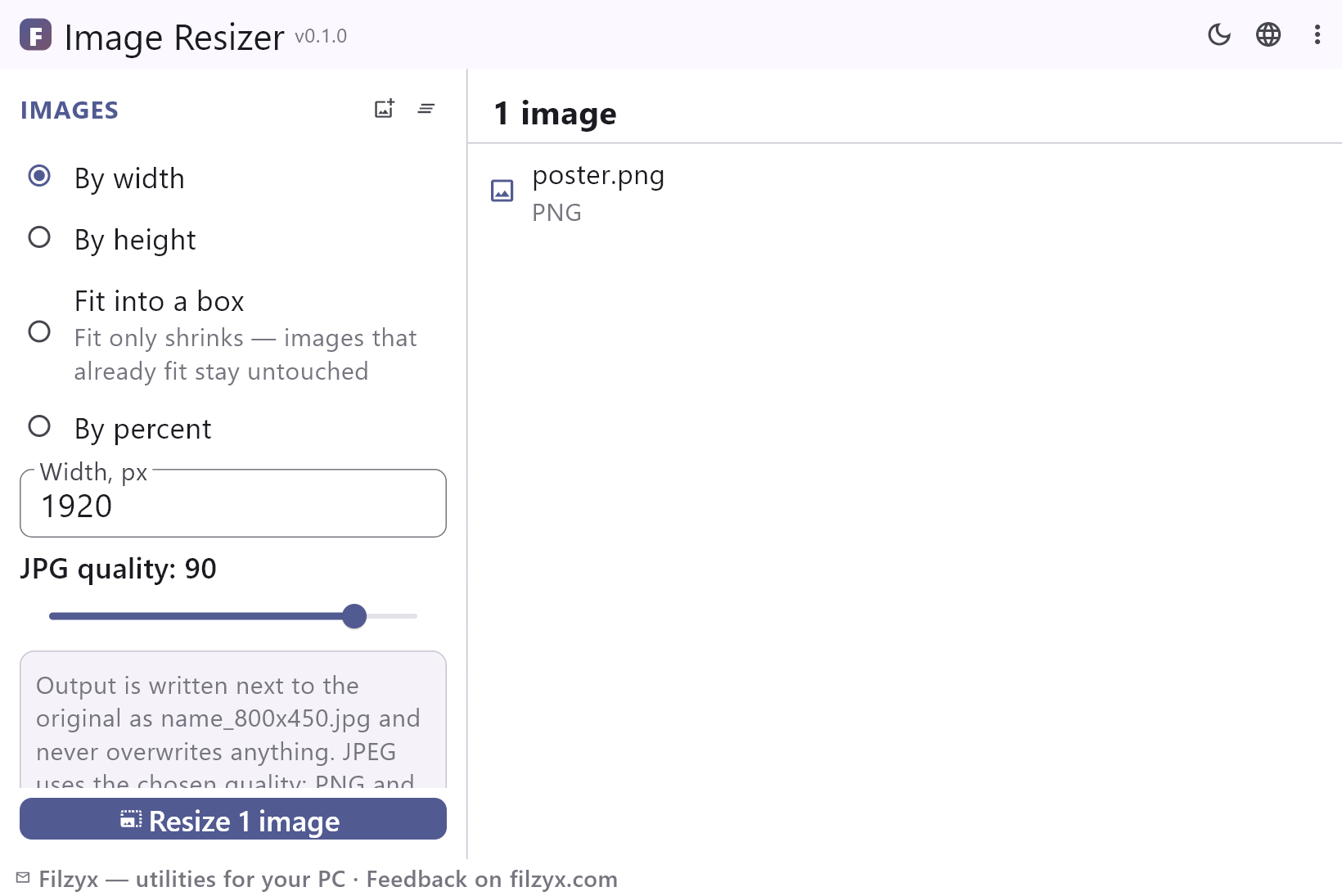
By width (aspect kept)
Type a target width — every image scales proportionally. The classic “make them all 1920 px wide” job.
Settings: Width field
By height, box or percent
Fix the height, fit everything inside a W×H box (shrink-only), or scale by percentage — four ways to say “smaller”.
Settings: Mode radio group
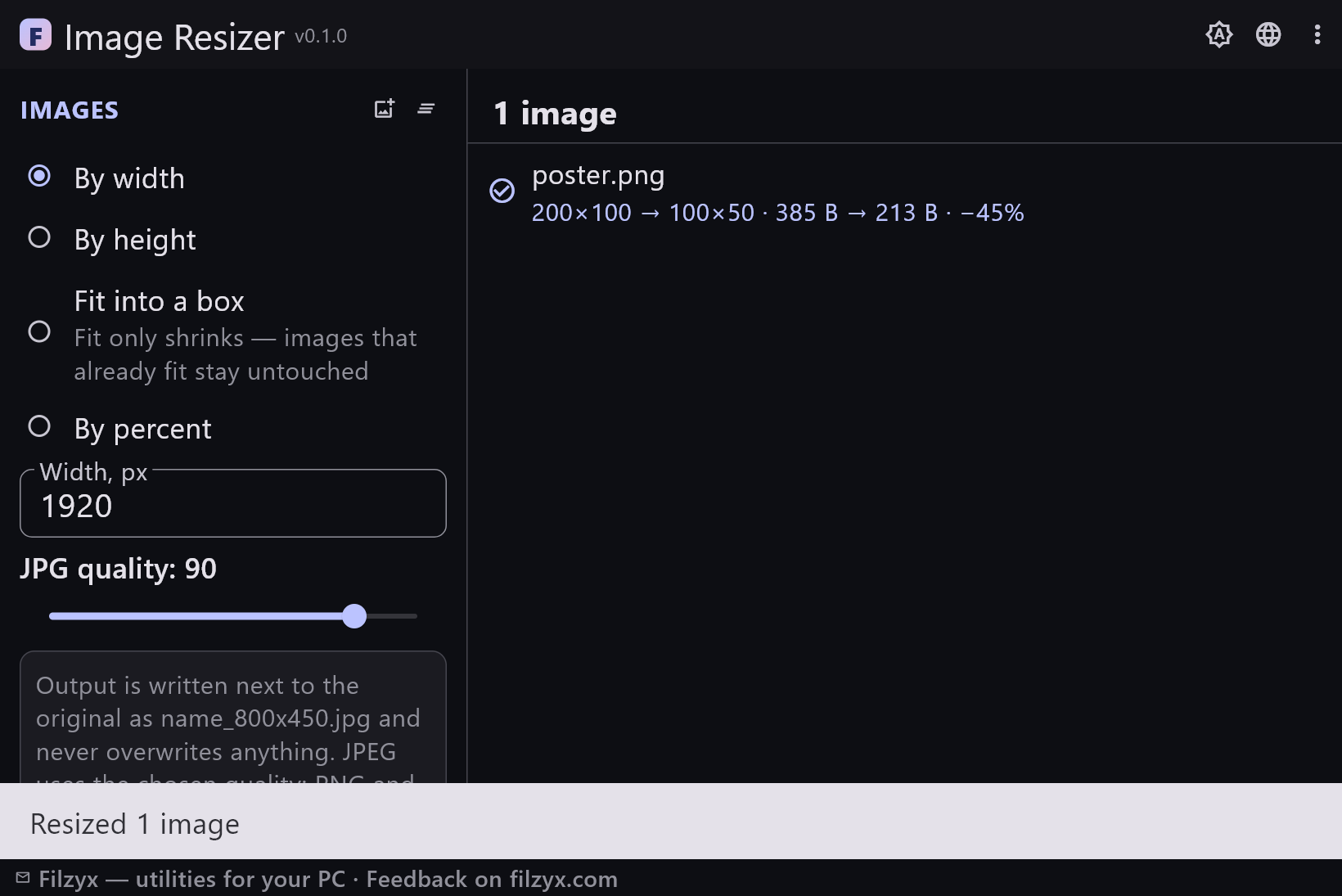
Batch report with savings
Every file gets a result line: 6000×4000 → 1920×1280 · 4.1 MB → 812 KB · −80%. JPEG quality slider included.
Settings: Per-file result lines
How to resize images in batches in 3 steps
- Add images — JPEG, PNG, WebP or BMP; the list is remembered between runs.
- Pick a mode: width, height, fit into a box, or a percentage; set the JPG quality if you like.
- Press Resize — every file shows its new dimensions, sizes and savings; originals stay untouched.
Where Windows leaves you hanging
Windows can resize one picture through Paint's fiddly dialog, or bulk-resize via the ancient PowerToys Image Resizer — which quietly re-compresses, offers few modes and buries the result in whatever it decides to do with your files. What people actually need: “make all of these 1920 px wide”, “fit these into 1280×720”, “shrink this folder by half” — with the results landing predictably next to the originals and the originals untouched. Image Resizer is exactly that: four honest modes, one quality slider for JPEG, and a result line on every file.
Smaller pixels, same impression
Resizing is resampling: every output pixel is computed from several source pixels, and the interpolation quality decides whether the result stays crisp. Image Resizer uses cubic resampling — the standard that keeps photo gradients smooth and text edges clean. Format behaviour is explicit: JPEG is re-encoded with the quality slider you set (default 90), while PNG and WebP outputs stay lossless. The row under each file reports the truth in numbers: 6000×4000 → 1920×1280 · 4.1 MB → 812 KB · −80% — so you always know what you got.
Nothing overwritten, nothing uploaded
Results are written as new files named after their dimensions — wallpaper_1920x1080.jpg — and name clashes get a safe ' (2)' suffix; the originals are never modified. That makes the workflow forgiving: resize a batch, look at the numbers, delete what does not fit your plan and try another setting — the source folder is exactly as you left it. Everything happens locally in a small offline app: no cloud service, no “your files are being processed” spinner, no accounts.
Features
- Batch resizing by width, height, bounding box or percentage
- High-quality cubic resampling — photos stay smooth
- Fit mode only shrinks — small images are left untouched
- Results named by size: name_800x450.jpg, clashes get “ (2)”
- Originals are never modified in any mode
- Per-file report: dimensions, sizes and the percentage saved
- JPEG quality slider; PNG and WebP stay lossless
- Format preserved: JPEG→JPEG, PNG→PNG, WebP→WebP, BMP→BMP
- The image list is remembered between runs
- Fully offline — nothing is uploaded anywhere
- Dark and light themes
- 16 interface languages, no ads, no accounts, no telemetry
Screenshots
Guides
Step-by-step guides for Windows:
-
How to resize images on Windows (batch, free) — no quality surprises
Resize one image or a whole folder on Windows 10/11: by width, height, a box or percent — with the built-in Paint route, PowerToys notes, and a free batch tool that keeps originals untouched.
FAQ
- Is Image Resizer free?
- Yes — free to download and use on Windows 10/11 (x64), with no ads, no accounts and no telemetry.
- Does resizing reduce quality?
- Resizing inherently resamples pixels, but cubic interpolation keeps results clean; PNG and WebP outputs stay lossless, JPEG uses your quality setting (default 90 is visually transparent for most uses).
- What does “Fit into a box” do?
- It scales the image to fit inside the width × height box while keeping the aspect ratio — and only shrinks: images that already fit are left untouched and marked “already fits — kept”.
- Will my originals be changed?
- Never. Outputs are new files named name_800x450.jpg (with word “(2)” suffixes on clashes); the original files are not touched in any mode.
- Can I resize a whole folder at once?
- Yes — add as many images as you like and press one button. The file list is remembered between runs.
- Which formats are supported?
- JPEG, PNG, WebP and BMP. The format is kept on output: JPEG makes JPEG, PNG makes PNG, WebP stays WebP.