
HEIC to JPG Converter
Free Windows app that converts iPhone HEIC/HEIF photos to JPG in a batch — set the JPEG quality with a slider, choose where the results go, and convert offline. No uploads, no accounts, no telemetry.
What the app finds and shows
Quality slider
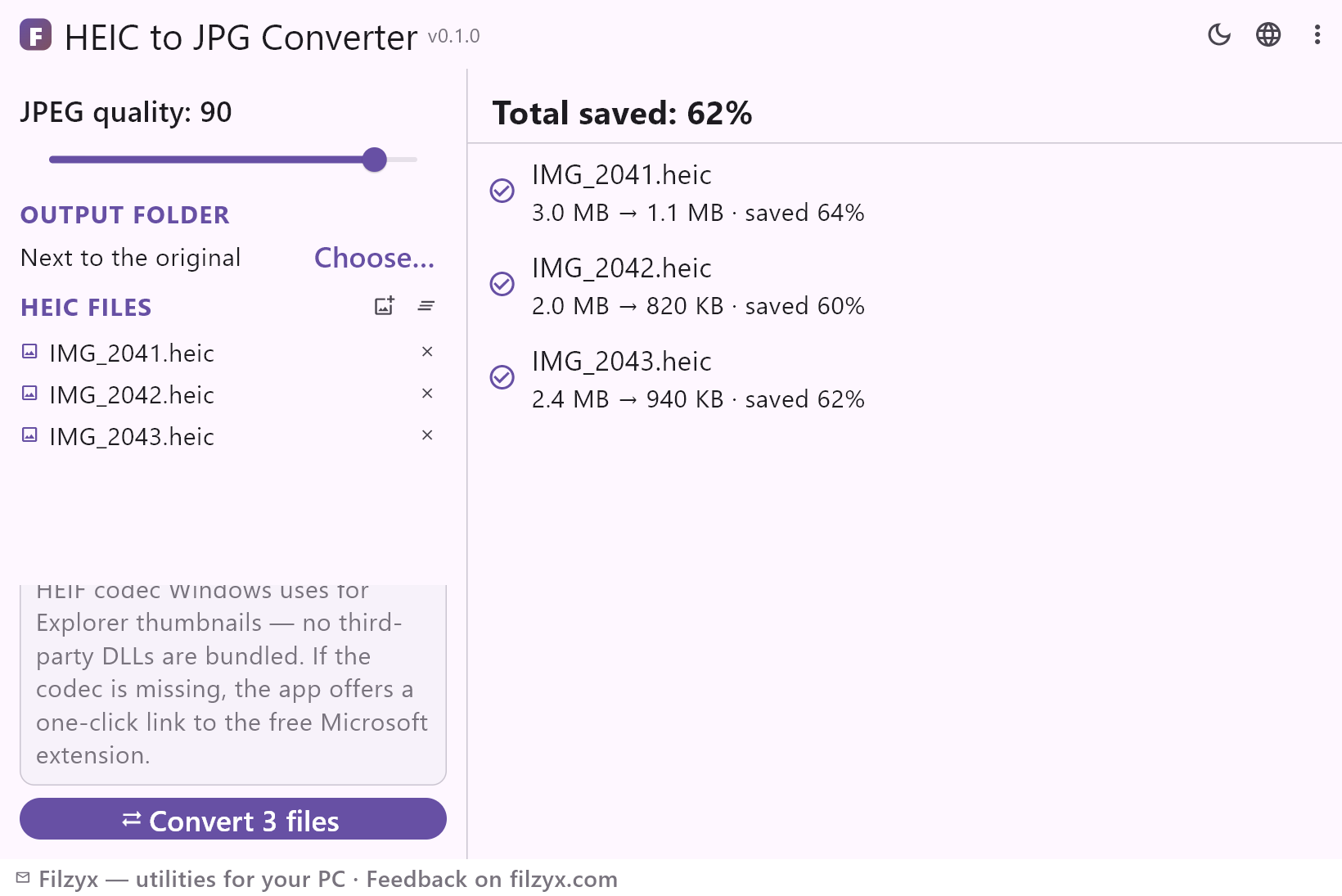
Choose the JPEG quality yourself: 90–95 for printing, 85 for messengers and websites, lower for the smallest possible files. A typical iPhone photo drops from ~3 MB to ~1 MB at quality 90.
Settings: JPEG quality: 90
Batch conversion
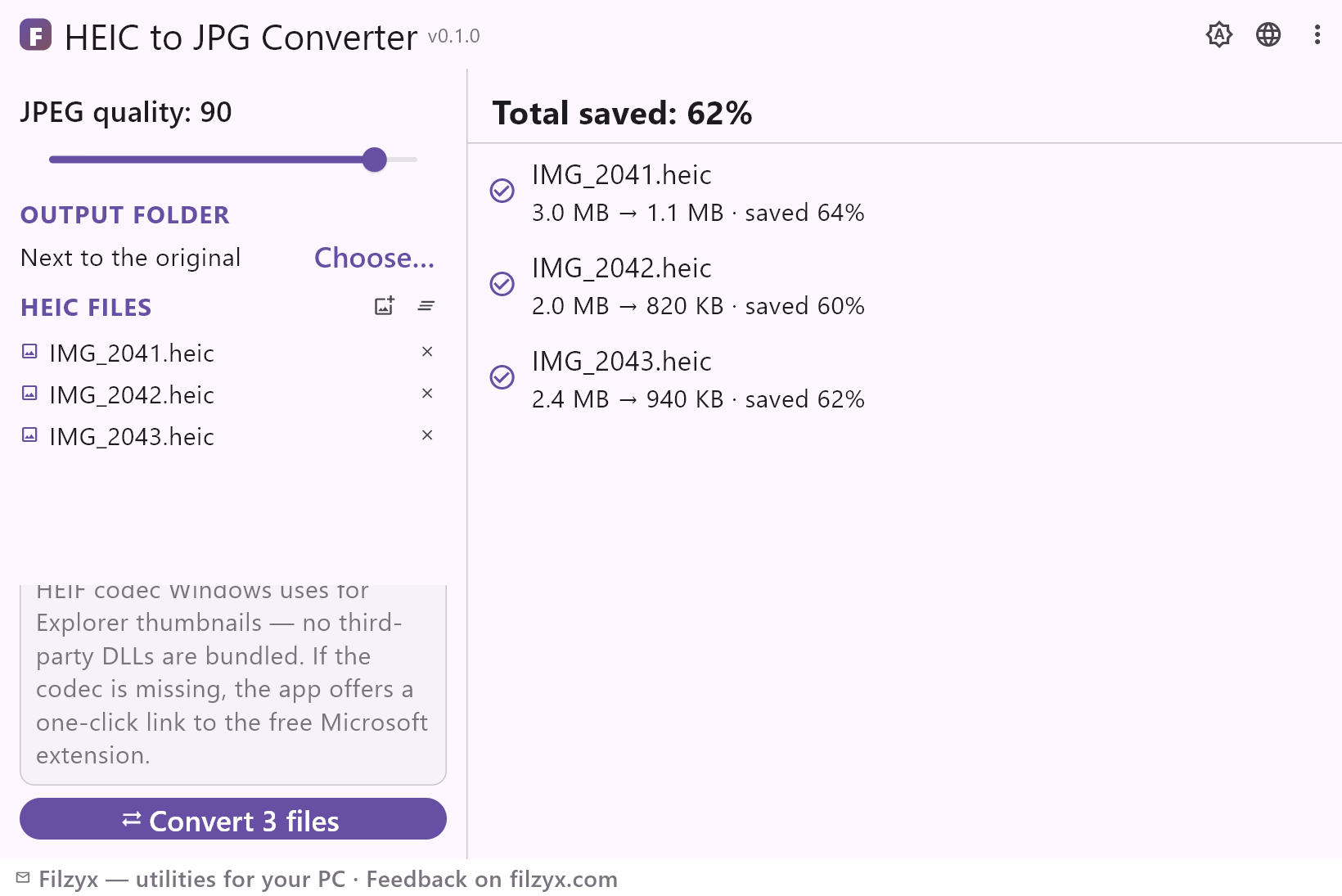
Add any number of HEIC/HEIF files and convert them in one pass — every row shows the file, its before → after size and the share saved, plus the total saved at the top.
Settings: Add HEIC files… / Convert N files
Output folder
Keep the results next to the originals or point the app at any folder — a desktop “JPG” folder, an SD card, a network drive. Originals are never touched.
Settings: Next to the original / Choose…
How to convert HEIC to JPG in 3 steps
- Add the .heic photos from your iPhone — a whole folder at once, or drag and drop.
- Move the JPEG quality slider (90 for print, 85 for messengers and websites) and choose where the results go: next to the originals or into your own folder.
- Press “Convert”: every row shows the before → after size and the percentage saved, and the JPGs land in the chosen folder — originals are never touched.
Windows does not open HEIC on its own
A .heic file is a HEIF container with photos compressed as HEVC — the format iPhones and iPads have used by default since iOS 11. Windows 10/11 does not ship the HEIF codec: without it, Explorer shows generic file icons instead of thumbnails and double-clicking a photo produces an error or opens nothing at all, because Photos and the Explorer preview both rely on the same codec from the Microsoft Store (“HEIF Image Extensions”). Even with the extension installed, saving a JPG is a one-file-at-a-time trip through Photos, with no quality control and no batch. This app keeps the system codec in place of its own: the same decoding Windows uses for thumbnails, applied to a whole batch, with a quality slider and a choice of output folder.
Where HEIC → JPG conversion pays off
Photos from an iPhone first: copying a camera roll to a PC leaves you with .heic files that many programs cannot open. Sending second: messengers, chat apps, job and marketplace forms and most websites reject HEIC — but accept JPG everywhere. Print and archives: photo labs and print shops have no idea what HEIC is, and a JPG from today will still open in twenty years. Older programs: editors, viewers and Office versions from before 2018 usually cannot import HEIC at all. One pass of conversion turns a folder of iPhone photos into files that work everywhere — no per-file fiddling and no leaving your photos on a website.
Your photos never leave the PC
The conversion is local: the app reads each HEIC from your disk, decodes it with the Windows HEIF codec and writes a JPG next to the original or into your folder. Nothing is uploaded to a server, there is no cloud service, no account and no telemetry; the app works with Wi-Fi off and on an air-gapped machine. That matters when the “photos” are scans of documents, screenshots of chats or anything you would not hand to a random web service just to change the file format. Turn off the internet and the conversion behaves identically.
Features
- Batch conversion: a whole camera roll of HEIC/HEIF in one pass
- JPEG quality slider — 90 for print, 85 for sending, lower for tiny files
- Per-file results: before → after size and the share saved
- Output folder of your choice, or right next to the originals
- Uses the same HEIF codec Windows uses for Explorer thumbnails — no third-party DLLs
- If the codec is missing, a one-click link to the free Microsoft “HEIF Image Extensions”
- Originals are never modified — JPGs are written alongside
- Conversion runs entirely on your PC — photos are never uploaded
- Fully offline: works with Wi-Fi off and on an air-gapped machine
- Dark and light themes
- No account, no ads, no telemetry
- 16 interface languages
Screenshots
Guides
Step-by-step guides for Windows:
-
How to convert HEIC to JPG on Windows (iPhone photos) — free
iPhone photos stuck as .heic that Windows won't open? Convert HEIC/HEIF to JPG on Windows 10/11 — the iPhone camera setting, online converters to avoid, and a free offline batch app.
FAQ
- Is HEIC to JPG Converter free?
- Yes — free for Windows 10/11 (x64), with no ads, no accounts and no telemetry.
- What if the HEIF codec is not installed?
- The app detects it and shows a one-click link to “HEIF Image Extensions” — a free Microsoft Store extension that also brings HEIC thumbnails to Explorer. Install it once and both conversion and thumbnails work.
- How many files can I convert at once?
- As many as you like — add a whole camera roll, choose the quality and press Convert. Each file gets its own result row with the before → after size and the share saved.
- Does converting HEIC to JPG reduce quality?
- Any format change decodes and re-encodes the picture once. With quality 90–95 the difference is invisible, and the JPEG is usually noticeably smaller than the original HEIC; lower values trade detail for size.
- Are the original HEIC files modified or deleted?
- Never. The app only reads them: JPGs are written next to the originals or into the folder you choose, and the .heic files stay exactly as they were.
- Can I convert on a laptop without internet?
- Yes. Everything happens on your PC; the network is only needed once to install the free Microsoft HEIF extension if your Windows does not have the codec yet.