

Disk Space Analyzer
Free Windows app that shows what is taking up space on your drive: an interactive treemap, a breakdown by file categories and the largest files list. Cleanup goes to the Recycle Bin, and the interface speaks 16 languages.
What the app finds and shows
Storage overview
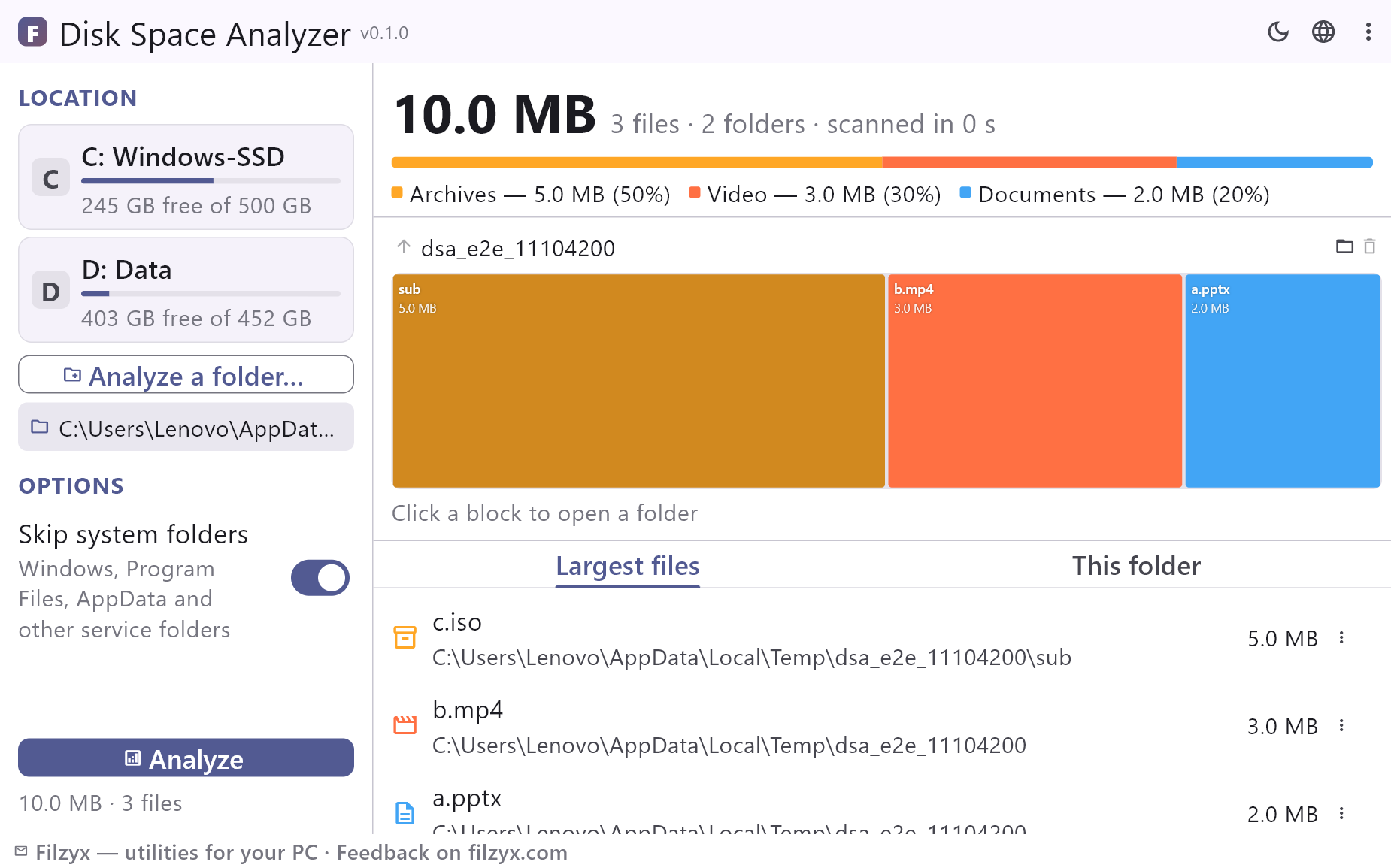
A colour-coded bar with the space split by file categories — video, images, audio, documents, archives, programs, code and other — plus totals for files and folders and the scan time.
Settings: Skip system folders
Interactive treemap
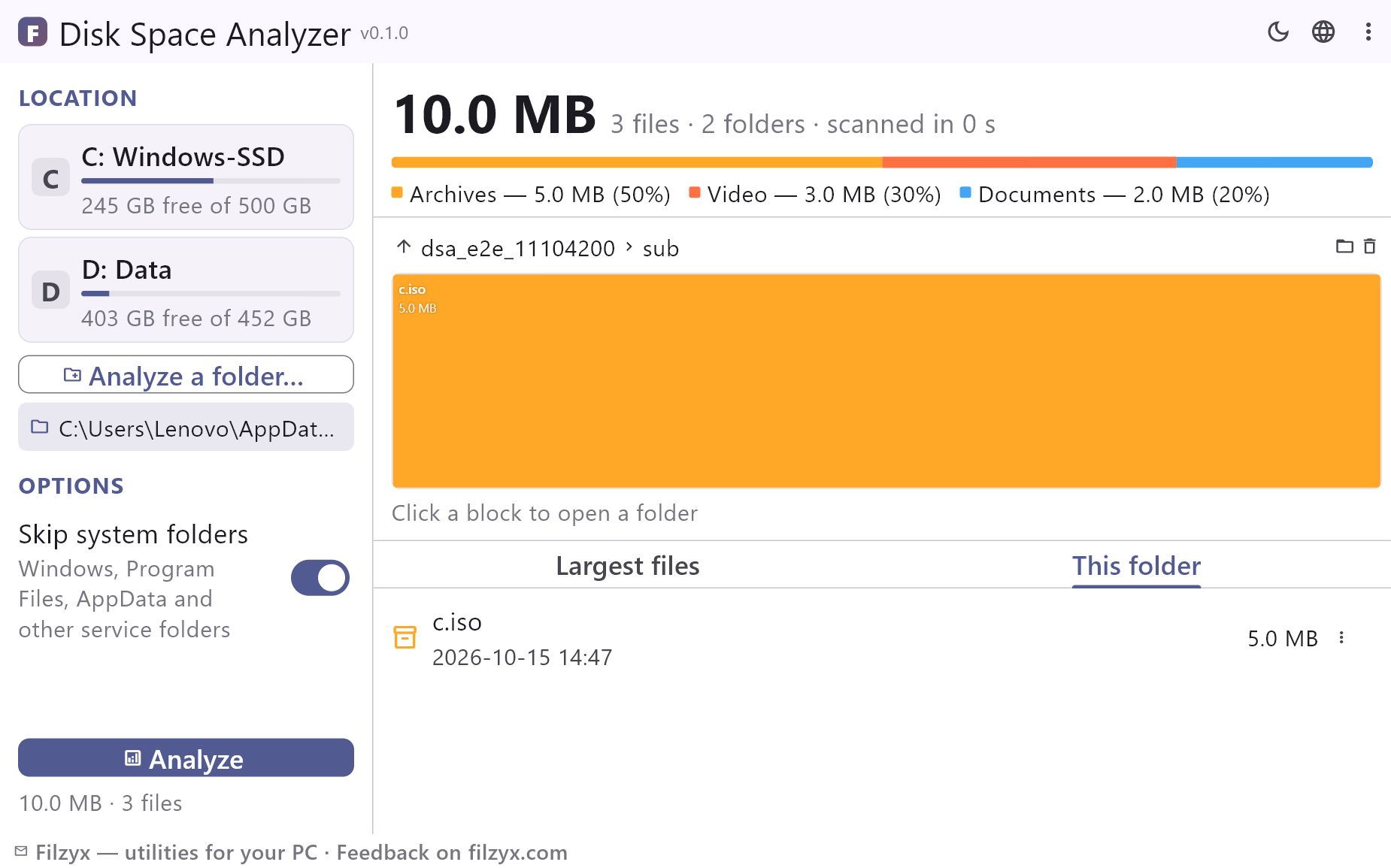
Folders and the largest files drawn as blocks sized by their footprint. Click to drill into a folder, hover for a tooltip, and navigate with breadcrumbs and the up button.
Settings: Treemap navigation
Largest files and cleanup
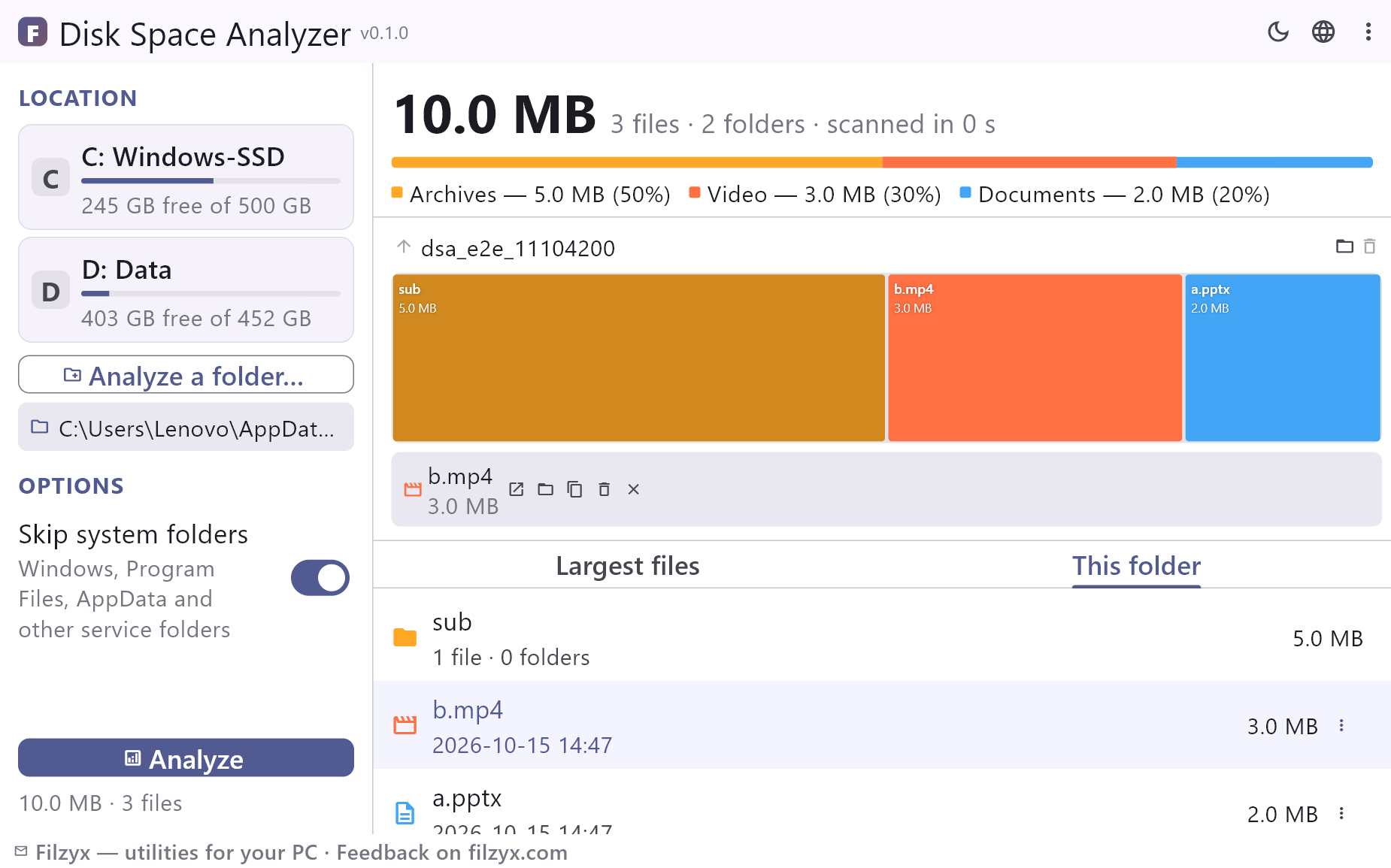
The top 500 files on the scanned drive with their folders and dates — open, show in Explorer, copy the path or move to the Recycle Bin, for files and folders alike.
Settings: File actions
How to see what is taking up disk space in 3 steps
- Pick a drive or a folder on the left and press “Analyze” — system folders can be skipped to make the scan faster.
- Explore the coloured category bar and the treemap: blocks are sized by the space each folder and file really takes. Click a block to open the folder.
- Check the largest files list, then send unneeded files or whole folders to the Recycle Bin right from the app — the numbers update immediately.
Windows built-in tools vs Disk Space Analyzer
Windows 10 and 11 show a storage breakdown in Settings → System → Storage, but it only lists rough categories like “Apps & features” or “Pictures” — it cannot show which exact folder or file is eating the space, and there is no way to explore deeper. Disk Space Analyzer walks the real file tree: every folder gets its true size, shown as an interactive treemap and a top-500 file list. The whole scan is read-only: nothing is changed until you explicitly recycle something.
Treemap: find the culprit in one look
The treemap draws every item as a block whose area is proportional to its size — one glance shows whether the space is consumed by games, video projects, caches or a forgotten Downloads folder. Colours match file categories, so huge media files, archives and programs are instantly recognisable. Click a folder block to open it and keep drilling until the exact culprit is found; hover to see a tooltip with the name and size.
Cleanup without fear: the Recycle Bin
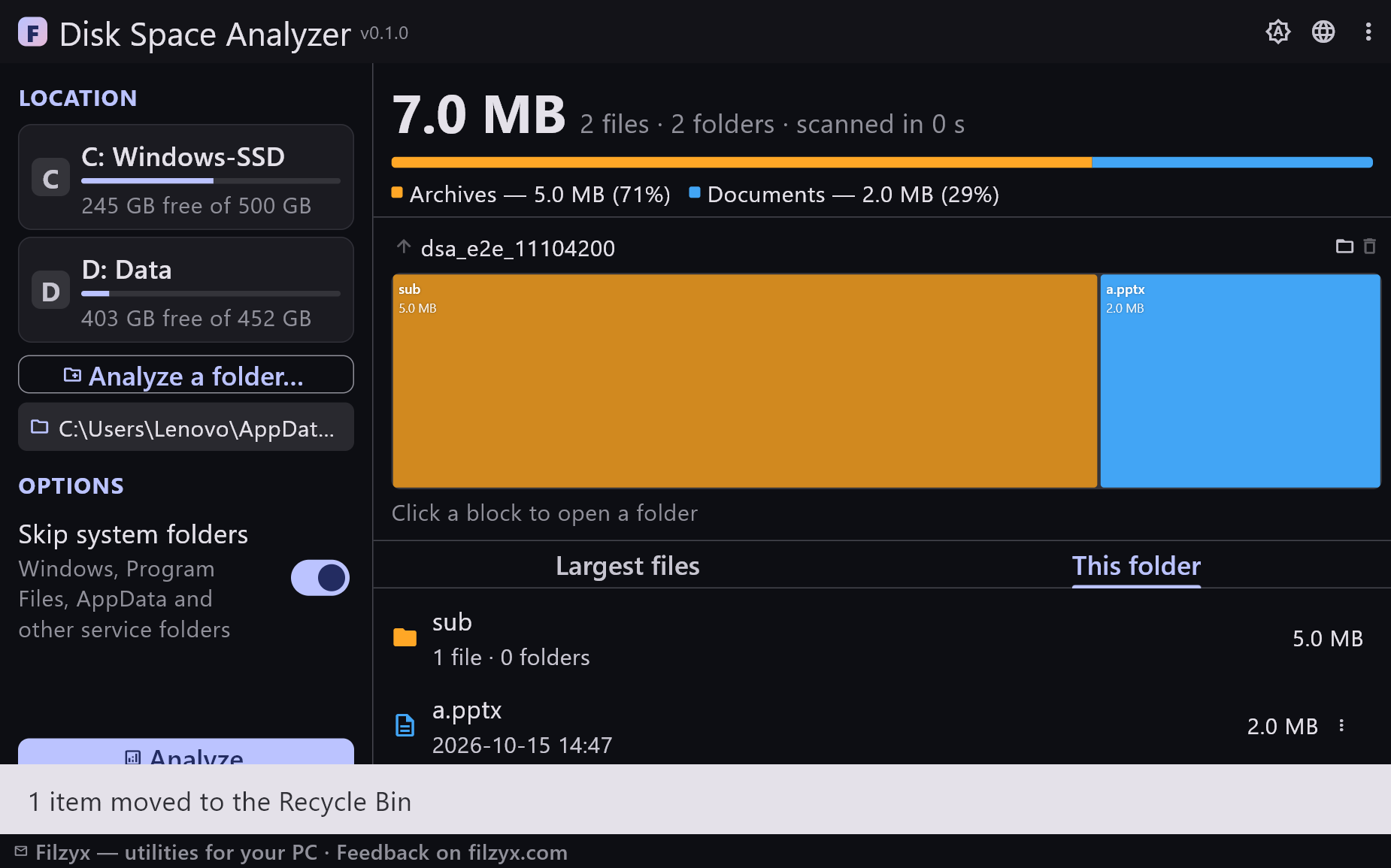
Right from the results you can open a file, show it in Explorer, copy its path, or move it to the Recycle Bin — a folder too, after a confirmation. There is no “auto-clean”: the app never deletes anything on its own. After a deletion the totals and the treemap are recalculated instantly, without repeating the scan.
Features
- Interactive treemap: block area equals the space an item really takes
- Colour-coded breakdown by file categories
- Top 500 largest files with their folders and dates
- Folder content list with sizes and item counts
- Move files and folders to the Recycle Bin right from the results
- Totals recalculated instantly after deletions — no rescan needed
- Skip system folders (Windows, Program Files, AppData…) for fast scans
- Quick scan: only metadata is read, file contents are never opened
- The scan runs in a background process, so the window never freezes; the taskbar icon shows progress when minimised
- Works with internal, external and network drives
- Dark and light themes, settings are remembered
- 16 interface languages; no ads, no accounts, no telemetry
Screenshots
Guides
Step-by-step guides for Windows:
-
What is taking up disk space on Windows? Find out with a free analyzer
Storage settings, manual Explorer tricks and a free treemap analyzer — step by step.
FAQ
- Is Disk Space Analyzer free?
- Yes — free to download and use on Windows 10/11 (x64), with no ads, no accounts and no telemetry.
- How is it different from the Storage settings in Windows?
- Windows shows only approximate categories. Disk Space Analyzer measures every folder and file, visualises them as a treemap and lists the 500 largest files, so the exact culprit is easy to find.
- How long does a scan take?
- The app only walks the folder tree and reads file metadata — file contents are never opened. A typical SSD drive takes about a minute, and you can stop the scan at any moment.
- Can it scan a single folder instead of the whole drive?
- Yes. Pick any folder — Downloads, a game library or a video project — or analyze an entire drive.
- Does it delete files?
- Only when you ask: selected files (or a whole folder) go to the Recycle Bin and can be restored. The app itself never removes anything.
- Does it work with external drives and USB flash drives?
- Yes, any drive visible in Explorer can be analyzed, including removable and network drives.