

File Lock Finder
Free Windows app that answers “who is locking this file?”: Windows itself reports the processes holding it open — names, PIDs, one click, read-only.
What the app finds and shows
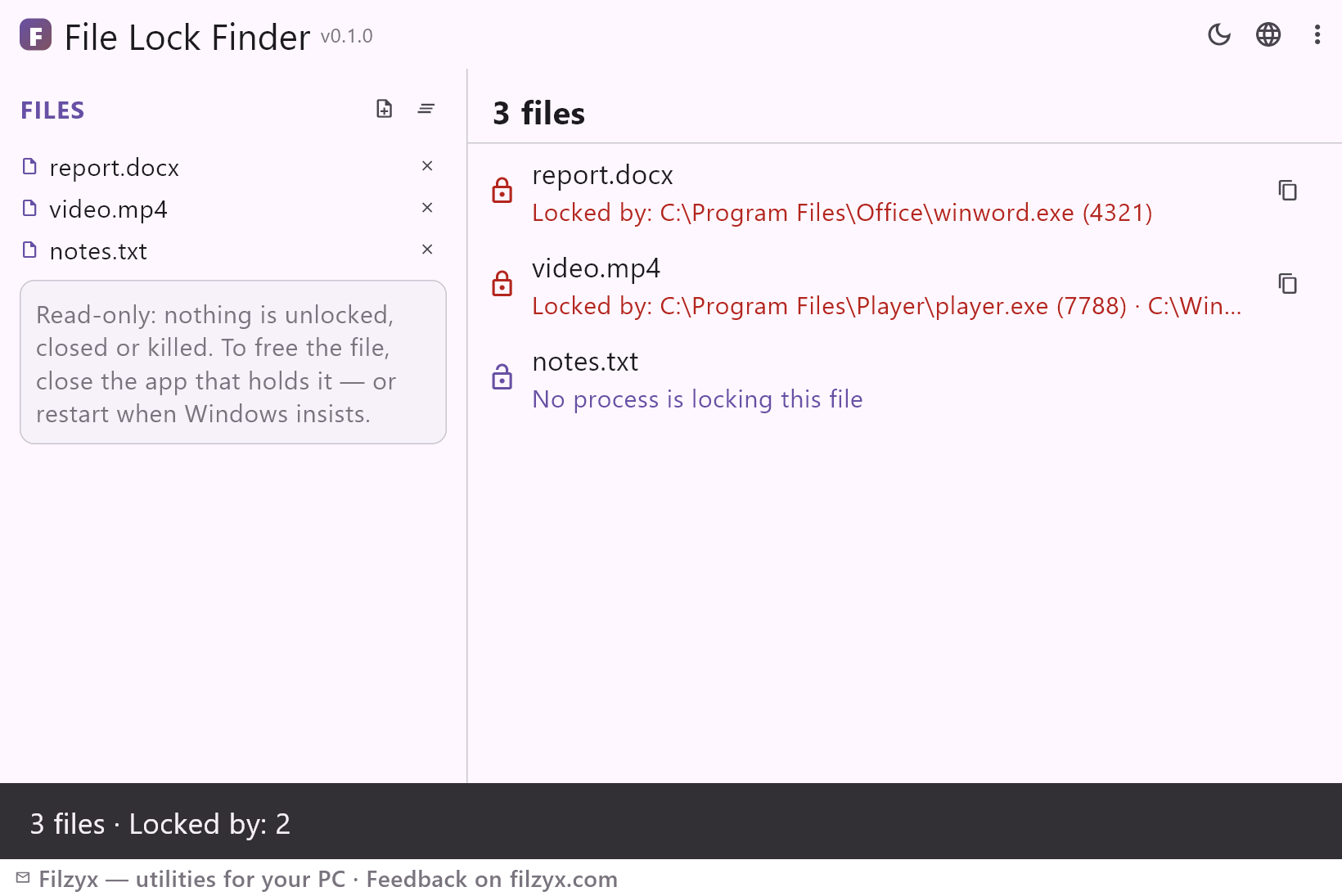
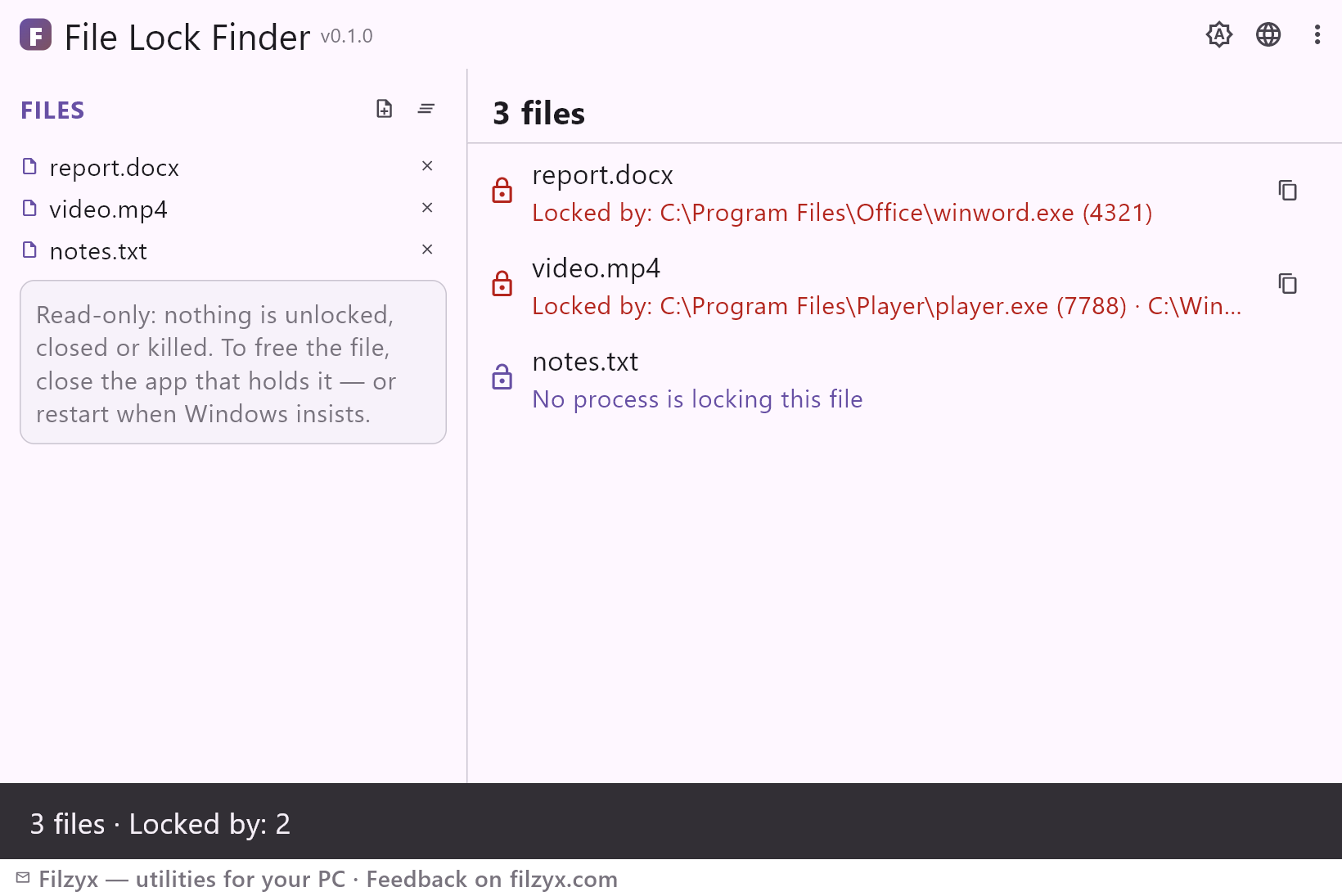
Batch lock check
Add one file or a whole list, press Check: every file gets its own answer — locked by whom, or honestly “no process is locking this file”.
Settings: Files list remembered
Names and PIDs
Each holder is listed with its full process name and PID — exactly what you type into Task Manager's Details tab to end it once you decide to.
Settings: One-click copy of the list
Read-only reporting
No force-unlock, no killing: the app reports and steps aside. Works without admin rights, fully offline.
Settings: Safe by design
How to find out what is locking a file in 3 steps
- Add the file that refuses to delete, move or overwrite — or a whole batch of files.
- Press “Check” — Windows reports every process holding the file open, with name and PID.
- Close the named program (or restart if Windows insists) and repeat the operation that failed.
Windows knows — and hides it well
The “file is in use” dialog names no names, and the built-in ways to find out are famously awkward. Resource Monitor can search associated handles (Performance tab → CPU → Associated Handles — after you already opened Resource Monitor, found the tab, and guessed the file-name filter). `openfiles /query` needs an obscure system flag enabled and admin rights. Even Task Manager's “app history” pointers usually dead-end. Meanwhile Windows already has the perfect engine for the answer: the Restart Manager API — the same one installers pop up during updates with a precise list of holding programs. File Lock Finder calls it directly and shows you that list for any file you pick.
Everyday locks this untangles
A folder that refuses to delete because one file inside is open in a viewer you forgot about. A build output that a zombie compiler process still holds. A video you want to move while a player quietly plays it. An uninstaller that demands a restart because “a file is in use” — check which one and close it cleanly instead. Or a cloud-sync client fighting you over a document. In all of them the pattern is the same: stop guessing, see the process, decide consciously. Batch mode checks a whole list of files at once — handy after a failed cleanup when several files complain in a row.
Read-only on purpose
There is no “force unlock” button, and that is a feature: force-unlocking a file that a database, editor or sync client holds open is how data gets corrupted. File Lock Finder only reports — name, PID, and whether the holder is a desktop app, a service or a console process — and lets you close the holder like a grown-up. Results can be copied for a bug report or a support ticket. The tool needs no admin rights, sends nothing anywhere, and works offline.
Features
- Shows every process locking a file — name and PID
- Uses the Restart Manager API that installers rely on
- Batch mode: check a whole list of files at once
- Honest “no process is locking this file” answer
- Holder types: desktop app, service, console
- Copy the whole result for bug reports and tickets
- Read-only — nothing is unlocked, closed or killed
- No admin rights needed; works offline
- Typical fixes: stubborn folders, build artifacts, videos in players, uninstall restarts
- The file list is remembered between runs
- Dark and light themes
- 16 interface languages, no ads, no telemetry
Screenshots
Guides
Step-by-step guides for Windows:
-
How to find what is locking a file on Windows (free)
“The file is in use by another program” without a name? See the exact process holding any file open on Windows 10/11 — Resource Monitor, PowerShell notes, and a free one-click reader.
FAQ
- Is File Lock Finder free?
- Yes — free to download and use on Windows 10/11 (x64), with no ads, no accounts and no telemetry.
- How is this different from Resource Monitor?
- Same idea, different traffic: Resource Monitor requires several digging steps to search handles one by one; this app takes a file path (or a batch), answers in a second and shows names + PIDs in one list.
- Can it unlock the file for me?
- Deliberately no. It shows the holding process; you close that program yourself. Force-unlocking from outside can corrupt the data the program is working with.
- The file shows “no process is locking it” but deletion still fails
- Then the lock is likely at directory or antivirus level, or a process with a sharing violation window; retry in a moment or reboot — the tool reports only real open handles.
- Does it need administrator rights?
- No. A normal user can query the Restart Manager for files they can access.
- Does it work for files on network drives?
- Restart Manager answers for local files; network shares are locked on the server side, where only that server's tools can see the holder.