
Image Compressor
Free Windows app that makes photos and screenshots smaller — pick a JPEG quality from 10 to 95 or an exact target size in KB/MB, cap the max side, and read “saved N%” on every file. Fully offline, and originals are never overwritten.
What the app finds and shows
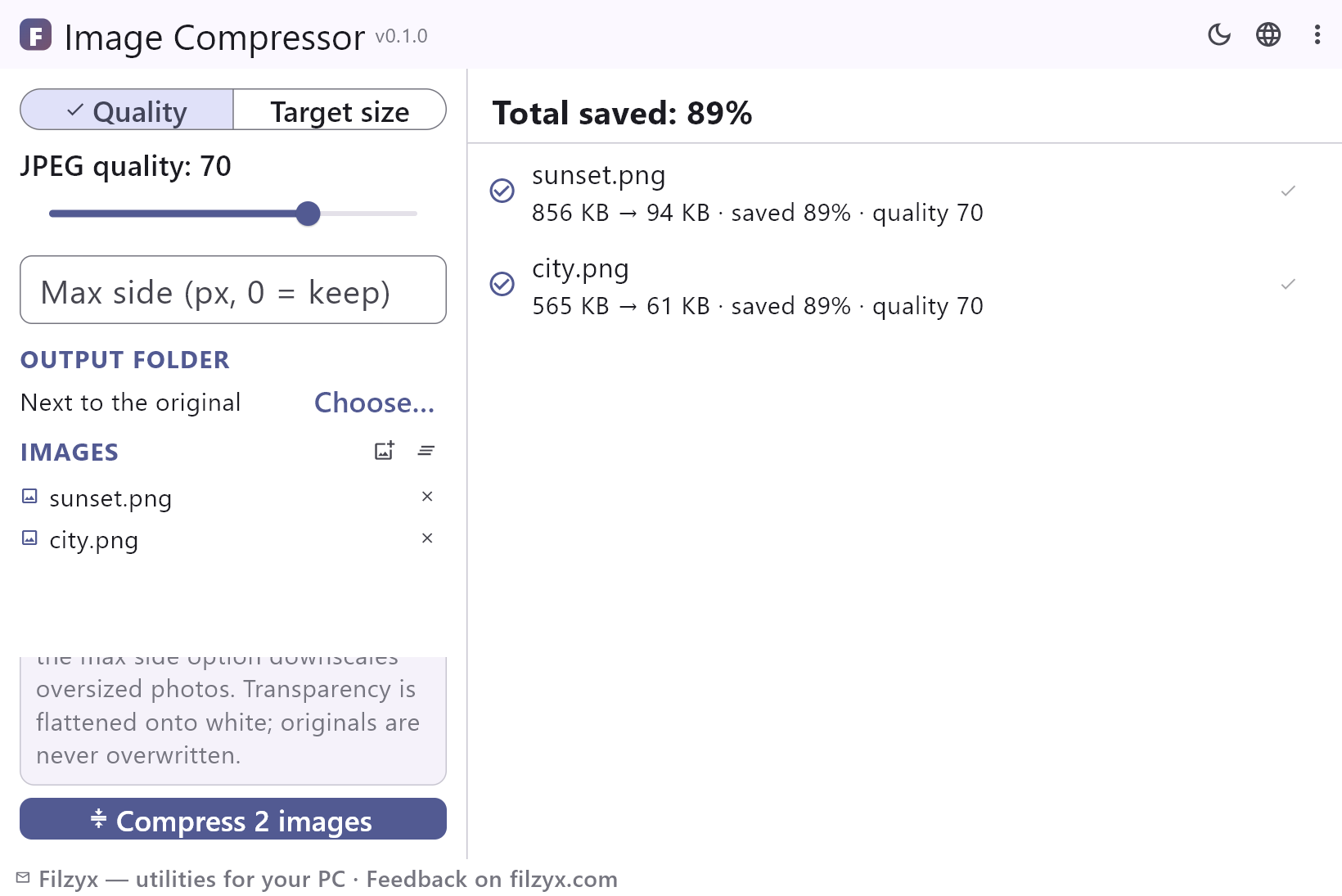
Quality (JPEG 10–95)
Slide the JPEG quality from 10 to 95 and watch every file shrink: each row reports the new size, “saved N%” and the quality used, so you can find the lowest value that still looks right.
Settings: JPEG quality: 80 (default)
Target size (KB/MB)
Type a limit — 500 KB, 2 MB — and the app binary-searches the JPEG quality until the file fits, reporting the quality it settled on and “target not reached” if the limit is impossible.
Settings: KB / MB switch
Max side and output folder
Cap the longest side in pixels so oversized photos are downscaled before saving, and send results next to the original or into a folder of your choice — the sources stay untouched either way.
Settings: Max side (px, 0 = keep) · Choose…
How to compress photos in 3 steps
- Add images — JPEG, PNG, WebP, BMP, GIF or TIFF; the list is remembered between runs.
- Pick a mode: Quality (slide JPEG quality 10–95) or Target size (type KB or MB and let the app binary-search the quality), and set a max side in pixels if you need smaller dimensions.
- Press “Compress N images” — every file shows its new size and “saved N%”, the header totals the batch, and the originals stay untouched.
“Compress image online” really means “upload your photo somewhere”
Windows has no built-in way to make a photo smaller. Paint can save a copy as JPEG, but with no quality control, no target size and one file at a time; the Photos app can shrink the dimensions of a copy, which does nothing about a bloated JPEG. The usual answer is a web compressor — and the catch is in the verb: your photo is uploaded to a stranger's server, waits in a queue, comes back re-encoded, and the free tier may add a watermark, a daily limit or a hard upload cap. For a snapshot that is a trade; for documents, family photos or work material it is a data leak. Image Compressor does the whole job on your PC: JPEG quality 10–95 or an exact target size, an optional max side, and a “saved N%” line under every file.
Where compressing pays off
Sending first: mailboxes reject attachments over 20–25 MB while phones shoot 4–8 MB photos, so a few pictures can already bounce — compressed to around 1 MB each, the same message goes through. Messengers next: a chat that opens in a second instead of ten saves mobile data on every send. Disk and backups: a photo archive that halves in size frees real space and copies faster to an external drive. Websites and online forms: pages load quicker and “photo up to 2 MB” limits stop being a problem when you can type the exact target instead of guessing. And batches: a whole folder of screenshots or scans shrinks in one run, with the total savings shown in the header.
Your photos stay on your PC
Image Compressor is a local tool, not a service: pictures are decoded, downscaled and re-encoded on your own machine, and there is no server in the loop — nothing is uploaded, not even for a moment. That matters for scans of documents, family albums, work material and anything under NDA; turn off Wi-Fi and compression behaves exactly the same. There is no account to create, no ads, no telemetry and no background service: the only new files on your disk are the compressed copies you asked for. Close the app and it leaves nothing else behind.
Features
- JPEG quality slider from 10 to 95
- Target-size mode: binary search for the exact KB/MB limit
- “Saved N%” on every file plus total savings in the header
- Max side limit downscales oversized photos before saving
- Output next to the original or in a folder you choose
- Originals are never overwritten — outputs are new .jpg files
- Transparency is flattened onto white, not black
- Batch processing: a whole folder in one run with a progress line
- “Target not reached” is stated honestly instead of pretending
- JPEG, PNG, WebP, BMP, GIF and TIFF input, always JPEG output
- Fully offline — nothing is uploaded anywhere
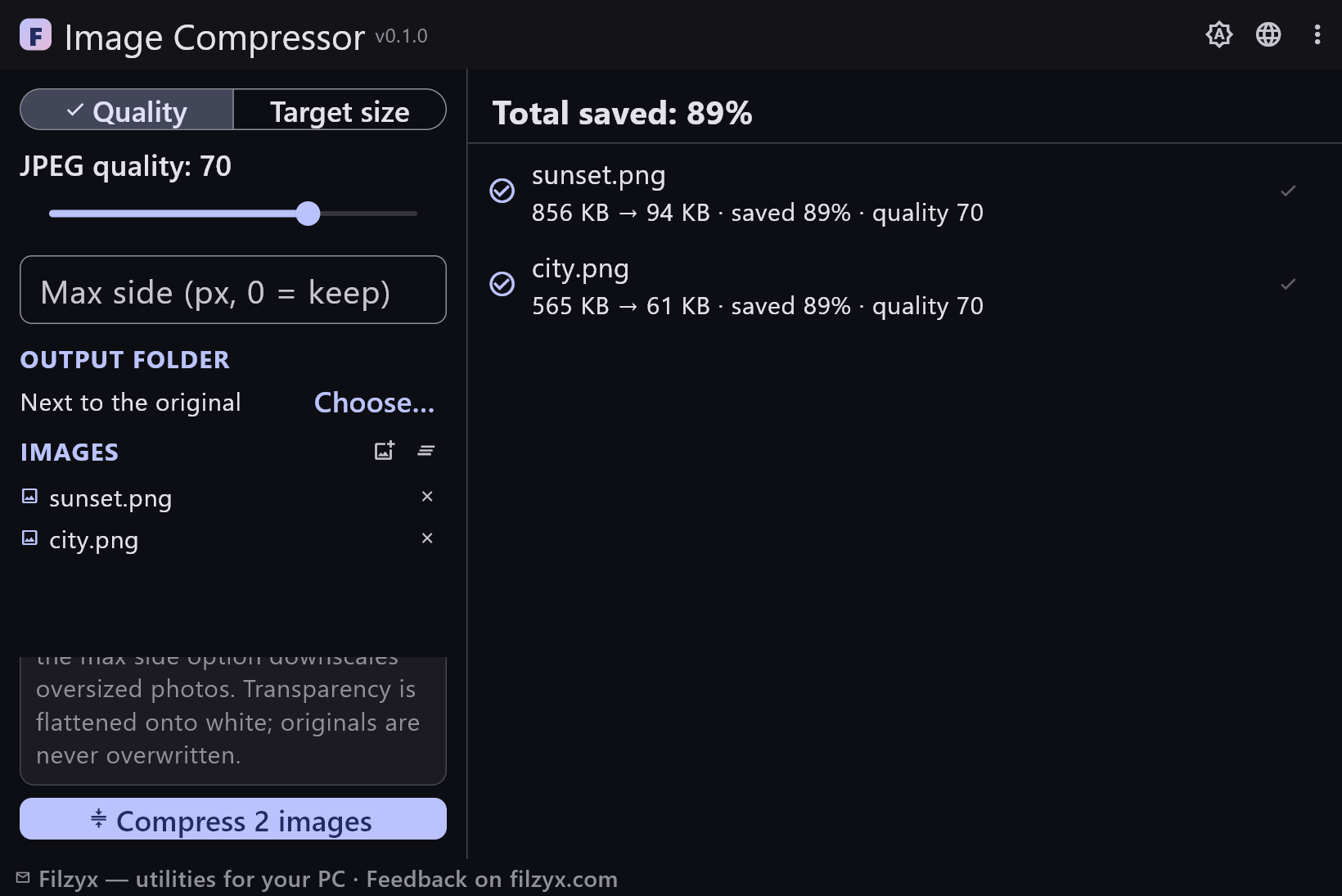
- Dark and light themes, 16 interface languages, no ads or accounts
Screenshots
Guides
Step-by-step guides for Windows:
-
How to compress images on Windows (free, offline) — quality or exact size
Compress photos and screenshots on Windows 10/11: what the built-in Paint route can and cannot do, why online compressors upload your files, and a free offline app that hits an exact KB/MB target without touching the originals.
FAQ
- Is Image Compressor free?
- Yes — free for Windows 10/11 (x64), with no ads, no accounts and no telemetry.
- Quality mode or target size — which should I use?
- Quality is for predictable results: 75–85 looks identical to the original for most photos, and going lower trades detail for bytes. Target size is for hard limits: type 2 MB (or 500 KB) and the app binary-searches the JPEG quality until the file fits, reporting the quality it used.
- Will my originals be changed?
- Never. The output is a new .jpg next to the original — sunset.png becomes sunset.jpg — or in the folder you choose; a “-1” suffix is added when the name is taken, and the source file is not touched.
- What happens to transparency?
- It is flattened onto white — the standard behaviour of JPEG, which has no alpha channel — instead of turning black, so logos and screenshots with transparent areas stay usable.
- Can I also make the pixel dimensions smaller?
- Yes — set a max side in pixels and any image whose longest side is larger is downscaled proportionally before saving. Leave it at 0 to keep the original dimensions.
- What does “saved N%” mean?
- The reduction compared with the original file: 4.8 MB → 620 KB is saved 87%. Each row also shows the quality that was used, the header sums up the whole batch, and “target not reached” appears when even the lowest quality overshoots the limit.