

Dead Pixel Test
Free Windows app that checks a monitor for dead, stuck and hot pixels: fullscreen solid colours, a smooth gradient and a flashing stuck-pixel fix mode. No browser, no ads, works offline.
What the app finds and shows
Fullscreen colour walk
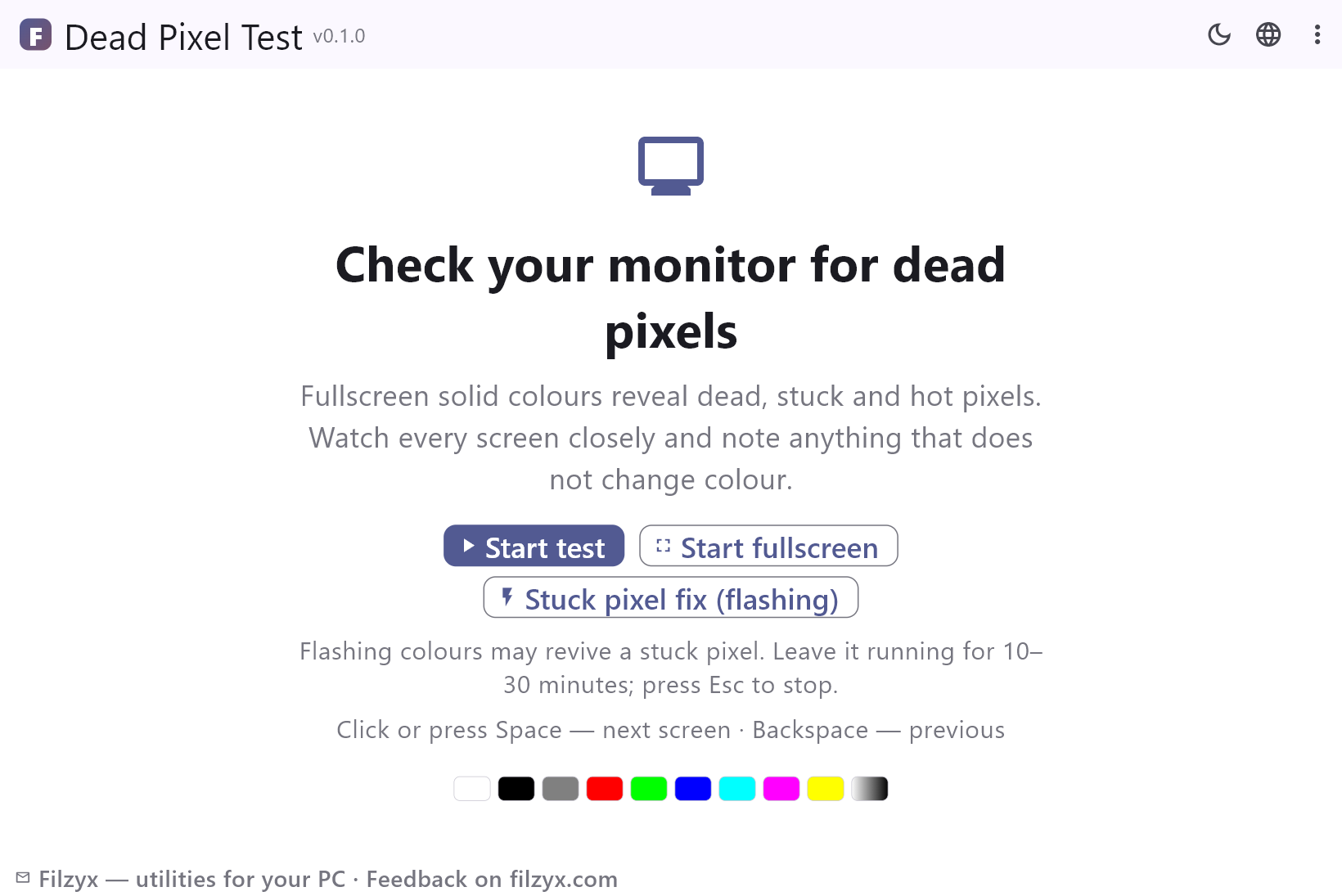
Ten screens: white, black, gray, red, green, blue, cyan, magenta, yellow and a smooth gradient. Click or Space for the next one, Backspace for the previous, F for true fullscreen, Esc to exit.
Settings: Click / Space / Backspace keys
Stuck pixel fix (flashing)
Rapid full-panel colour flashing at ten cycles per second — the classic trick that often revives a stuck pixel. Leave it for 10–30 minutes; Esc stops.
Settings: Runs until Esc
Subtitle-free reading
A subtle counter in the corner tells you which screen is shown; everything else stays out of the way so nothing hides a single pixel.
Settings: Works fully offline
How to test a monitor for dead pixels in 3 steps
- Press “Start fullscreen” — the screen turns white: look for any dot that stays black.
- Click or press Space to walk through all colours: black reveals stuck bright pixels, colours reveal dead and hot ones.
- Spot a stuck pixel? Open the flashing fix mode and leave it running for 10–30 minutes — it often brings the pixel back.
Why an offline test beats browser sites
Online dead pixel tests are everywhere, but they run inside a browser: tabs, toolbars and the cursor stay visible, fullscreen often drops out mid-test, and most pages are wrapped in ads. Dead Pixel Test is a tiny exe: the colour really covers the whole screen, F toggles true fullscreen, and a small semi-transparent counter tells you which screen you are on without getting in the way. It also works when the machine has no internet at all — useful right after unboxing a new monitor or a laptop.
What each screen reveals
A dead pixel never lights up: it stays black on the white, red, green and blue screens. A stuck pixel stays on: it glows through the black screen and shows the wrong colour on the others. A hot pixel is always white and pops on the black screen. The smooth gradient screen also exposes clouding, banding and the backlight bleed that plain colours hide. Walk through every screen without rushing — a single 1-pixel dot on a 4K panel is easy to overlook.
Can a stuck pixel be fixed?
Sometimes. A stuck pixel is not dead hardware — the liquid crystal just sits in the wrong state, and rapid colour flashing often shakes it loose. The built-in fix mode cycles colours ten times a second across the whole panel; leave it running for 10–30 minutes and check again. Dead pixels never recover, and every manufacturer has its own “acceptable” number of them: if the monitor is new, run this test during the return window while the evidence is easy to record.
Features
- Fullscreen solid colours: white, black, gray, red, green, blue, cyan, magenta, yellow
- Smooth gradient screen exposes banding and backlight bleed
- Stuck pixel fix mode: flashing colours, the classic revival trick
- Click, Space and Backspace navigation; F for true fullscreen; Esc to exit
- Subtle counter and hint overlays that never cover the panel area
- Colour legend on the home screen shows the whole sequence up front
- Works completely offline — nothing to load, no browser involved
- Also handy for checking a laptop panel right out of the box
- Tiny silent exe, no background services
- Dark and light home screens, interface in 16 languages
- No ads, no accounts, no telemetry
- Free to download and use
Screenshots


Guides
Step-by-step guides for Windows:
-
How to test a monitor for dead pixels (free)
Step-by-step: check a monitor or laptop screen for dead, stuck and hot pixels with fullscreen colours — and try the flashing trick that often revives a stuck pixel.
FAQ
- Is Dead Pixel Test free?
- Yes — free to download and use on Windows 10/11 (x64), with no ads, no accounts and no telemetry.
- How do I tell a dead pixel from dust?
- Dust sits on the surface: switch to white and wipe the spot with a soft cloth. A dead pixel does not move and stays black on every colour.
- Can a stuck pixel really be fixed?
- Often, yes — running the flashing mode for 10–30 minutes revives many stuck pixels. Dead pixels (always black) are a hardware failure and cannot be fixed.
- Does it work without internet?
- Completely — it is a small offline Windows app, not a web page.
- Which screens does the test show?
- White, black, gray, red, green, blue, cyan, magenta, yellow and a smooth black-white gradient, plus the flashing stuck-pixel fix mode.
- How many dead pixels are acceptable?
- It depends on the manufacturer and the class of the panel — some accept a few, others advertise zero-bright-pixel guarantees. If the screen is new, test it during the return window.