

Startup Manager
Free Windows app that shows everything that starts with your PC — Registry Run and RunOnce entries and the Startup folder — and toggles each one on or off with the same StartupApproved mechanism as Task Manager. Nothing is deleted; user entries need no administrator rights.
What the app finds and shows
One list, every location
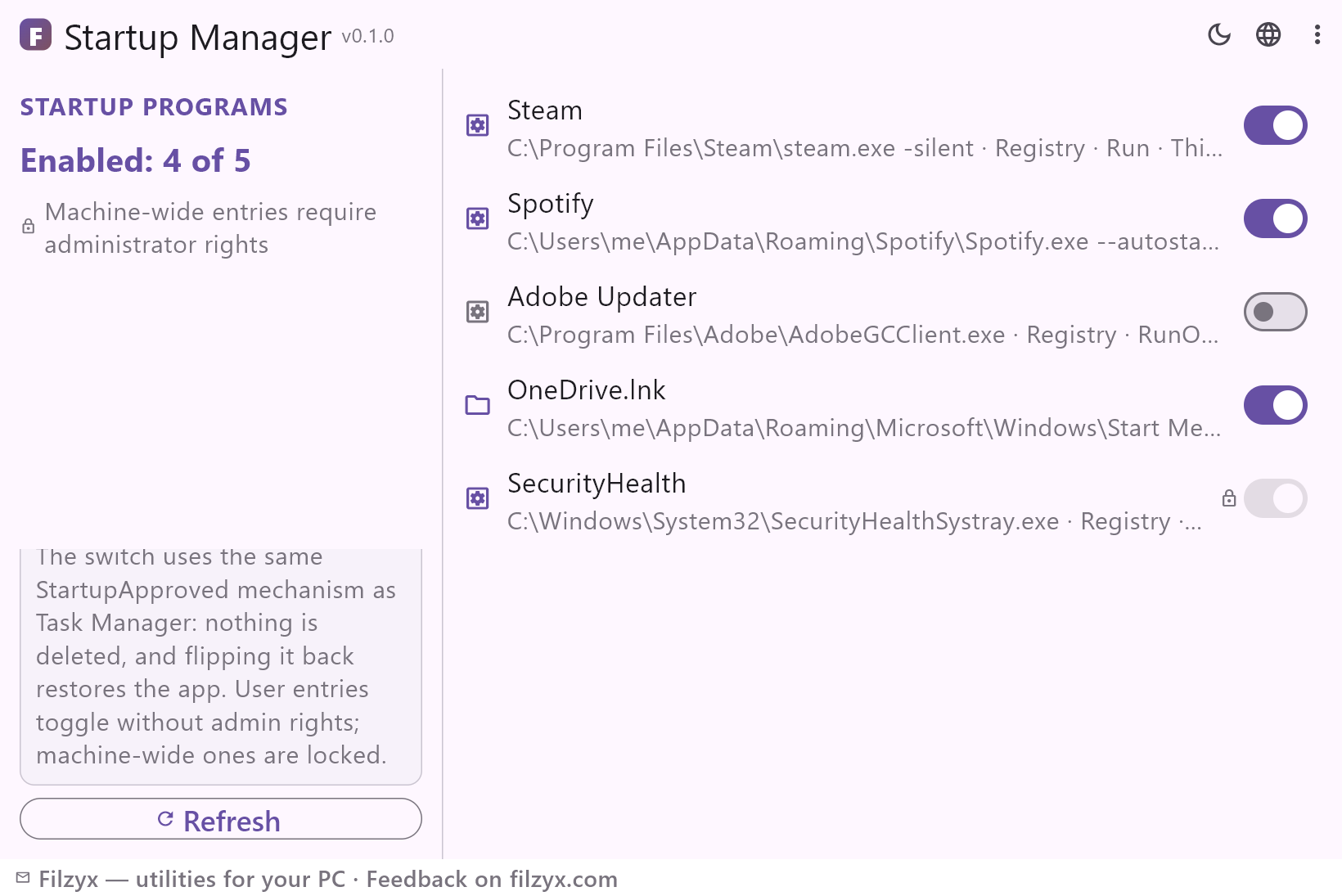
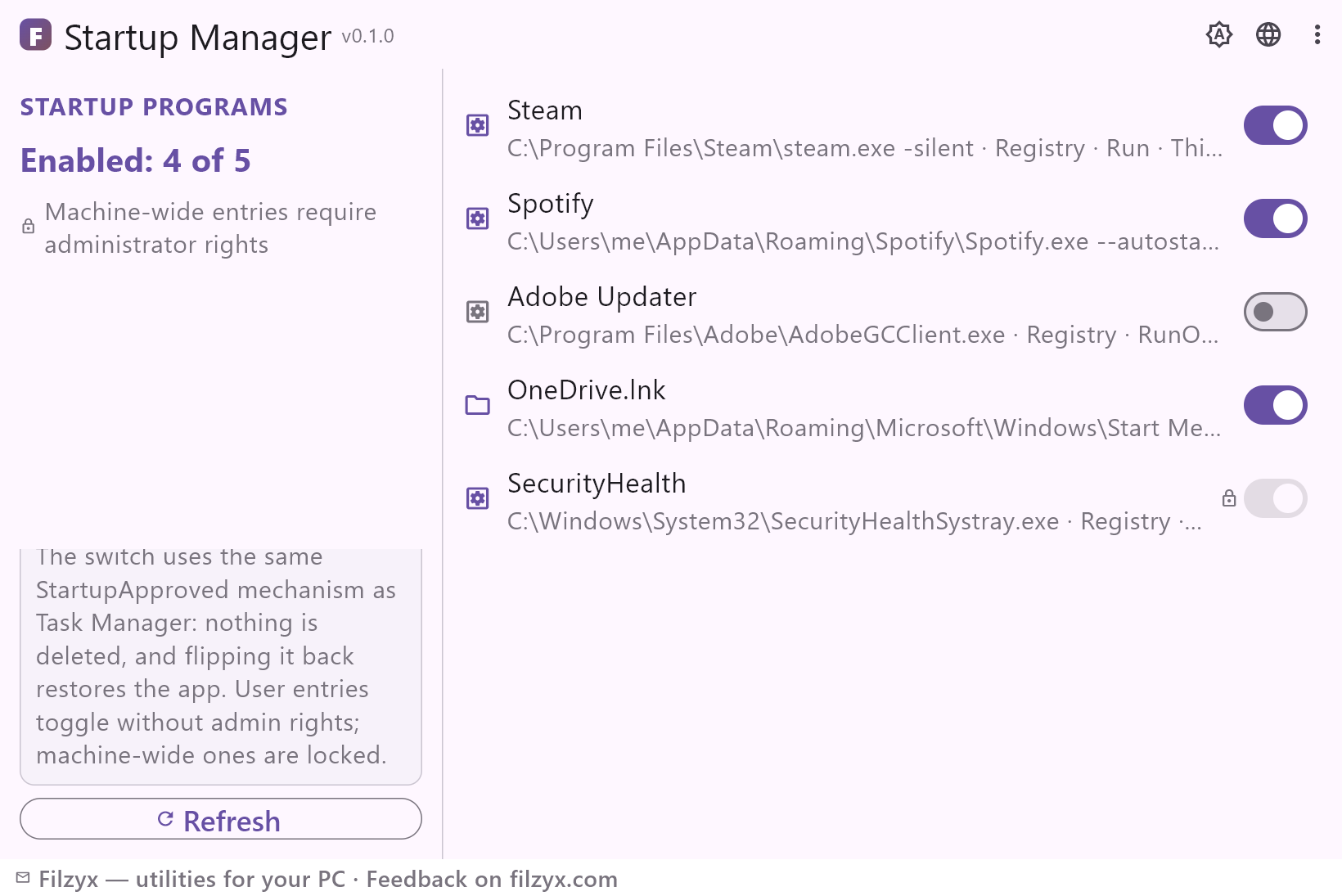
Run and RunOnce entries from the registry plus both Startup folders are merged into a single list — every item with its exact command, its source and its current state.
Settings: Registry · Run / RunOnce · Startup folder
Task Manager-compatible switch
The toggle writes the same StartupApproved flag as Task Manager: nothing is deleted, the entry keeps its place, and turning it back on restores the program.
Settings: On / off — reversible
User and all-users scopes
Entries are labelled This user or All users: user entries toggle without administrator rights, machine-wide ones are shown with a lock. Refresh re-reads everything.
Settings: This user / All users · Refresh
How to manage startup programs in 3 steps
- Open Startup Manager: it reads the Run and RunOnce keys and both Startup folders and lists every entry with its command and source.
- Turn off what you do not need at sign-in with the switch — the app writes the same StartupApproved flag as Task Manager, and the entry stays in place.
- Flip the switch back at any time to make the program start with Windows again: disabled entries never disappear from the list.
Task Manager hides the details — this app does not
Task Manager's Startup apps tab is enough to silence a noisy program, but it keeps the essentials out of sight: you see a name and an impact rating, not the command that will actually run, nor the exact key or folder the entry lives in. RunOnce entries — installers that schedule a task for the next sign-in — barely show up there at all, and the Startup folder in the Control Panel tells you even less: just shortcuts, no state, no explanation. Startup Manager reads the same sources and shows what they really contain: every entry with its command, its location (Run, RunOnce, Startup folder) and its scope, so the decision to disable something is an informed one.
Where a startup manager pays off
The obvious case: sign-in takes forever, and something invisible is doing the waiting. The list usually explains it — three updaters, two game launchers and a cloud client all racing to update themselves at once. Less obvious: the quiet updaters you installed months ago and forgot about (Spotify, Steam, OneDrive, Adobe's helpers) are the most common reason a fast PC starts slowly. After installing new software, the list is a quick audit of what just sneaked into startup. And when a laptop drains overnight or boots slower after an update, checking who autostarts is the first diagnostic step — you instantly see who is enabled and how many entries there are.
Reads the registry, writes one flag
Startup Manager reads the Run and RunOnce keys and the Startup folders locally — there is no server, no account and no telemetry, and nothing about your programs leaves the PC. The only thing the app ever writes is the on/off flag in StartupApproved; it never deletes a registry value or a shortcut, so every switch is reversible. That is also why it is safe to try on a work laptop: reading startup entries is all it does until you decide to flip a switch.
Features
- Every autostart location in one list: Run, RunOnce and both Startup folders
- The exact command behind every entry — not just the display name
- Each item labelled with its source: Registry · Run, Registry · RunOnce, Startup folder
- On/off with the same StartupApproved flag as Task Manager
- Nothing is deleted — every switch is reversible at any time
- User entries toggle without administrator rights
- All-users entries are shown with a lock icon
- Scope at a glance: This user or All users
- Enabled counter: how many of the total are on
- One click refreshes the registry and folder scan
- Free, no account, no ads, no telemetry — reads local data only
- 16 interface languages
Screenshots
Guides
Step-by-step guides for Windows:
-
How to manage startup programs on Windows (free)
Step-by-step: see what starts with Windows 10/11 — Registry Run/RunOnce, the Startup folder and Task Manager — and disable entries safely, with or without a free app.
FAQ
- Is Startup Manager free?
- Yes — free for Windows 10/11 (x64), with no ads, no accounts and no telemetry.
- Does disabling an entry delete it?
- No. The switch writes the same StartupApproved flag Task Manager uses: the registry value or shortcut stays exactly where it was, and flipping the switch back makes the program start with Windows again.
- Where does the list come from?
- From the Run and RunOnce registry keys (current user and all users) and the per-user and all-users Startup folders — the same locations Windows itself reads at sign-in.
- Do I need administrator rights?
- No for entries of the current user. Entries for all users are listed but locked in this version — they require administrator rights and are shown with a lock icon.
- Why does Task Manager show fewer entries?
- Task Manager's Startup apps tab leaves out RunOnce entries and never shows the command or the exact key behind a name. Startup Manager shows every location with its command and source.
- Can I still launch a disabled program manually?
- Yes — the switch only affects automatic start at sign-in. Launching the program from its shortcut or the Start menu works exactly as before.