
Mouse Click Test
Free Windows app that counts left, middle and right clicks, measures clicks per second and tests your double-click speed against a 250–900 ms threshold. Fully offline — no click history is recorded.
What the app finds and shows
Click counter
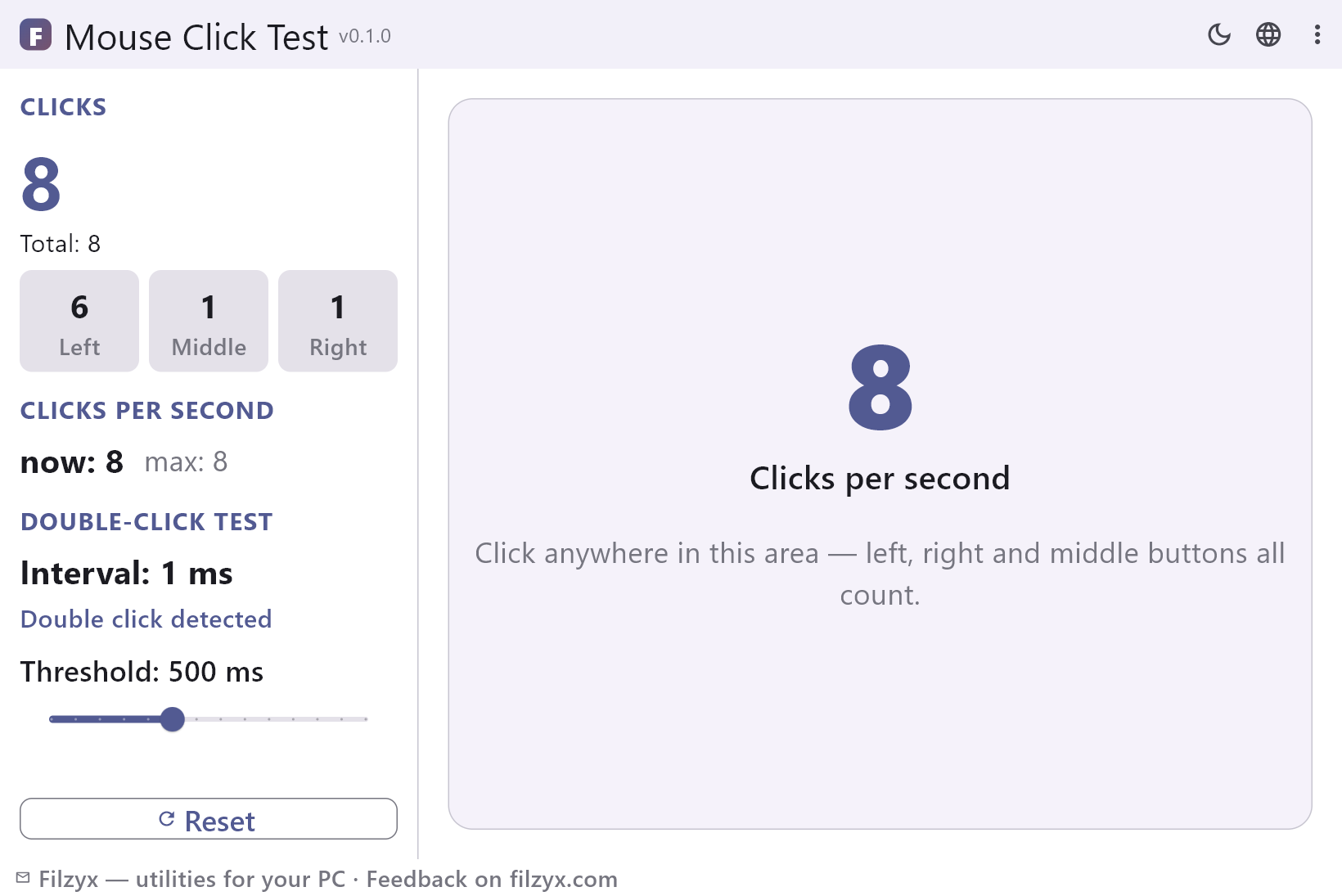
Left, middle and right buttons counted separately with a running total; every press updates the big number and the per-button chips instantly.
Settings: One window, three buttons
Clicks per second
A live meter of clicks in the last second plus the best burst since the last reset — the number gamers compare against.
Settings: Now and max, live
Double-click test
Times the gap between your last two clicks and compares it with the threshold slider: 250–900 ms, 50 ms steps, 500 ms by default.
Settings: Threshold slider 250–900 ms
How to test your mouse in 3 steps
- Click anywhere in the big area — left, right and middle buttons are counted separately, and the counters plus the clicks-per-second meter update live.
- Click twice in quick succession: the double-click test shows the interval in milliseconds and whether it fits your threshold (500 ms by default).
- Adjust the threshold slider (250–900 ms) to match Windows, and press “Reset” to start a clean measurement.
Windows has no built-in double-click test
Windows can change how fast a double-click must be, but it cannot measure yours. The slider in Control Panel → Mouse → Buttons (on Windows 11: Settings → Bluetooth & devices → Mouse → Additional mouse settings) sets the time window Windows accepts between two clicks — it does not tell you the actual interval your mouse produced, and it does not diagnose a worn switch. Turning the speed up only hides the symptom: the double-click still misfires in Explorer, and every other app inherits the same setting. A measurement tool answers the real question — how many milliseconds does your mouse need between clicks? Healthy mice land well under 500 ms; a switch that is going bad drifts upward and eventually sends phantom double-clicks on a single press.
What you can diagnose with it
Three everyday cases. First, the classic dying switch: single clicks turn into doubles — open this test and press the left button once, slowly, a dozen times; if an interval reading appears as if you clicked twice, the switch is bouncing. Second, measuring CPS for games: the big number shows clicks in the last second, the smaller one the best burst since reset — handy to see how fast you really click and whether a mouse holds up under rapid pressing. Third, a pre-purchase or pre-replacement check: count each button, test the middle one (the button everyone forgets), and note the intervals on a new mouse while the return window is still open. Right-button and middle-button wear is easy to miss in daily use, and this is a two-minute way to catch it.
Counts live in memory, nothing else
Every click is counted and timed in memory only. There is no click history file, no log, no statistics database — close the app and the counters are gone; nothing about your click rhythm, your hardware or your sessions is stored or sent anywhere. The app has no network code, no accounts and no telemetry. The single thing it remembers is your threshold setting (500 ms by default), saved locally so you do not have to move the slider again. That is the right design for a diagnostic tool you run when something feels off: two minutes, an answer, no traces.
Features
- Counts left, middle and right clicks separately, with a grand total
- Live clicks-per-second meter: current burst and best since reset
- Double-click test with the interval in milliseconds
- Adjustable threshold: 250–900 ms slider, 500 ms default
- “Double click detected” / “Too slow for a double click” verdict
- One big click area — click anywhere, any button counts
- Reset button starts a clean measurement
- Counts live in memory only — no click history is written
- Works fully offline: no network, no accounts, no telemetry
- Threshold is remembered between runs
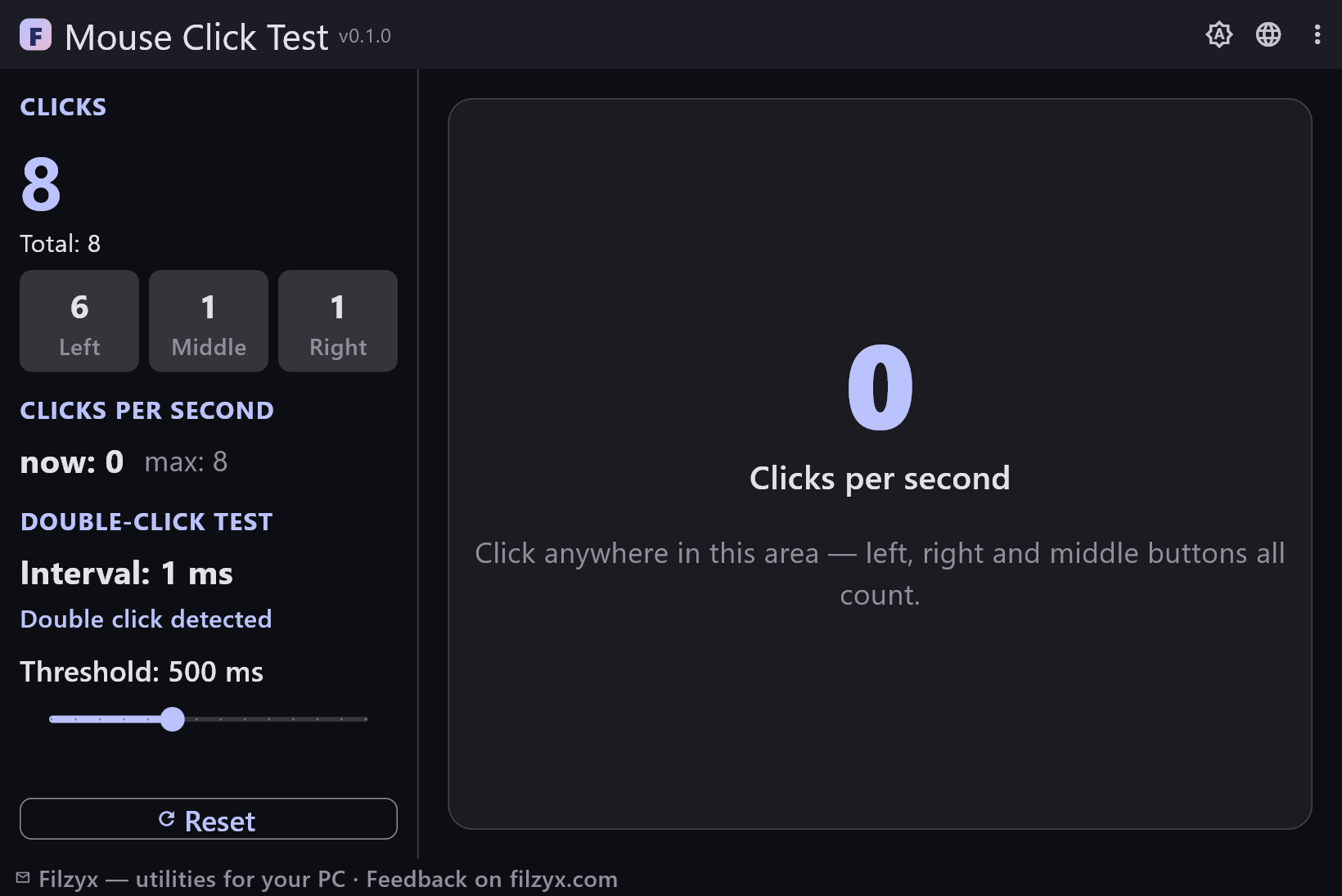
- Dark and light themes
- 16 interface languages
Screenshots
Guides
Step-by-step guides for Windows:
-
How to test mouse clicks on Windows (free)
Diagnose a mouse that double-clicks on its own: count every button, measure clicks per second and check double-click speed against a 500 ms threshold on Windows 10/11.
FAQ
- Is Mouse Click Test free?
- Yes — free to download and use on Windows 10/11 (x64), with no ads, no accounts and no telemetry.
- How do I know if my mouse double-clicks on a single press?
- Open the app, click once — slowly — and watch the double-click test. If a single press produces an interval reading and “Double click detected”, the switch is bouncing. Repeat a dozen times on each button; a worn button does it intermittently.
- What is a normal double-click speed?
- A healthy mouse closes the gap between clicks in well under 500 ms — often 100–250 ms at a comfortable speed. If your intervals drift towards 500 ms or jump around, the switch is aging.
- What is CPS and what number is good?
- Clicks per second: the app counts clicks in the last second and remembers the best burst since reset. Casual clicking is 3–7 CPS; gamers with a fast mouse and butterfly technique reach 10–20+ CPS. The number depends as much on your fingers as on the mouse.
- Does it count the middle and right buttons?
- Yes — left, middle and right are counted separately, with a chip per button. No holding required: just press. The wheel tilt and extra side buttons are not reported by the system as separate clicks, so they are not counted here.
- Does it work offline?
- Completely. Nothing is uploaded, downloaded or phoned home — it is a small offline Windows app. The only thing stored is your threshold setting, in a local settings file.