
Screen Ruler
Free Windows app that turns your screen into a ruler: a draggable pixel ruler with live readout, horizontal or vertical, ghost-transparent over anything you measure.
What the app finds and shows
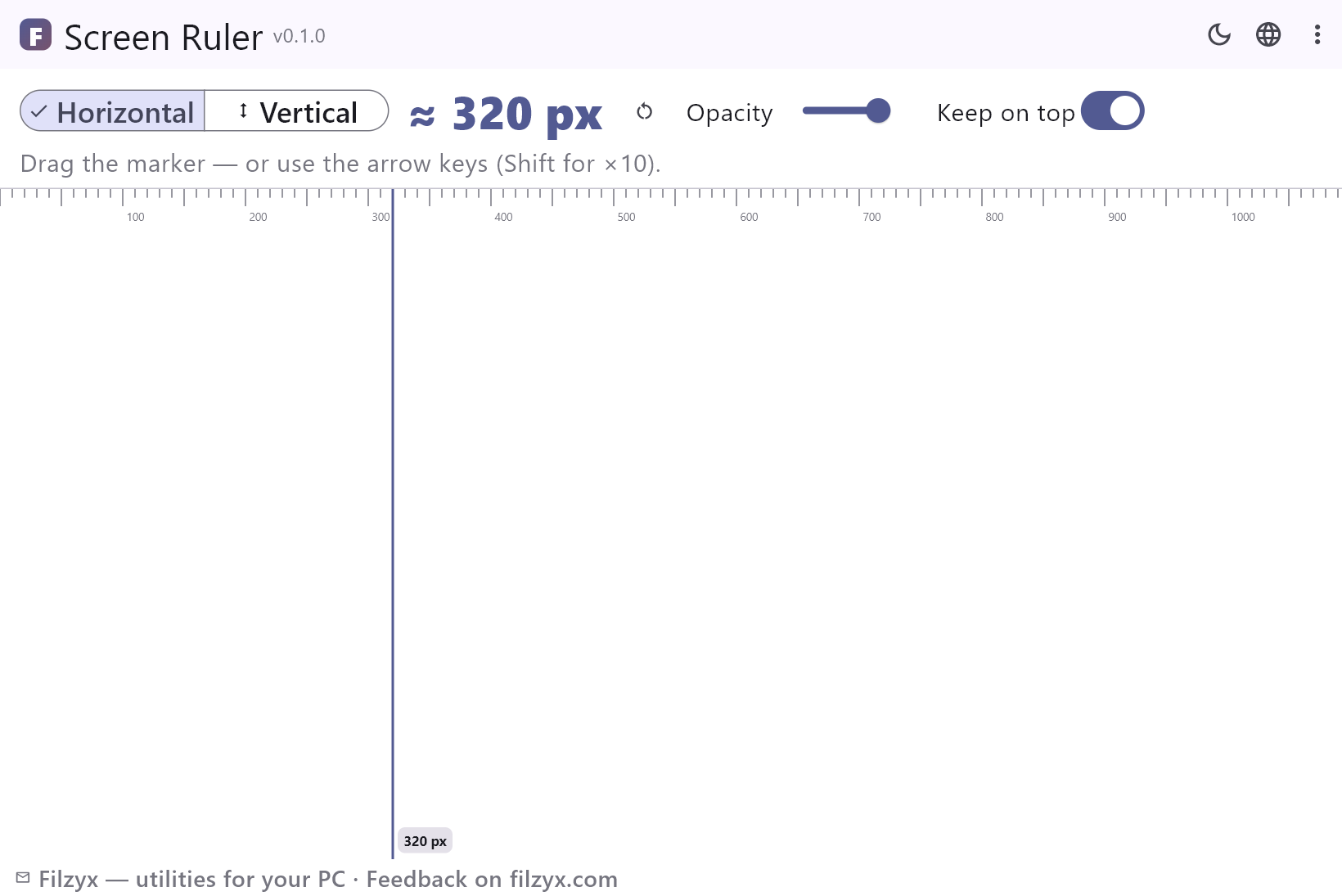
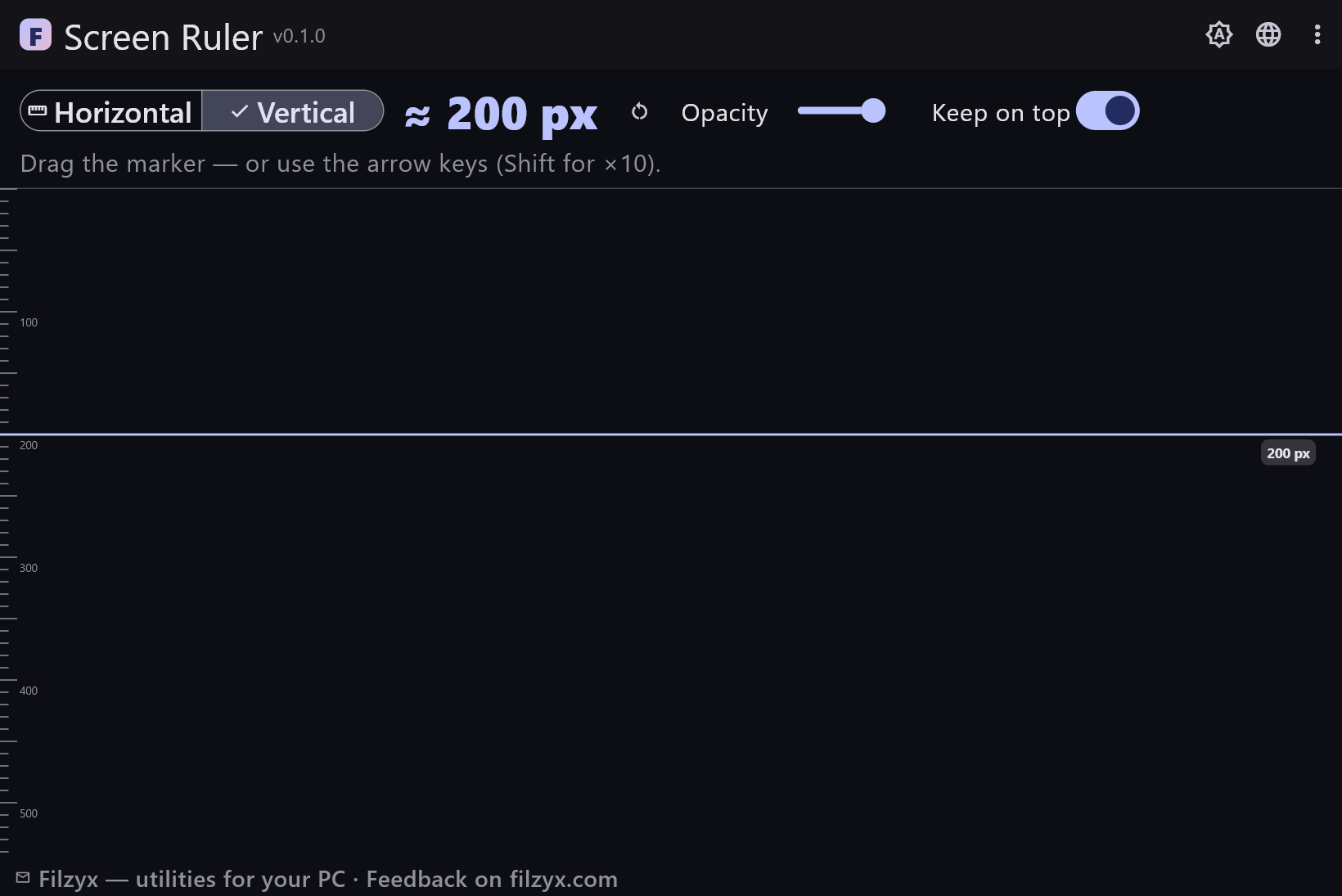
Horizontal and vertical ruler
Ticks every 10 px, majors every 50, labels every 100 — flip orientation with one segmented button.
Settings: Segmented control
Draggable marker with nudging
Drag the accent line to your target, then polish with arrow keys: one pixel per press, ten with Shift. Reset returns it to zero.
Settings: Arrows / Shift+Arrows
Ghost overlay
Opacity from 40% to 100% plus a Keep-on-top switch turn the ruler into a translucent overlay that sits above the interface you measure.
Settings: Opacity slider
How to measure something on screen in 3 steps
- Align the ruler's zero edge with where you want to start measuring.
- Drag the marker to the other end — or use the arrow keys (Shift for ×10) for pixel precision.
- Read the value: the big readout and the chip on the canvas both show the current pixel distance.
Windows has no on-screen ruler
Measuring a physical object is easy; measuring pixels is oddly hard. Windows ships nothing that shows distances on screen: browser DevTools measure inside the browser, image editors measure inside the editor, and for everything else people count gridlines. Screen Ruler is the missing tool: a slim window with ticks and labels every 100 px, a draggable marker line (B) that follows your mouse, and a readout that updates live — ≈ 482 px. Horizontal for widths, vertical for heights, one click to switch.
Ghost mode and pixel precision
The two details that make on-screen measuring actually work: transparency and nudging. The opacity slider (40–100%) turns the window into a ghost that you can place over the interface you are measuring — no alt-tabbing, no screenshots. The marker moves by drag for coarse work and by arrow keys for precision: one pixel per press, ten with Shift. A reset button snaps the marker back to zero, and the value chip on the canvas shows the distance right where you are looking, so your eyes never travel. The ruler reads real screen pixels; at 100% display scaling that is exactly what CSS and design tools mean by px. At higher Windows scaling the system works in scaled units — same as everything else you see.
Small tool, daily use
Designers verify spacings and breakpoint widths against a live browser. Developers check whether that mystery padding is 8 px or 12 px before writing the fix. QA engineers confirm touch targets are at least 44 px. Anyone building presentation decks measures the area left for an image at their projector's resolution. And everyone occasionally just needs to know how wide that window really is. Screen Ruler is a single small offline window with a remembered position marker — no accounts, no telemetry, nothing to configure.
Features
- Draggable marker line with a live pixel readout
- Horizontal and vertical modes in one click
- Ticks every 10 px, labels every 100 px
- Arrow-key precision: 1 px, or 10 px with Shift
- Reset button snaps the marker back to zero
- Opacity from 40% — ghost over the interface you measure
- Keep-on-top switch stays above browsers and editors
- Value chip on the canvas — read the number where you look
- No calibration needed at 100% display scaling
- The marker position is remembered between runs
- Dark and light themes, works offline
- 16 interface languages, no ads, no telemetry
Screenshots
Guides
Step-by-step guides for Windows:
-
How to measure pixels on screen in Windows (free ruler)
Measure widths, heights and spacings on your screen in pixels — how to check element sizes for CSS, verify touch targets, and compare layouts with a free on-screen ruler.
FAQ
- Is Screen Ruler free?
- Yes — free to download and use on Windows 10/11 (x64), with no ads, no accounts and no telemetry.
- How do I measure a distance between two points?
- Put the ruler's zero edge (left edge in horizontal mode, top edge in vertical mode) at the first point, then drag the marker line to the second point: the readout shows exactly how many pixels apart they are.
- Does it need calibration?
- No. One ruler unit is one screen pixel — the same unit CSS uses — at 100% display scaling. If Windows display scaling is set above 100%, everything on screen (and the ruler with it) works in scaled pixels.
- Can I use it over another program?
- Yes — that is what ghost mode is for: lower the opacity and enable Keep on top, then position the ruler over your browser or editor.
- Can it measure diagonals?
- Not diagonally — measure the bounding box instead: the width in horizontal mode, the height in vertical mode.
- Does it work with multiple monitors?
- Yes, the window can be moved to any monitor; each screen is measured in its own pixels.