

Bulk File Renamer
Free Windows app that renames many files at once: build a rule chain — find & replace, numbering, case, extension — and watch every new name in a live preview before anything touches the disk. One click renames, one click undoes.
What the app finds and shows
Rename rules
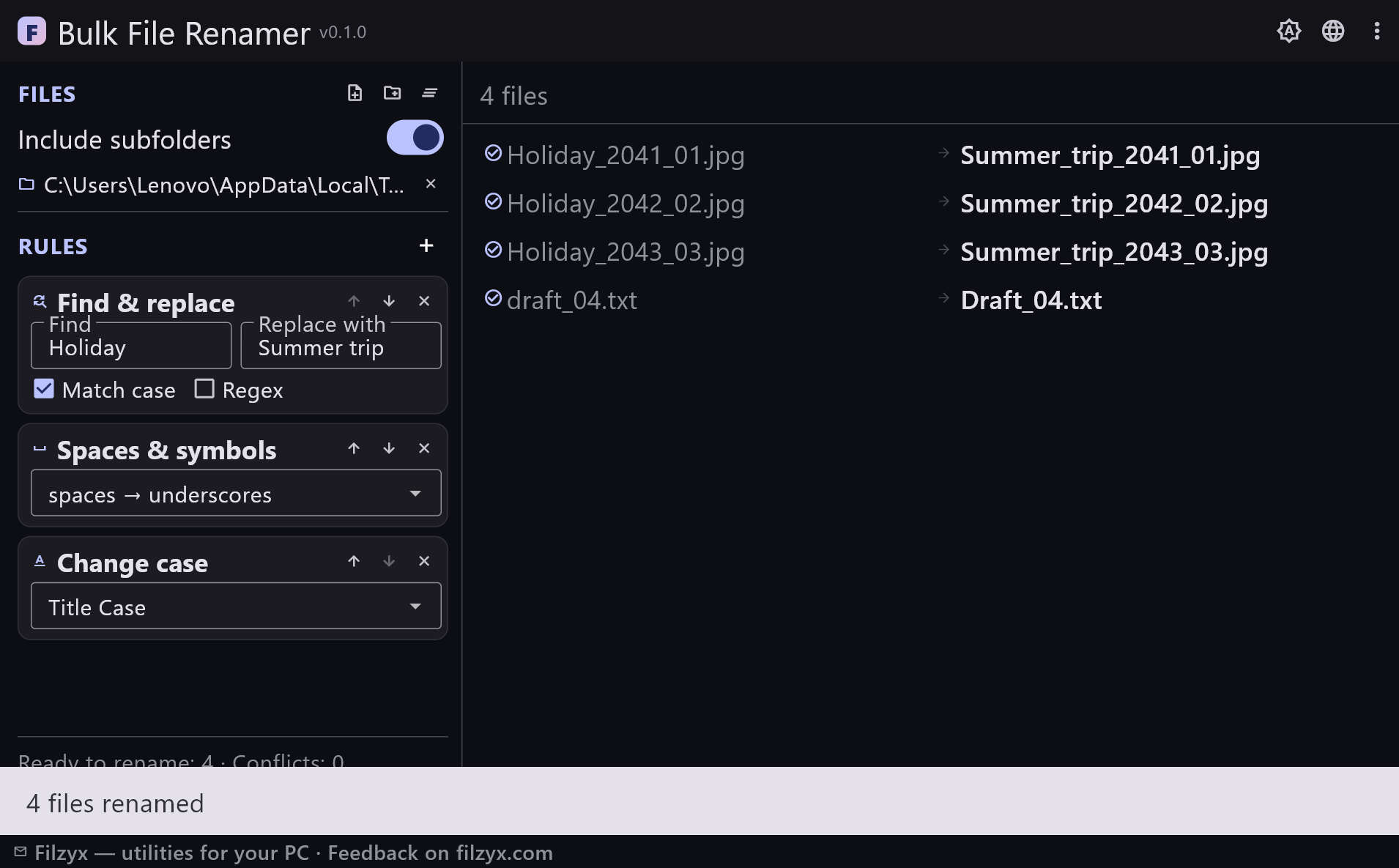
Six readable rule types stacked in the order you choose: find & replace (plain or regex), insert text, numbering, case, spaces & symbols, extension change. Reorder or delete any rule with one click.
Settings: Rule order, match case, regex
Live preview with conflicts
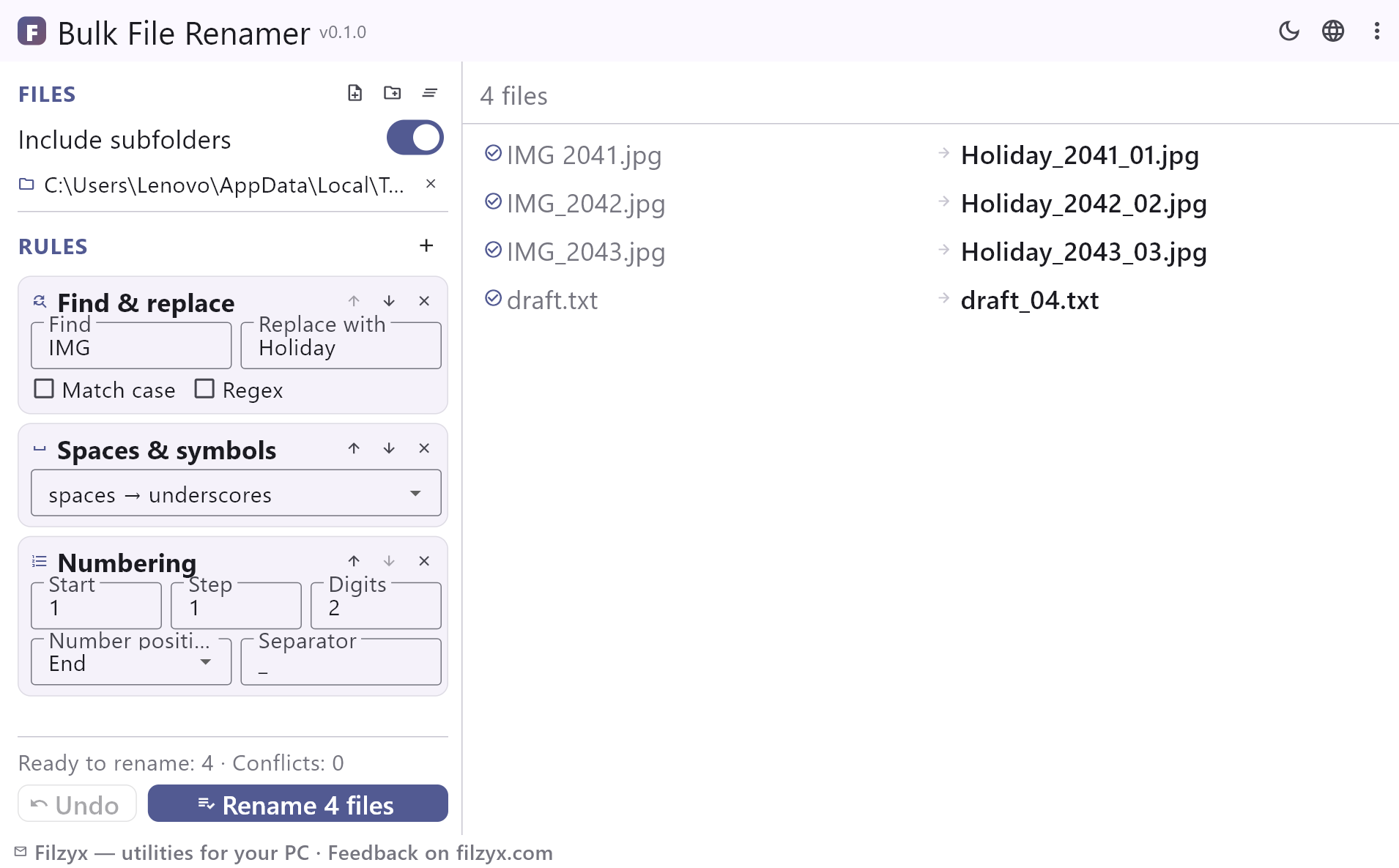
Every file shows its current name, an arrow and the planned new name, updating as you type. Duplicates, existing files, invalid characters and reserved names are flagged before the first file is touched.
Settings: Include subfolders
Safe rename and undo
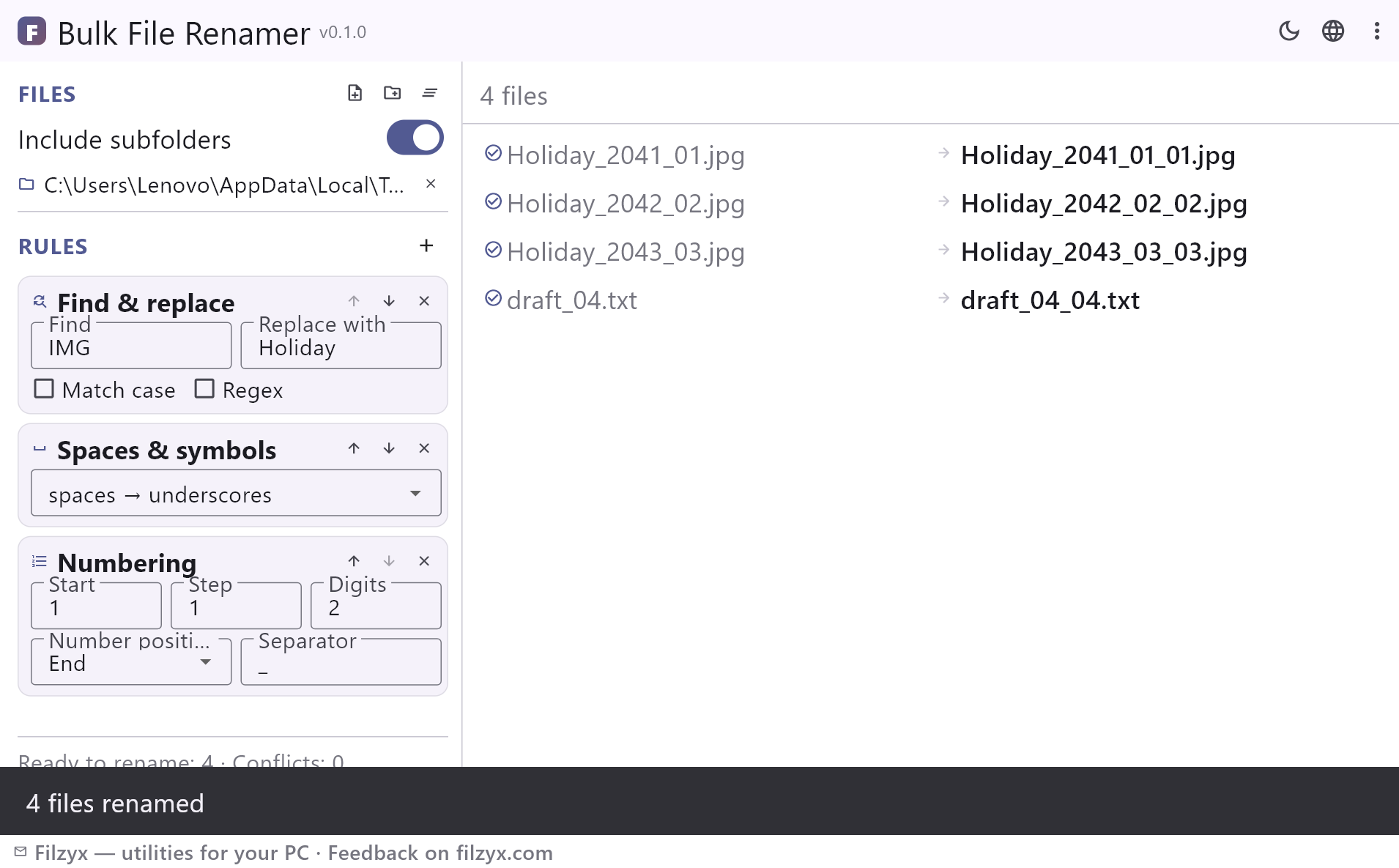
The batch runs as a two-phase operation: swaps and case-only changes are collision-free, unknown files are never overwritten, and one click of Undo restores every original name.
Settings: One-click Undo
How to rename multiple files in 3 steps
- Add files or a folder on the left — subfolders can be included with one switch.
- Build the rule chain: find & replace, insert text, numbering, case, spaces and extension rules apply in order — the new names appear in the preview immediately.
- Check the preview (conflicts are highlighted), press “Rename” and undo with one click if anything looks off.
Windows built-in tools vs Bulk File Renamer
Explorer can rename a batch with F2, but it only produces “holiday (1).jpg”, “holiday (2).jpg” — no patterns, no numbering options, no preview. PowerShell's Rename-Item can do more, yet it is a scripting exercise: you get no list to check, one typo renames everything, and there is no undo. PowerToys PowerRename adds a rename dialog, but it means installing the whole PowerToys pack first. Bulk File Renamer is a small standalone app: a rule chain, a live preview of every name, conflict checks before the first file is touched and a safe undo.
A rule chain, not a single mask
Instead of one cryptic pattern, you stack readable rules in the order you need: “Find IMG and replace with Holiday”, then “spaces → underscores”, then “add 01, 02, 03… at the end”. Six rule types cover ordinary tidying: find & replace (plain or regex), insert text at any position, numbering with start, step, padding and separator, case conversion, whitespace normalisation and an extension change that leaves the base name alone. Rules can be reordered with one click and the preview updates as you type.
Nothing happens until you look at it
Every planned name is visible before anything is renamed, and the preview marks duplicates inside the list, names that would overwrite an existing file, invalid Windows characters and reserved system names — those files are simply skipped. The rename runs as a safe two-phase operation, so even a swap (a.txt → b.txt and b.txt → a.txt) or a case-only change works without losing a byte. Changed your mind? One click of Undo restores every original name.
Features
- Rule chain: find & replace, insert, numbering, case, spaces, extension — in any order
- Regular expressions with inline validation
- Numbering with start, step, padding and separator; continues across the list
- Live preview of every new name while you type
- Conflict detection: duplicates, existing files, invalid characters, reserved names
- Safe two-phase rename — swaps and case-only changes just work
- Files that would overwrite an unrelated file are skipped, not clobbered
- One-click Undo restores every original name
- Include subfolders with a single switch; files stay sorted by path
- Only the names change: contents, dates and extensions are untouched unless a rule says otherwise
- Dark and light themes, settings are remembered
- 16 interface languages; no ads, no accounts, no telemetry
Screenshots
Guides
Step-by-step guides for Windows:
-
How to rename multiple files at once on Windows
Explorer's F2, PowerShell and a free bulk renamer with live preview — step by step.
FAQ
- Is Bulk File Renamer free?
- Yes — free to download and use on Windows 10/11 (x64), with no ads, no accounts and no telemetry.
- How is it different from renaming in File Explorer?
- Explorer's F2 batch rename only adds “(1), (2), (3)” to one base name. Bulk File Renamer offers rule chains, regex, numbering with padding, case and extension rules — plus a preview of every name and an undo.
- Can it replace text or use regular expressions?
- Yes. The find & replace rule works with plain text (case-sensitive or not) or with a full regular expression, and invalid patterns are flagged right in the rule card.
- What happens if the new name already exists?
- The preview marks the conflict in red before anything is renamed, and the file is skipped. Files being renamed away during the same operation free their old names for reuse.
- Can I undo a bulk rename?
- Yes — every rename batch is remembered and one click of Undo returns all files to their previous names.
- Does it rename files in subfolders too?
- Yes, one switch includes subfolders; numbering continues across the whole list in the order shown.