

QR Code Scanner
Free Windows app that reads QR codes from image files — screenshots, photos, downloads — with a pure offline decoder, no camera and no uploads.
What the app finds and shows
Decode from files, in batches
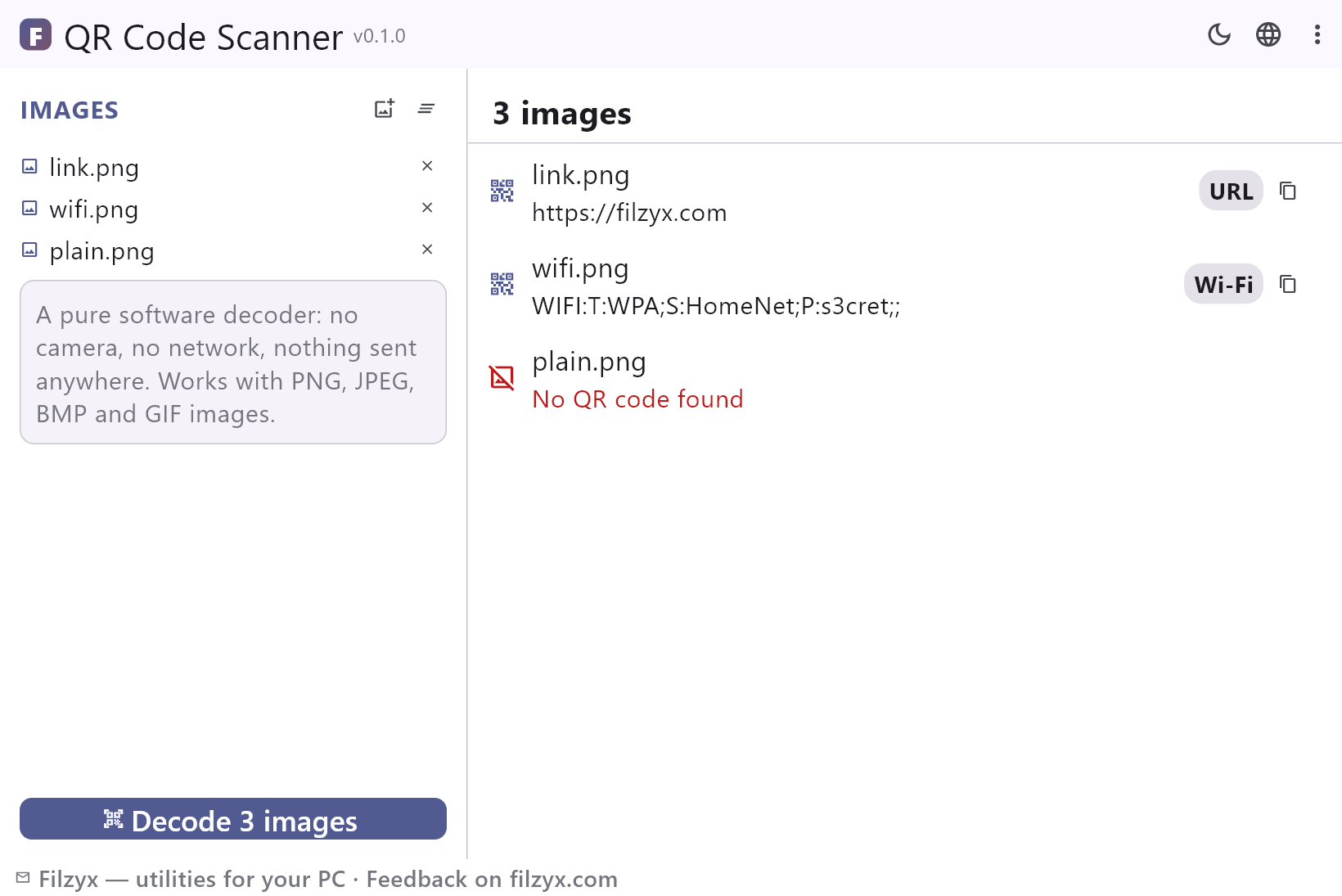
Add screenshots, photos or downloads by the dozen; every image is decoded in turn, off the UI thread, with a row per file.
Settings: The file list is remembered
Content-aware results
Each decoded payload is classified — URL, Wi-Fi, e-mail, phone, text — and shown with a chip so you know what you are looking at before copying.
Settings: Five type chips
One-click copy, honest errors
Copy any decoded text instantly. Images without codes and non-image files get truthful statuses instead of silent failure.
Settings: No camera, no network
How to read a QR code from an image in 3 steps
- Save or screenshot the picture that contains the QR code.
- Add it to the app — one image or a whole batch — and press “Decode images”.
- Read the result: URL, Wi-Fi, e-mail or text with a type chip; copy it with one click.
Windows still has no QR reader
Scanning a QR code with a phone is trivial; doing it on a PC is not. Windows has no built-in reader — camera apps exist on phones, but a desktop PC usually sees QR codes as *pictures*: a screenshot in the downloads folder, a photo synced from the phone, a slide from a colleague. The available workarounds are clumsy: beam the screen to a phone via Phone Link, or upload the image to an online reader and hope it deletes it. QR Code Scanner treats the desktop reality as it is: images in, text out, everything local.
Where desktop QR reading helps
You received a Wi-Fi code in a chat and want to see the password fields — the app decodes the WIFI: payload and you can read the SSID and key immediately. A poster photo from a trip contains a museum link — decode, copy, open in the browser. A ticket PDF is rendered to an image and the code holds the booking URL. Students photograph QR codes from textbooks; streamers read codes from overlays in screenshots. Batch mode reads an entire folder of event photos at once and shows which ones contained codes and which did not — honestly.
Offline by architecture
The decoder is a pure-Dart port of ZXing — the classic open-source scanning library — compiled into the app. That means: no camera access, no network calls, no “image uploaded for processing”, no account. It works in a Faraday cage. Images are read from disk, decoded in memory and shown as text; nothing is copied anywhere unless you press the copy button. The app even runs correctly with Wi-Fi disabled — which is the whole point of a privacy-respecting reader.
Features
- Reads QR codes from PNG, JPEG, BMP and GIF files
- Batch decoding — a whole folder of screenshots in one press
- Content chips: URL, Wi-Fi, e-mail, phone, text
- One-click copy of the decoded payload
- Honest statuses: “no QR code found”, “unsupported image”
- Pure-Dart ZXing decoder — no camera, no network
- Works fully offline and without any account
- Cyrillic, Chinese and emoji payloads decoded correctly
- Wi-Fi codes readable as text — SSID and password in plain view
- The file list is remembered between runs
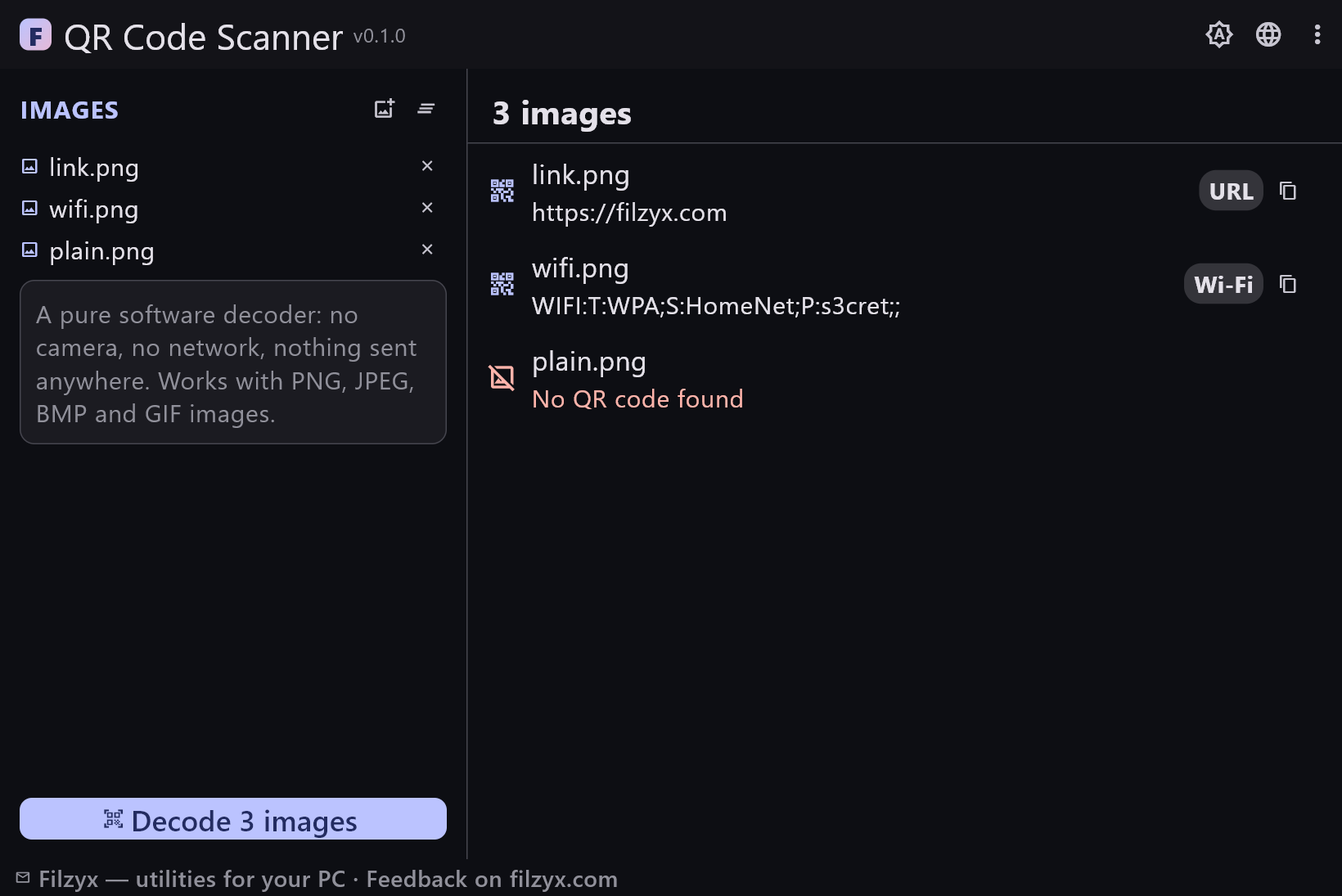
- Dark and light themes
- 16 interface languages, no ads, no telemetry
Screenshots
Guides
Step-by-step guides for Windows:
-
How to scan a QR code on Windows (from a screenshot or photo) — free
Windows has no built-in QR reader. Here is how to decode a QR code from an image file on your PC — screenshot, photo or download — with a free offline scanner.
FAQ
- Is QR Code Scanner free?
- Yes — free to download and use on Windows 10/11 (x64), with no ads, no accounts and no telemetry.
- Does it use my webcam?
- No — it reads QR codes from image files, not from a live camera. Screenshot a code or save the picture, then add it to the app. (Webcam scanning is deliberately out of scope: desktop QR codes arrive as pictures.)
- Why won't my image decode?
- The most common causes: the code is small in the frame (crop closer), blurred or too low-resolution, or mirrored. Try scanning the original full-size photo rather than a downscaled copy.
- Which formats are supported?
- PNG, JPEG, BMP and GIF. Any picture the built-in image library can open works; the decoder then looks for a QR code inside.
- Are my images uploaded anywhere?
- No — decoding is a purely local software process. The app works fully offline and sends nothing.
- Can I decode many images at once?
- Yes — add a whole batch and press Decode; each file gets its own result row: the decoded text or an honest “no QR code found”.