

Folder Icon Changer
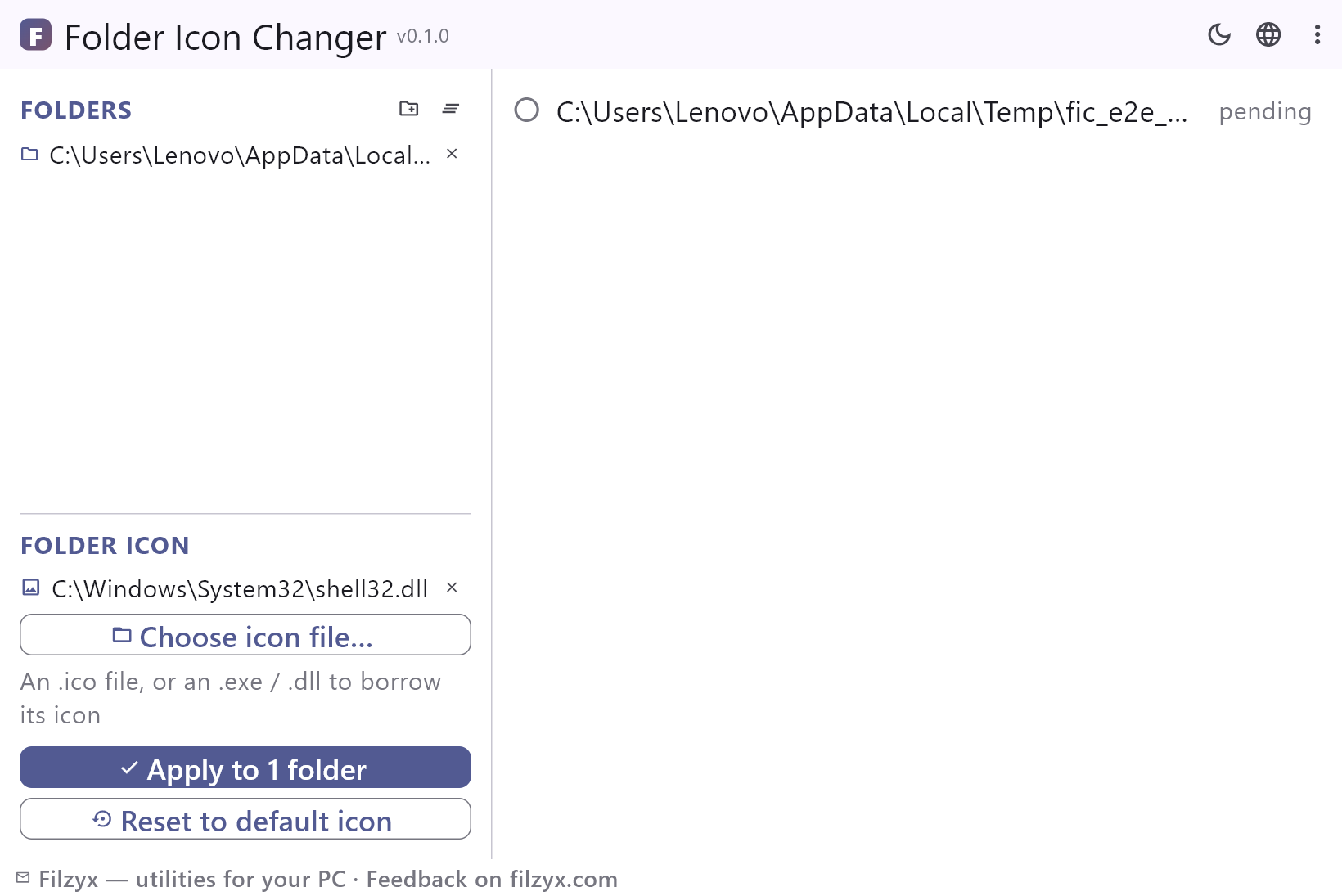
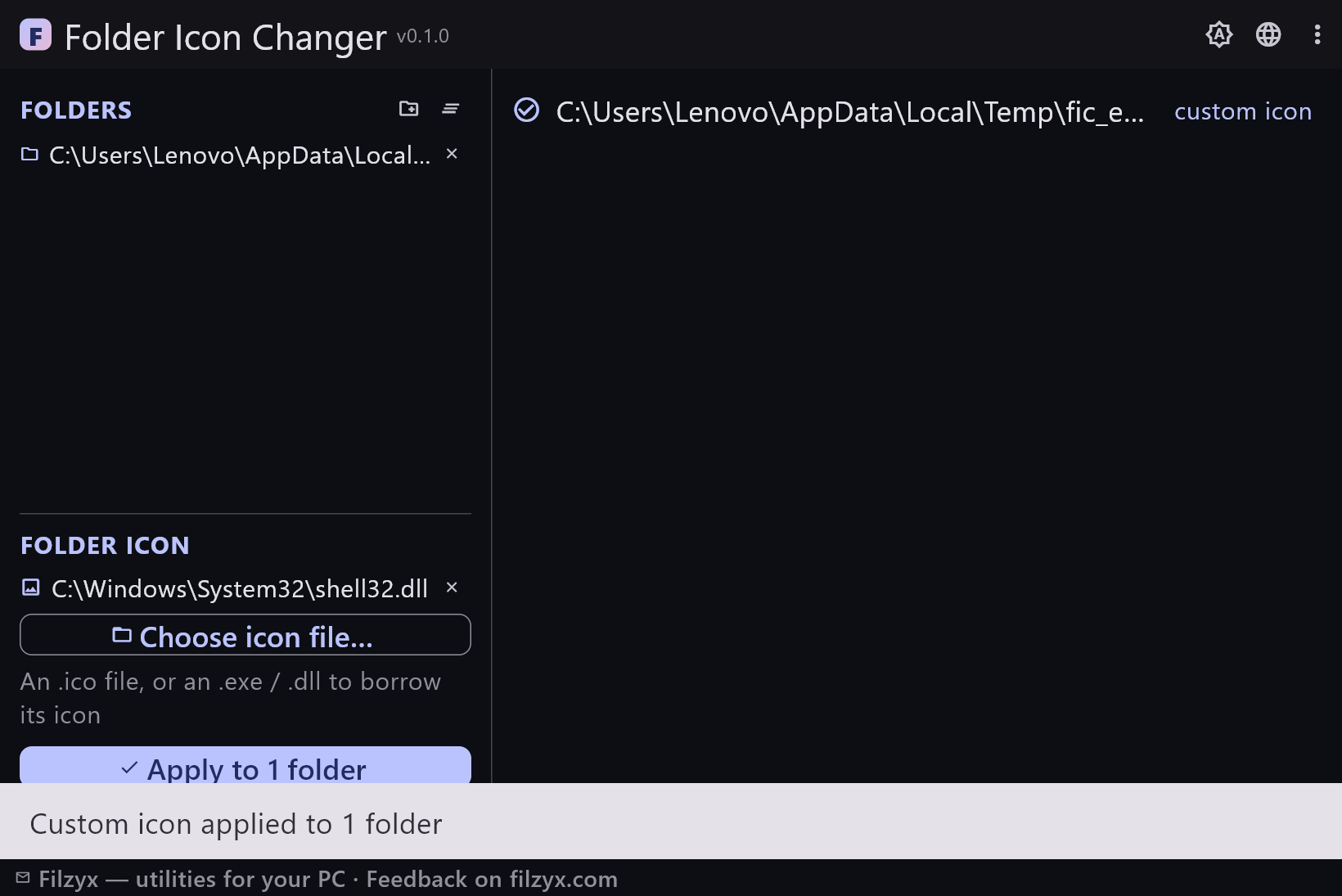
Free Windows app that gives any folder a custom icon — an .ico file or any .exe / .dll whose icon you want to reuse. Works on Windows 10 and 11 in bulk, shows the change instantly, and resets with one click.
What the app finds and shows
Custom icon from an .ico
Pick any .ico file — the app points the folder's desktop.ini at it and refreshes the shell so the new icon shows immediately.
Settings: Icon file path
Borrow an icon from an exe or dll
No .ico at hand? Choose any installed program's .exe or a .dll and its embedded icon is used as-is.
Settings: Index 0 of the embedded icon
Bulk apply and instant reset
Apply to an entire list of folders in one press, see per-folder status, and bring everything back to the default icon with a single click.
Settings: One-click Apply / Reset
How to change a folder icon in 3 steps
- Add the folders you want to restyle — one folder or a whole list.
- Pick an .ico file, or any .exe / .dll to use the icon embedded in it.
- Press “Apply” — Explorer shows the new icon right away. “Reset to default” brings the original icon back.
Windows 11 removed the built-in folder icon picker
In Windows 10 you could right-click a folder → Properties → Customize → Change Icon — one folder at a time, with a clunky built-in picker. Windows 11 removed that tab entirely, so the only manual route left is editing desktop.ini by hand and flipping hidden attributes with attrib. Folder Icon Changer does exactly that work, correctly and in bulk: any number of folders, any .ico file, or icons borrowed straight from installed programs.
How a custom folder icon actually works
Windows decides a folder's icon from an optional desktop.ini inside it: an IconResource line points at an icon file, and the folder itself must carry the read-only attribute for Explorer to honour it. The app writes that ini, marks it hidden and system, sets the attribute and pings the shell with SHChangeNotify — the icon swaps without a restart. Because the ini lives inside the folder, the icon travels with it when you move the folder to another drive.
Nothing is locked in
Everything the app changes is one click away from the original state: Reset removes the IconResource line (keeping any other keys a desktop.ini might have), deletes the file when nothing is left and clears the read-only flag. Icons are not copied anywhere — an .ico stays where it is, and an exe/dll keeps its own icon untouched, so no disk space is spent and nothing is duplicated.
Features
- Custom folder icons via desktop.ini — the same mechanism Explorer uses
- Works where Windows 11 removed the built-in picker
- Any .ico file, or icons borrowed from .exe / .dll files
- Apply to many folders at once with per-folder status
- Icons appear instantly (shell refresh via SHChangeNotify)
- One-click reset: icon entry removed, attributes cleaned up
- The icon travels with the folder — settings live inside it
- Original .ico / .exe / .dll files are never copied or modified
- No admin rights: everything happens in your own folders
- Dark and light themes, folder list is remembered
- Interface in 16 languages
- No ads, no accounts, no telemetry
Screenshots
Guides
Step-by-step guides for Windows:
-
How to change a folder icon in Windows 10 and 11 (free)
Step-by-step: give folders custom icons on Windows — any .ico file or an icon borrowed from an .exe/.dll — plus why Windows 11 removed the built-in picker and how to reset.
FAQ
- Is Folder Icon Changer free?
- Yes — free to download and use on Windows 10/11 (x64), with no ads, no accounts and no telemetry.
- Where did the Customize tab go in Windows 11?
- Microsoft removed the folder icon picker from folder Properties in Windows 11. Folder Icon Changer writes the same desktop.ini entry for you — and can do it for a whole list of folders at once.
- Can I use icons from installed programs?
- Yes. Point the app at any .exe or .dll and it borrows the embedded icon (index 0) — no need to extract anything first.
- Will the icon stay after I move the folder?
- Yes — the settings live in the folder's own desktop.ini, so the icon travels with the folder to another disk or computer.
- What does Reset change?
- It removes the icon entry from desktop.ini, deletes the file if nothing else is inside, and clears the read-only attribute — the folder looks exactly as it did before.
- Does it touch the original .ico or exe?
- No. The icon stays where it is and is referenced by path; nothing is copied or modified.