

Battery Health Check
Free Windows app that shows what your laptop battery is really worth: design capacity vs full charge capacity, wear in percent and charge cycles — read straight from Windows, no vendor tools.
What the app finds and shows
One-card summary
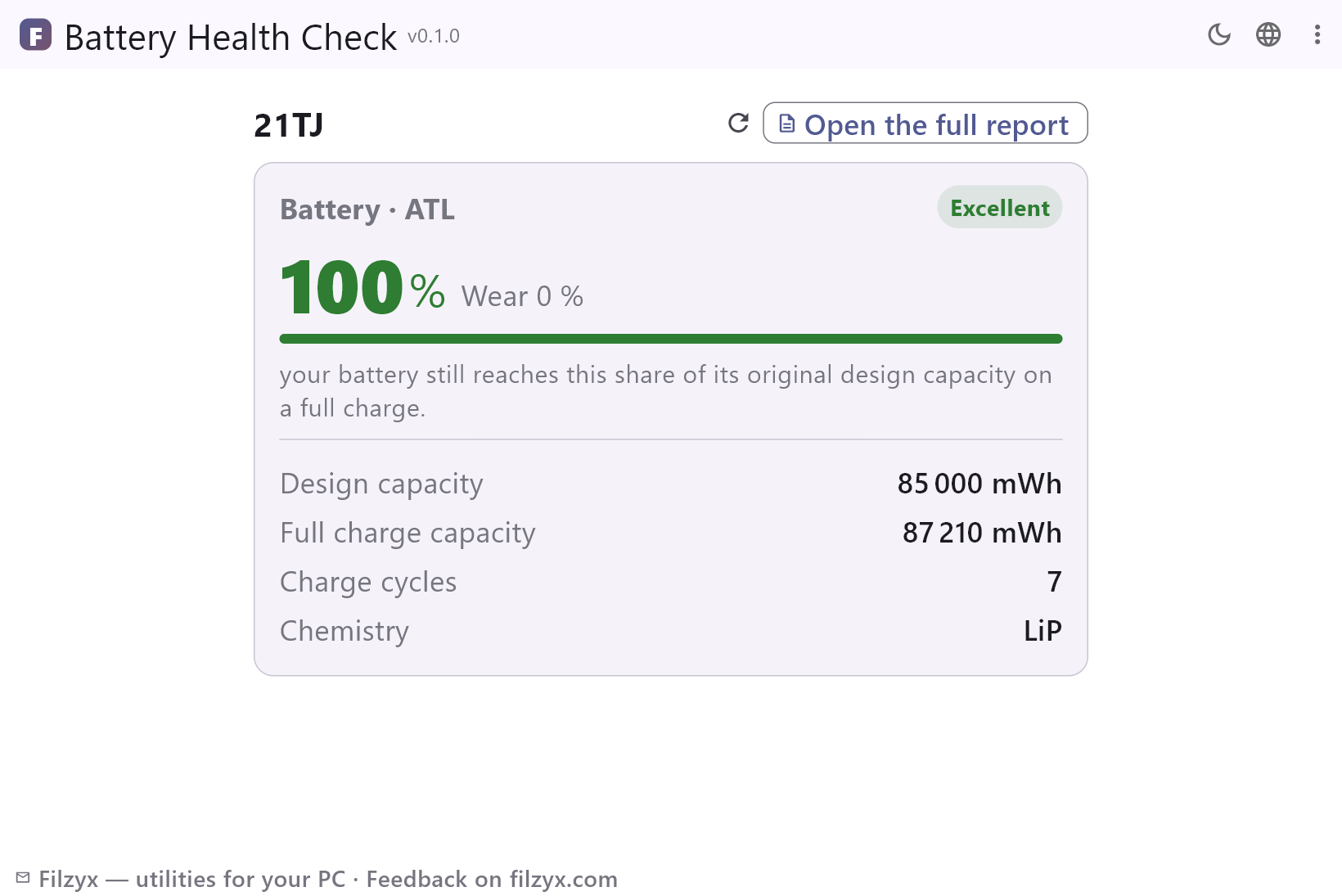
Health percentage, wear, design vs full charge capacity and charge cycles — the whole story of the battery on a single card with a colour-graded verdict.
Settings: One-click Refresh
Multiple batteries
Laptops with two batteries (a main and a bridge cell) get a card each, so both are compared at a glance.
Settings: Works per battery
The full official report
One button generates the complete Windows battery report as HTML — usage history, charging sessions and all raw numbers — and opens it in your browser.
Settings: powercfg /batteryreport
How to check laptop battery health in 3 steps
- Open the app — it reads the Windows battery report on its own, no commands to type.
- Read the card: health percentage, wear, design capacity, full charge capacity and charge cycles.
- Want the details? “Open the full report” shows the complete official Windows battery report in your browser.
The report Windows hides, without the command line
Windows can generate a full battery report with `powercfg /batteryreport` — design capacity, current capacity, cycles and a detailed charging history. The catch: it is a console command and the result is a wall of numbers in HTML. Battery Health Check runs the same command for you and puts the three numbers that matter on one card: health, wear and cycles. Nothing is estimated or invented — the data is read from the official report the system produces.
What the numbers mean
A new battery stores its design capacity — say 85 000 mWh. Over hundreds of charging cycles it slowly stores less; a full charge reaching 72 000 mWh means health is about 85% and wear 15%, which is normal after a year or two of daily use. Below 60% a laptop may be worth a new battery. Charge cycles count how many full 100% → 0% → 100% discharges the battery has lived through; most laptop batteries are rated for 300–1000. If the numbers look odd, press Refresh — the report is generated anew each time.
No vendor apps, no accounts, no guessing
Lenovo Vantage, Dell SupportAssist and Windows “Power & Battery” settings each show a different subset of this, and some of them want an account or a background service. Battery Health Check is a single small exe: it asks Windows for the report, computes health and wear, and shows them. It works offline, sends nothing anywhere, and on a desktop PC it politely says “no battery found” instead of pretending.
Features
- Battery health in percent, colour-graded from Excellent to Time to replace
- Wear shown the way people say it: “Wear 15 %”
- Design capacity vs full charge capacity in mWh
- Charge cycles, chemistry and manufacturer straight from the report
- Multiple battery cards on laptops with two batteries
- “Open the full report” — the official Windows HTML report in your browser
- One-click refresh re-reads the current state
- Honest “no battery found” screen on desktop PCs
- Nothing invented: every number comes from the Windows battery report
- Works offline, no vendor apps or background services
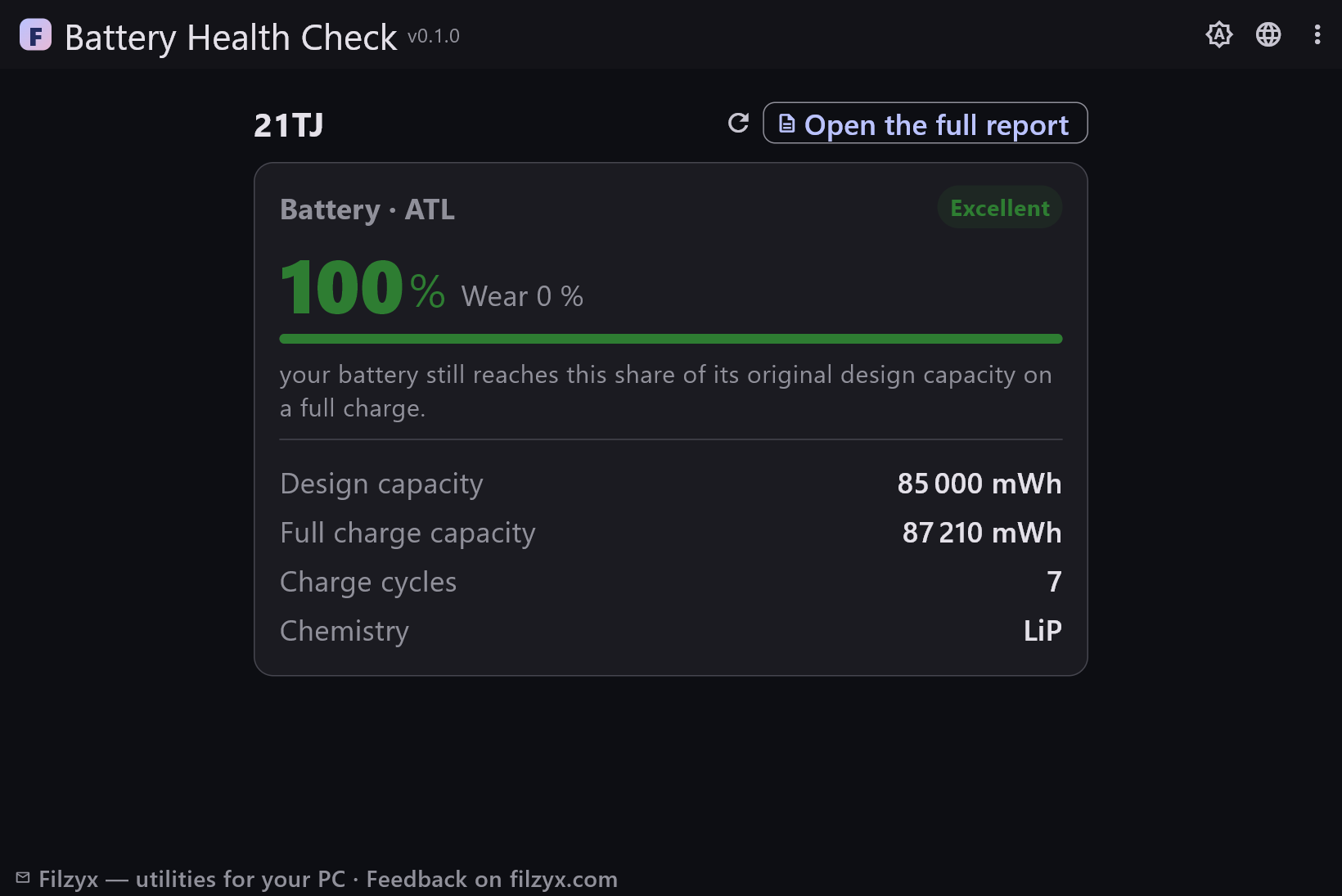
- Dark and light themes
- 16 interface languages, no ads, no accounts, no telemetry
Screenshots
Guides
Step-by-step guides for Windows:
-
How to check laptop battery health on Windows (free)
Check battery health, wear and charge cycles on any Windows laptop in a minute — with the built-in powercfg battery report or a free one-card app that reads it for you.
FAQ
- Is Battery Health Check free?
- Yes — free to download and use on Windows 10/11 (x64), with no ads, no accounts and no telemetry.
- How is battery health calculated?
- Health = full charge capacity ÷ design capacity × 100, using the official capacities from the Windows battery report. Wear is the remaining 100% − health.
- What are charge cycles?
- One cycle is a full 100% → 0% → 100% discharge, accumulated across charges. Most laptop batteries are rated for 300–1000 cycles before dropping below 80% of their original capacity.
- What battery health is bad?
- Above 85% is excellent, 70–85% is normal wear, below 60% is a battery worth replacing — you will feel it as short runtime on a full charge.
- Does it work on a desktop PC?
- It runs, but reports “no battery found” — desktop PCs have no battery, and the app says so honestly instead of showing made-up numbers.
- Does it work on all laptop brands?
- Yes — it uses the standard Windows battery report, so Lenovo, HP, Dell, ASUS, Acer, MSI and Surface devices all report the same fields (if a battery was made without a cycle counter, that row simply shows a dash).