

LAN Device Scanner
Free Windows app that shows every device on your local network: routers, phones, TVs, printers and sleeping gadgets — one ping sweep plus the ARP table, no deep scanning.
What the app finds and shows
Auto-detected range
The app finds your local address and subnet mask and fills the CIDR field (e.g. 192.168.1.0/24). Edit it for unusual networks; a /30 and /32 work too.
Settings: CIDR field
Ping sweep + ARP union
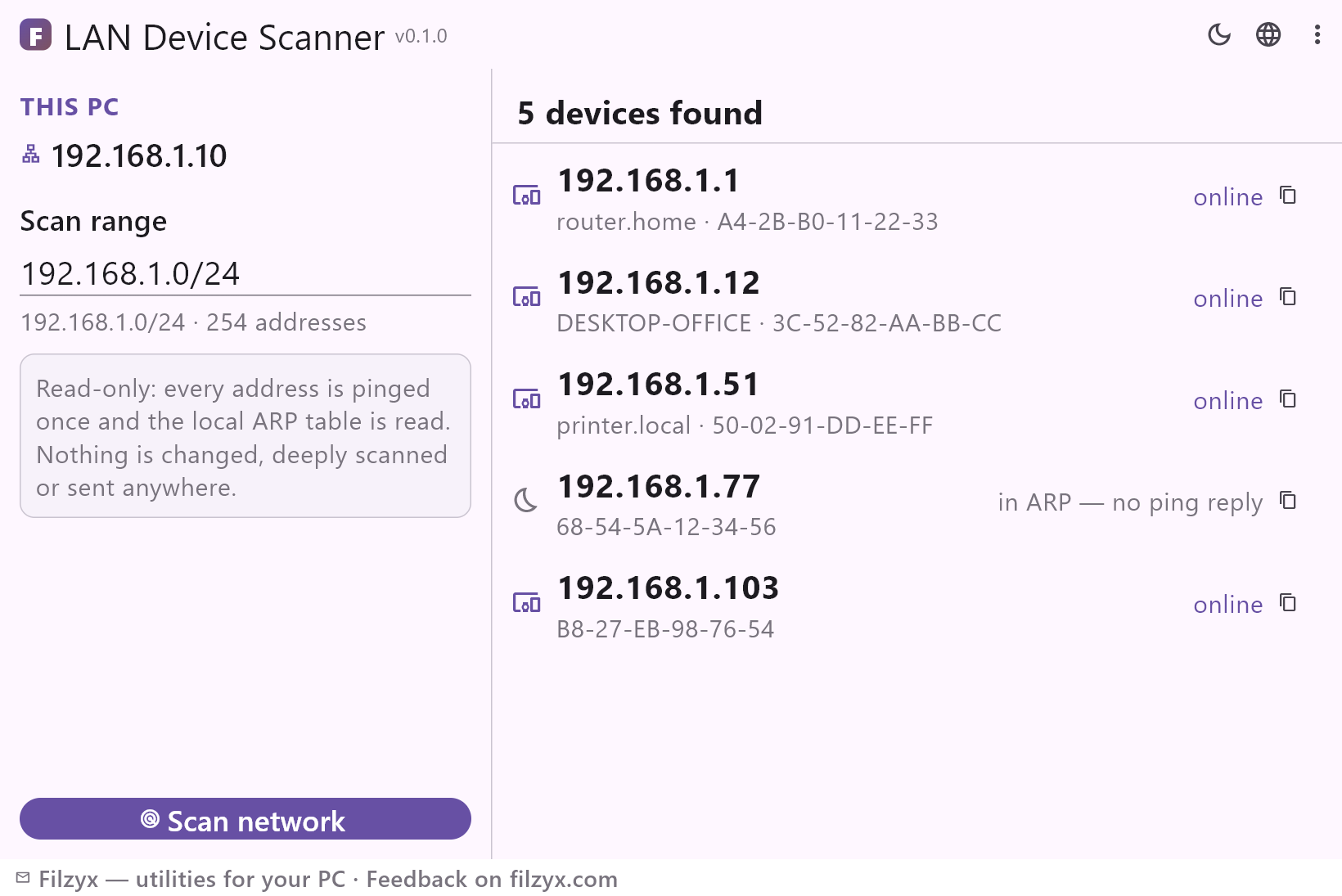
Every address is pinged once (32 in parallel), then the ARP table adds sleeping devices. Each row is honest: “online” or “in ARP — no ping reply”.
Settings: Cancel button included
Hostnames and one-click copy
Reachable hosts get reverse-DNS names (“printer.local”); copy any IP with one click for the router page or a chat message.
Settings: Read-only, no port scanning
How to see all devices on your network in 3 steps
- Open the app — it detects your local address and fills the scan range automatically.
- Press “Scan network”: every address is pinged once, then the ARP table is read for sleeping devices.
- Read the list: IP, MAC and hostname per device; copy any address with one click.
Windows hides the device list well
Windows ships no simple “what is on my network?” screen. The router's admin page shows connected devices — if you remember its address, find the credentials, and decipher a table made for technicians. The command line can do it too: `ipconfig` for your address, then `arp -a` for the table — but the ARP cache only knows devices your PC recently talked to, so it shows a phone only after it answered a ping. Doing it properly means sweeping the subnet with dozens of `ping` commands and stitching the results together by hand. LAN Device Scanner automates exactly that: sweep plus ARP union, one list.
What people actually use it for
Finding the printer's IP to add it to a new laptop. Checking that the smart TV, thermostat and robot vacuum are still online after a router restart. Verifying that a guest's phone left the network. Counting devices before calling the ISP about slow Wi-Fi. Spotting that one unknown gadget you never configured — the classic “is somebody on my Wi-Fi?” moment — and getting its MAC address to block it in the router. The app also reverse-resolves hostnames, so “DESKTOP-OFFICE” and “printer.local” show up next to the addresses instead of numbers.
Honest scanning, deliberately shallow
Some network tools quietly do much more than they promise: port scans, service fingerprints, banner grabbing — the kind of traffic security software flags. LAN Device Scanner does the two least invasive things a network needs: one ICMP ping per address and a read of the ARP table your machine already has. It never scans ports, never probes services, and sends nothing outside your network. The whole sweep runs from your PC, needs no admin rights, and works offline (a local network needs no internet).
Features
- Every device on the local network: IP, MAC, hostname
- Ping sweep plus ARP table — sleeping devices included
- Honest statuses: online / in ARP without a ping reply
- Auto-detected scan range; any CIDR range editable
- Reverse-DNS hostnames for online devices
- One-click copy of any address
- Cancel a long sweep mid-flight
- Read-only: no port scanning, no probing, nothing sent out
- No admin rights needed; works fully offline
- Handy for printer IPs, smart-home inventories and guest checks
- The last scanned range is remembered
- 16 interface languages, no ads, no telemetry
Screenshots
Guides
Step-by-step guides for Windows:
-
How to see all devices on your Wi-Fi network on Windows (free)
Find every device connected to your Wi-Fi from a Windows PC: the router admin page, the ipconfig+arp command-line route, and a free scanner that does the sweep for you.
FAQ
- Is LAN Device Scanner free?
- Yes — free to download and use on Windows 10/11 (x64), with no ads, no accounts and no telemetry.
- Why do some devices show “in ARP — no ping reply”?
- Sleeping phones and TVs often skip ICMP answers to save power. The ARP table still knows their IP–MAC pair from recent traffic, so the app shows them with an honest status instead of hiding them.
- Can it scan a different network or subnet?
- It scans the range you enter — but only ranges reachable from your PC (your LAN). It cannot scan remote or someone else's networks.
- Does it scan ports or test device security?
- Deliberately no. One ping per address plus the ARP table: no port scanning, no probing, nothing that security software would rightly flag.
- Does it need administrator rights?
- No — pings and the local ARP table work for a normal user.
- I see a device I don't recognise. What now?
- Copy its MAC address, then block or name it in your router's admin page. Often it is a smart-home gadget you forgot about — the MAC prefix usually identifies the vendor.