

Color Picker
Free Windows app that reads the exact colour of any pixel on your screen: live preview, one-click pick anywhere, HEX/RGB/HSL values and a history wall that copies as you work.
What the app finds and shows
Live preview
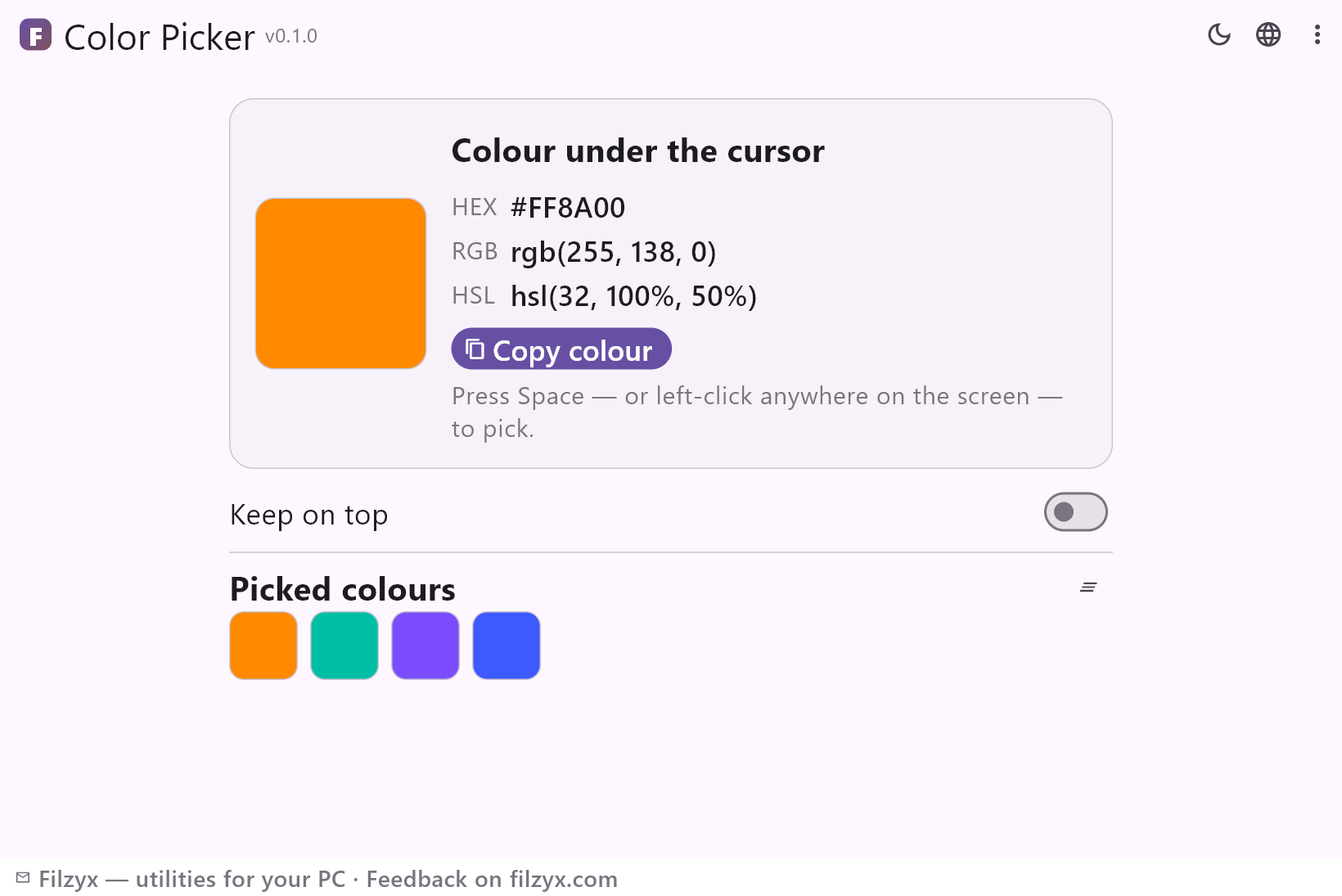
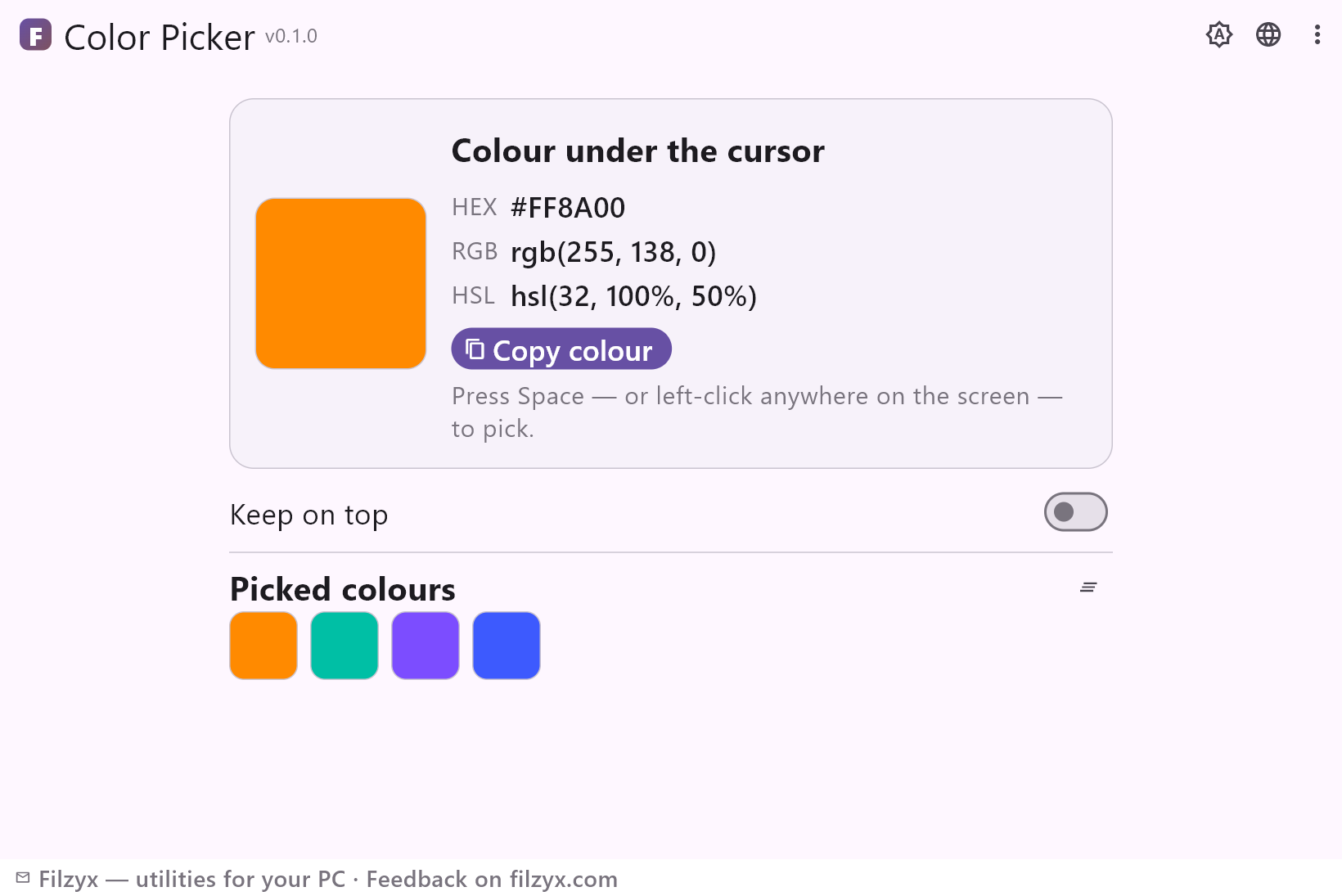
A big swatch plus HEX, RGB and HSL values that follow the cursor in real time — see the colour before you commit to it.
Settings: Updates ~12 times a second
Pick anywhere
Space picks when the app is focused; left-click picks globally, over any program, without switching windows. Each pick copies to the clipboard instantly.
Settings: Global left-click / Space
History wall
Up to 24 recent colours as clickable swatches, newest first, duplicates moved to front — click any swatch to copy again, one button to clear.
Settings: Keep on top switch included
How to pick a colour from the screen in 3 steps
- Open the app — the swatch and HEX/RGB/HSL values follow the cursor live.
- Point at the colour you need and press Space — or left-click anywhere on the screen.
- The colour is on your clipboard instantly and joins the history wall; click any swatch to copy it again.
Windows has no built-in screen eyedropper
For a task this common, Windows offers almost nothing: Paint's colour picker works only inside Paint, the Settings' accent-colour chooser only inside Settings. The closest official option is PowerToys' Color Picker — which means installing the whole PowerToys suite for one utility. Color Picker is that one utility, standalone: a small window that shows the pixel under your cursor live and puts the value on your clipboard with one press. For designers matching a brand colour on a client's site, developers pulling a colour out of a mockup, or anyone building a palette from a photo on screen, it removes the screenshot-compare-guess loop entirely.
Live preview, click anywhere, history that works
Three details make the workflow fast. First, the preview is live: the swatch, HEX, RGB and HSL all track the cursor, so you see the value before you commit. Second, picking works globally: left-click anywhere — over the browser, your editor, a video — and the pixel is captured without bringing the window forward, while Space does the same when the app is focused. Third, every pick auto-copies to the clipboard and stacks in the history wall: newest first, duplicates moved to front, up to 24 shades, clearable with one button. That is exactly how you build a palette: pick, pick, pick, then copy the whole wall's values one by one — or keep it as your session's colour record.
One pixel, read locally
The app does not take screenshots and does not stream anything: it asks Windows for the colour of the single pixel under the cursor (a GDI GetPixel call), a dozen times a second, and shows it. There is no screenshot history to leak, no cloud sync, no account, no telemetry — the whole app works offline. A Keep-on-top switch keeps it visible above your design tool, and a note on accuracy: the value read is the exact pixel on screen, which is what CSS and palettes expect — professional colour management (display profiles) can make that pixel differ slightly from the file's stored value, and that difference exists for every screen tool.
Features
- Live swatch of the pixel under the cursor
- HEX, RGB and HSL values at a glance
- Pick with Space or a global left-click anywhere
- Every pick lands on the clipboard automatically
- History wall: 24 swatches, click to copy, clearable
- Keep-on-top switch for design tools and browsers
- Reads exactly one pixel — no screenshots taken
- Works fully offline; no accounts, no telemetry
- Copy button for the current colour
- History is remembered between runs
- Dark and light themes
- 16 interface languages, no ads
Screenshots
Guides
Step-by-step guides for Windows:
-
How to pick a colour from the screen in Windows (free, with HEX)
Get the exact HEX/RGB value of any pixel on your Windows screen: Settings and Paint limits, the PowerToys route, and a free standalone eyedropper with live preview and colour history.
FAQ
- Is Color Picker free?
- Yes — free to download and use on Windows 10/11 (x64), with no ads, no accounts and no telemetry.
- Does it take screenshots of my screen?
- No. It reads exactly one pixel — the one under the cursor — and shows its colour. Nothing is captured, saved or transmitted.
- Can I pick a colour without focusing the app?
- Yes — left-click anywhere on the screen and the pixel under the cursor is captured, even while you are working in another window. Space works when the app is focused.
- Is this the same as PowerToys Color Picker?
- The core idea is the same (Pick, see HEX, copy), but this is a standalone tiny app with a live preview panel and a clickable history wall — no PowerToys suite required. PowerToys adds a global shortcut; here the global pick is a left-click.
- Why does the picked value differ slightly from the file's colour?
- Display profiles: your monitor renders colours through its ICC profile, and a screen tool reads the rendered pixel. Every screen picker has this property; for exact file colours, sample the file in an editor that shows colour management.
- Does it need admin rights or internet?
- No to both — a normal user can read screen pixels, and the app works fully offline.