

Checksum Verifier
Free Windows app that verifies downloaded files against MD5, SHA-1, SHA-256 or SHA-512 checksums — paste the expected hash, get a green or red badge. Streaming reads, no size limit, fully offline.
What the app finds and shows
Paste-and-compare
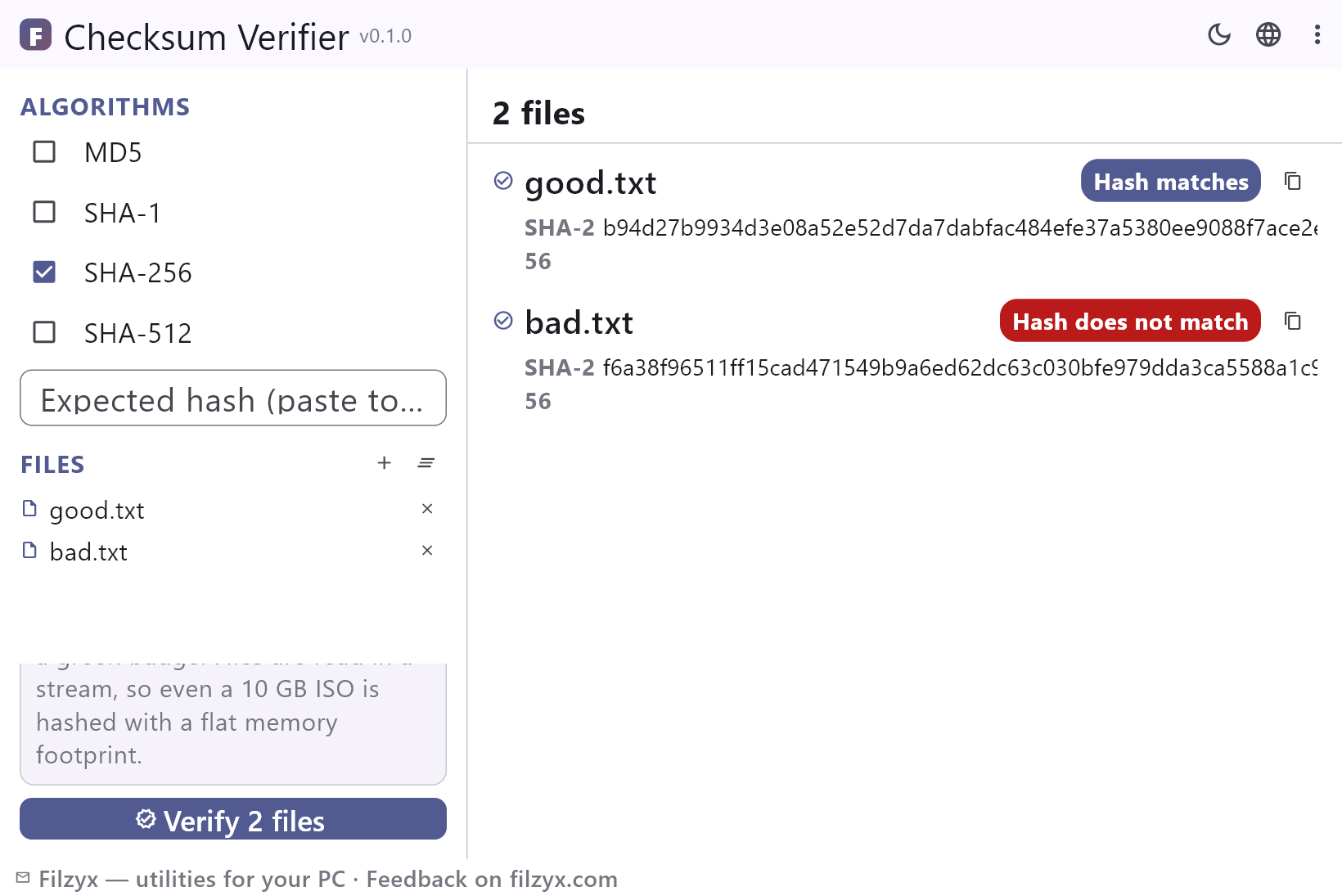
Paste the checksum from the download page and pick the algorithm: the comparison ignores case and extra spaces, and each file gets a green “Hash matches” or red “Hash does not match” badge.
Settings: Expected hash field at the top
Batch verification
Add any number of files and verify them in one pass — every file shows the result for each selected algorithm and gets its own verdict badge.
Settings: Add files… / Verify (n)
Streaming hash engine
Files are read from disk in chunks instead of being loaded into memory, so a 10 GB ISO hashes with a flat memory footprint and size limits do not exist.
Settings: MD5, SHA-1, SHA-256, SHA-512
How to verify a downloaded file in 3 steps
- Add the downloaded file and tick the algorithm from its download page — MD5, SHA-1, SHA-256 or SHA-512.
- Paste the expected checksum from the page into the field at the top: the app compares it ignoring case and extra spaces.
- Press “Verify”: a green badge means the file is intact, a red one means it differs and should not be run.
certutil and Get-FileHash work — until you compare by eye
Windows ships two ways to hash a file: `certutil -hashfile file.iso SHA256` in Command Prompt, or `Get-FileHash .\file.iso -Algorithm SHA256` in PowerShell. Both print a hash, and both leave the hard part to you: remembering the exact command, then comparing two 64-character strings by eye. Lines wrap, case differs from page to page (uppercase in PowerShell, lowercase on many sites), and one misread character hides a real difference. Checksum Verifier keeps the same math and removes the eye test: the expected hash sits next to the result, the verdict is a green or red badge, and a batch of files is checked in one pass.
Where checksum checking pays off
Downloads first: Linux ISO images, Windows installers, firmware and drivers always publish an MD5 or SHA-256 next to the file — paste it, and a truncated transfer is caught in seconds instead of after a failed install. Transfers second: after copying an archive to an external drive or sending it across the network, hash both sides to prove they are bit-for-bit identical. USB sticks and SD cards: verify a rescue drive before you depend on it. And the classic: an archive that downloads suspiciously fast and turns out to be a few kilobytes short — a checksum catches that even when the file size looks plausible.
Everything stays on your PC
Checksum Verifier is local math, not a service: it opens each file from your disk, reads it chunk by chunk and compares. Nothing is uploaded, no file is sent to a remote “hash API”, and nothing about your documents leaves the machine — which matters when the file under test is a work archive or something under NDA. There is no cloud checksum database, no account and no telemetry; turn off Wi-Fi and verification behaves identically. Close the app and the only thing left are the hashes you chose to copy.
Features
- MD5, SHA-1, SHA-256 and SHA-512 — any combination at once
- Paste the expected checksum — the app does the comparison
- Green “Hash matches” or red “Hash does not match” badge per file
- Comparison ignores letter case and stray spaces in copied hashes
- Streamed reads: 10 GB ISOs with a flat memory footprint
- Batch verification: many files in one pass
- One click copies all computed checksums
- Nothing is uploaded — hashing runs entirely on your PC
- Fully offline, even on an air-gapped machine
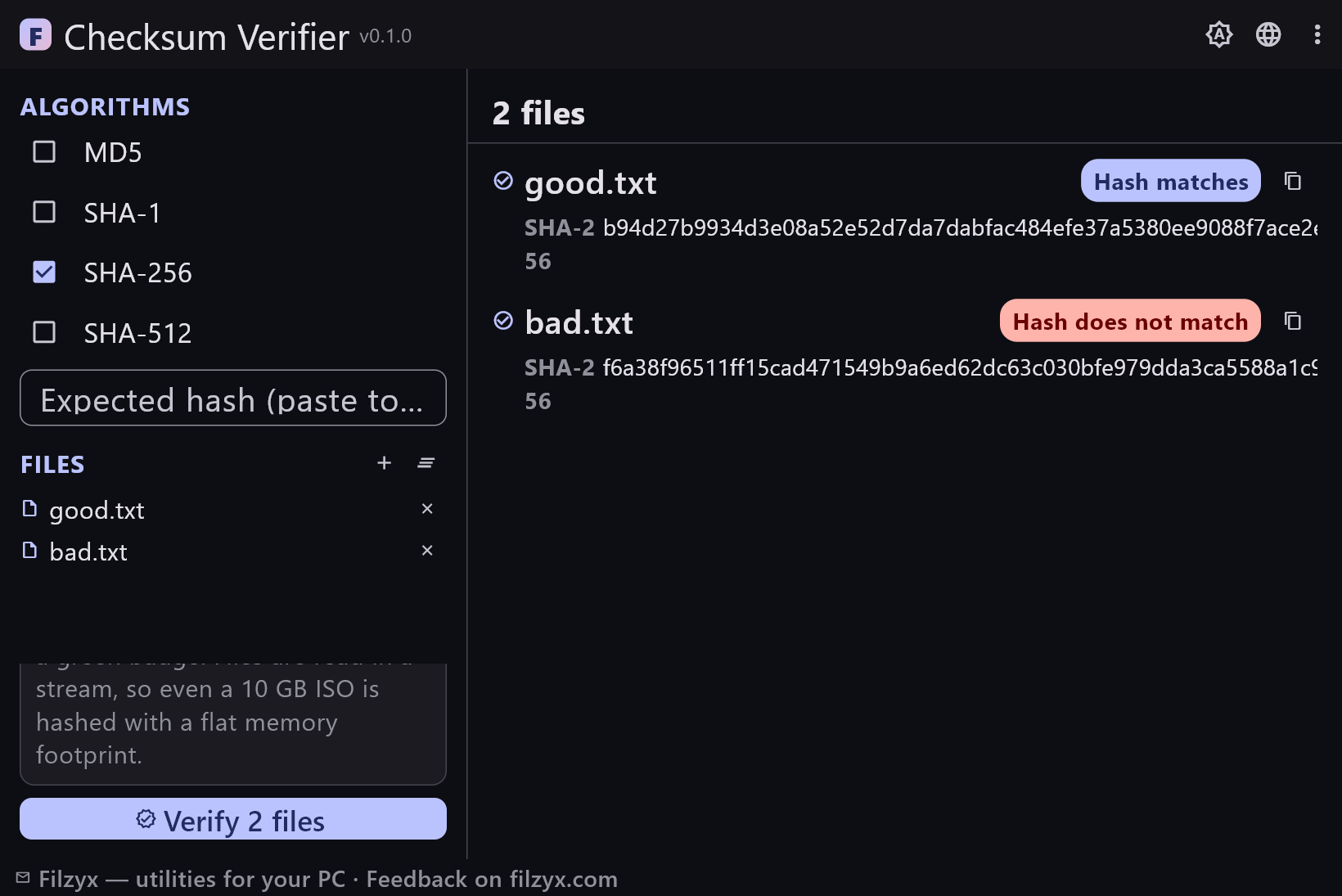
- Dark and light themes
- No account, no ads, no telemetry
- 16 interface languages
Screenshots
Guides
Step-by-step guides for Windows:
-
How to verify a file checksum on Windows (MD5, SHA-256) — free
Step-by-step: verify a downloaded file against its MD5, SHA-1, SHA-256 or SHA-512 checksum on Windows 10/11 — with PowerShell Get-FileHash or a free app that compares the hash for you.
FAQ
- Is Checksum Verifier free?
- Yes — free for Windows 10/11 (x64), with no ads, no accounts and no telemetry.
- Which checksum algorithms does it support?
- MD5, SHA-1, SHA-256 and SHA-512. You can select several at once and every file is hashed with all selected algorithms.
- What do the green and red badges mean?
- Green (“Hash matches”) means the computed checksum equals the expected one — the file is intact. Red (“Hash does not match”) means the bytes differ from what the vendor published: do not run the file, download it again.
- Is there a file size limit?
- No. Files are read from disk in a stream, so even a 10 GB ISO is hashed with a flat memory footprint — no “file too large” errors and no loading the whole file into RAM.
- Are my files uploaded anywhere?
- Never. Hashing runs entirely on your PC and the app does not open a network connection; it works with Wi-Fi off, on a plane or on an air-gapped machine.
- Can I verify several files at once?
- Yes — add a whole batch, tick the algorithms and press “Verify”: each file gets its own green or red badge, and one click copies all computed checksums.