
WebP Converter
Free Windows app that converts images to WebP — losslessly, pixel-perfect — and turns WebP files back into PNG or JPG so any program can open them. Batch, offline, nothing uploaded.
What the app finds and shows
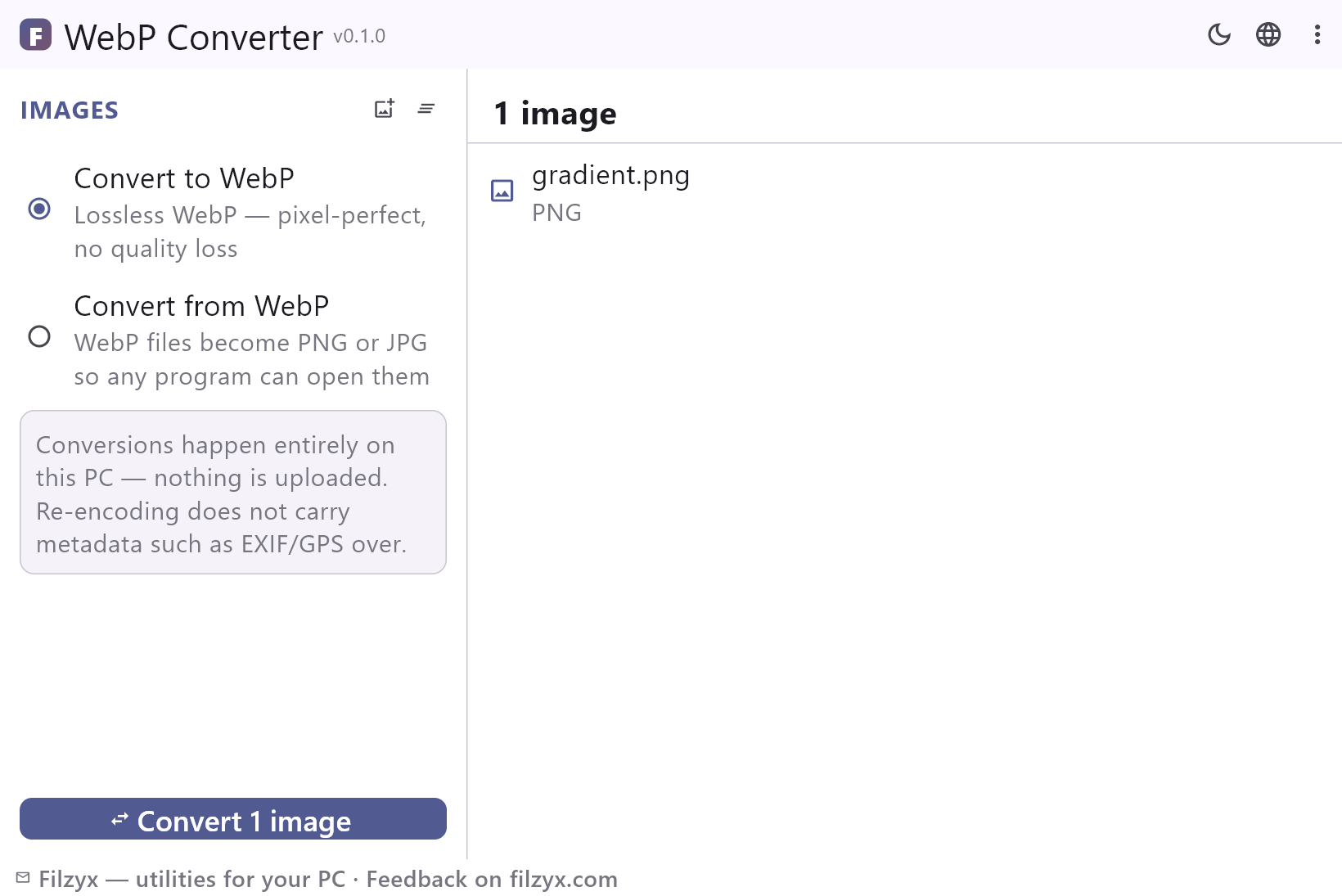
To WebP (lossless)
JPEG, PNG, BMP and GIF become lossless WebP: pixel-perfect, no quality slider needed, typically far smaller for graphics.
Settings: One radio button
From WebP to PNG or JPG
Pixel-perfect PNG, or JPG with a quality slider (50–100) when you want smaller files. Both open everywhere.
Settings: Quality slider for JPG
Batch with real savings
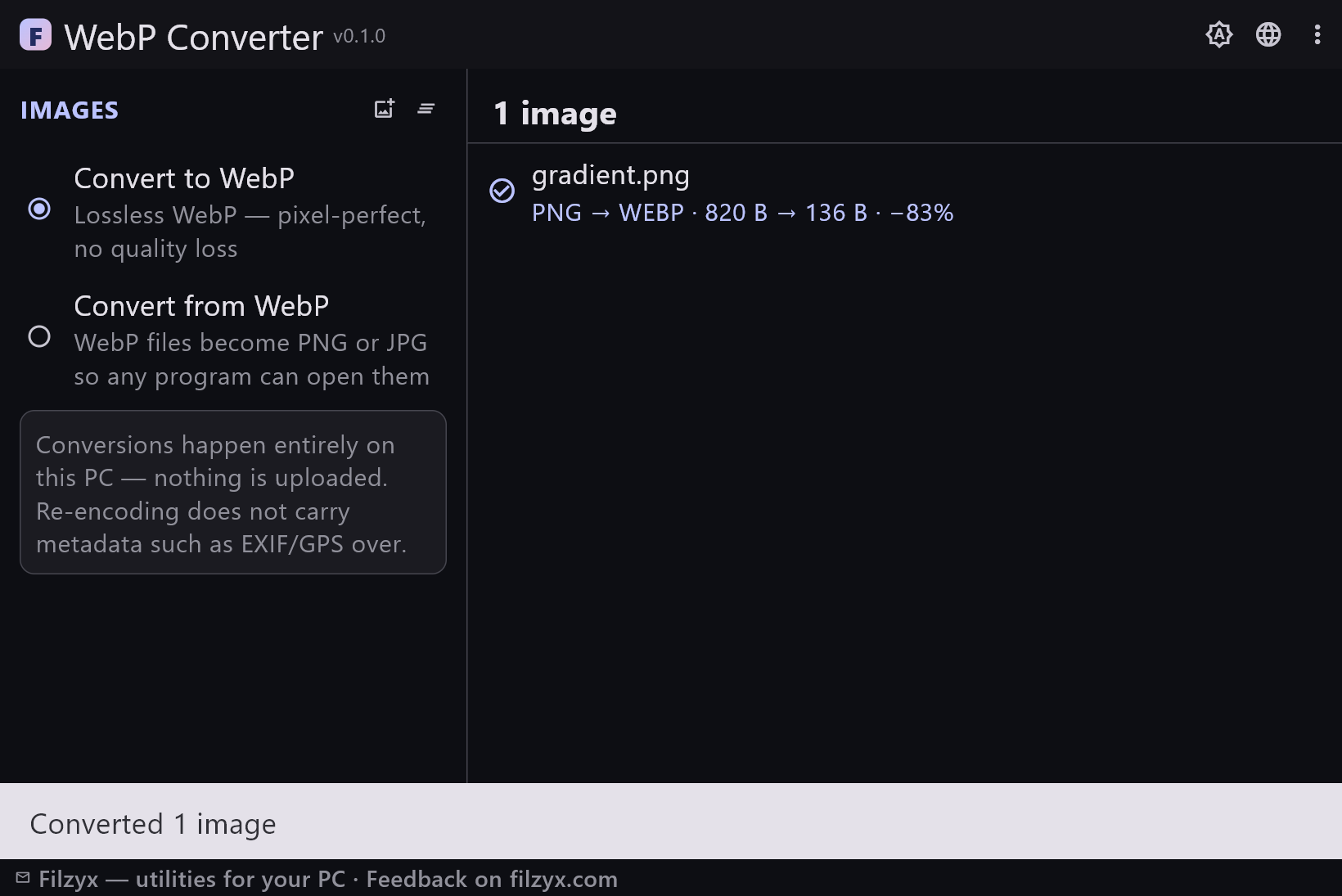
Convert dozens of images at once; every row shows the before → after sizes and the percentage saved, and existing files are never overwritten.
Settings: Per-file result lines
How to convert images to or from WebP in 3 steps
- Add images — JPEG, PNG, BMP, GIF or WebP files, as many as you like.
- Choose the direction: “Convert to WebP” (lossless) or “Convert from WebP” (PNG or JPG).
- Press Convert — each file gets a before/after size line with the percentage saved; originals stay untouched.
Why WebP is everywhere — and why it still hurts
WebP became the web's default image format because it stores the same picture in a fraction of the size: site speed for publishers, bandwidth savings for visitors. The catch: browsers save those images as .webp, and plenty of Windows software still cannot open them — classic image editors, older office suites, messengers, upload forms with strict format checks. The other direction is just as real: you tweak a screenshot, want to publish it, and a 2 MB PNG is what you have. Windows' own tools barely acknowledge the format. WebP Converter does the round trip in one small offline app.
To WebP is lossless; from WebP you choose
“Convert to WebP” is lossless: the encoder stores your pixels exactly as they were, no quality slider, no generation loss — a screenshot stays bit-faithful while often dropping to a third of the PNG size (savings on photos vary, and every row shows the real before/after numbers so there are no surprises). “Convert from WebP” writes pixel-perfect PNGs for keeping quality, or JPGs where a quality slider (50–100) trades size for fidelity. Either way outputs never overwrite the originals: a new extension lands next to the source, and name clashes get a safe ' (2)' suffix.
Not an upload form in disguise
Most “webp to jpg” results at the top of search are websites that want you to upload your images to their servers — fine for a public meme, wrong for a client mock-up, a scanned document or photos with people in them. WebP Converter is a desktop app: files are read, converted and written entirely on your PC, no internet connection is used, there are no accounts and no telemetry. Batch is free too — add fifty images, press once.
Features
- Convert to WebP losslessly — pixels preserved exactly
- JPEG, PNG, BMP and GIF as sources
- Convert from WebP to PNG (lossless) or JPG (quality slider)
- Batch conversion: the whole list in one press
- Before/after size and saved percentage on every row
- Originals are never overwritten; name clashes get ' (2)'
- Fully offline — no uploads, no accounts
- Files list is remembered between runs
- Works with files from browsers, editors and cameras
- Handy for publishing graphics as WebP and recovering images downloaded from the web
- Dark and light themes
- 16 interface languages, no ads, no telemetry
Screenshots
Guides
Step-by-step guides for Windows:
-
How to convert WebP to JPG on Windows (and back) — free
Windows won't open a .webp? Convert WebP to JPG or PNG losslessly in batches — and turn images into smaller WebP for the web — with a free offline converter.
FAQ
- Is WebP Converter free?
- Yes — free to download and use on Windows 10/11 (x64), with no ads, no accounts and no telemetry.
- Does converting to WebP reduce quality?
- No. The converter uses lossless WebP encoding: every pixel is preserved exactly, unlike “save as webp” in editors that quietly re-compress.
- Will the WebP file be smaller than my PNG?
- Usually yes — graphics, screenshots and flat-colour images often shrink by 25–80%. Photographic JPEG→WebP can end up larger (JPEG is already lossy); the app shows the real numbers for every file, so you can see it instantly.
- How do I convert WebP to JPG?
- Switch to “Convert from WebP”, pick JPG and the quality you want, then press Convert — JPGs appear next to the originals.
- Does it upload my files anywhere?
- No. Everything happens locally; the app works fully offline.
- What happens to EXIF and metadata?
- Re-encoding always drops metadata like EXIF/GPS — for sharing that is a bonus; if you need metadata, keep the original files.