

Duplicate File Finder
Free Windows app that finds exact duplicate files, similar photos, and duplicate music by tags or sound — results appear live while scanning, and deleted copies go to the Recycle Bin. Download free, available in English and Russian.
Verify download
SHA-256: D1F14EE93BFC2D88F792FE3875D540E497DC9DF9106AA43BD2FBFF9758D672D1
12444091 bytes · SHA256SUMS.txt · How to verify
What the app finds and shows
Exact duplicate files (SHA-256)
Two-pass SHA-256 hashing: files are grouped by size, filtered by a partial hash, then confirmed with a full hash. Zero false positives.
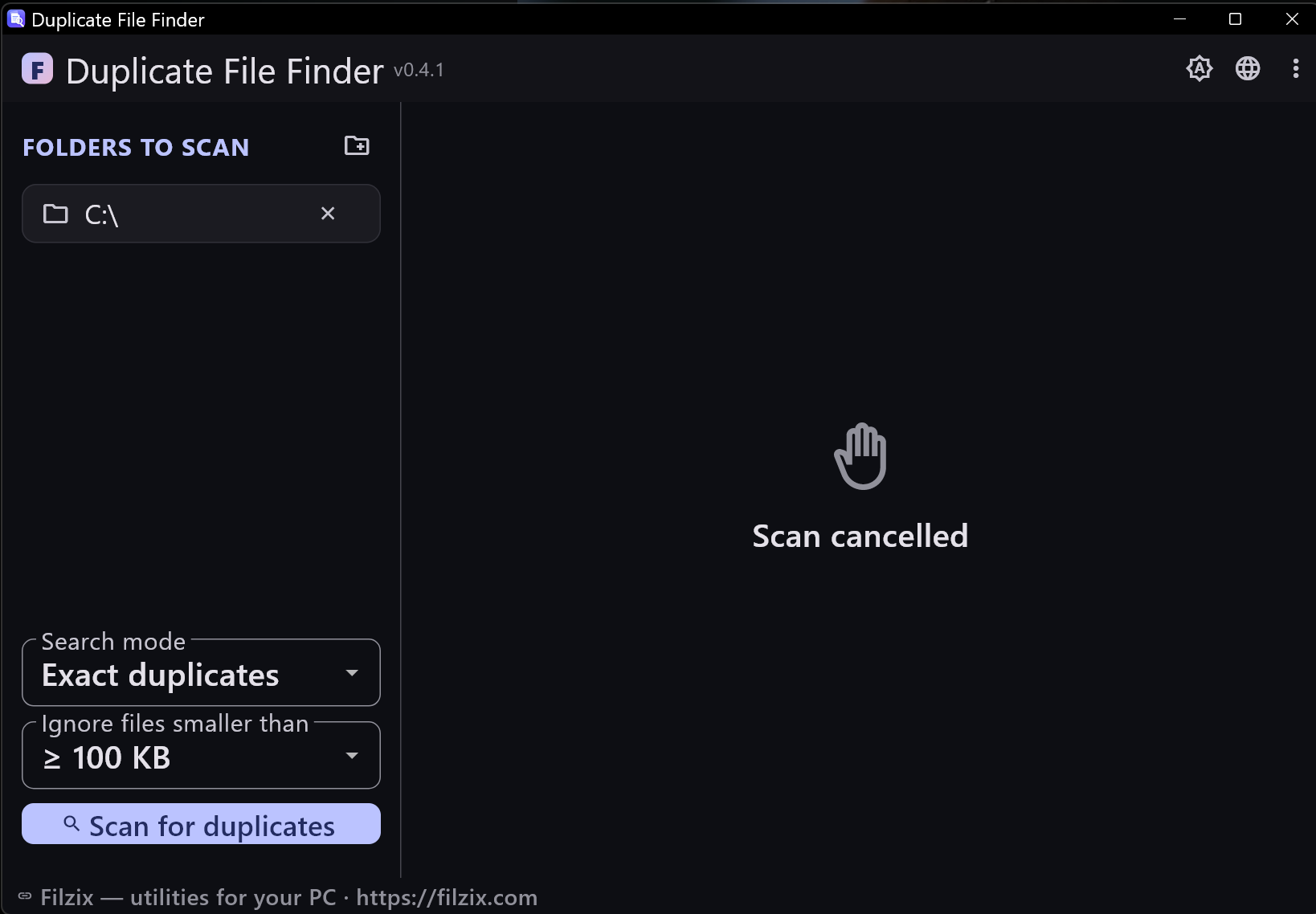
Settings: Minimum file size
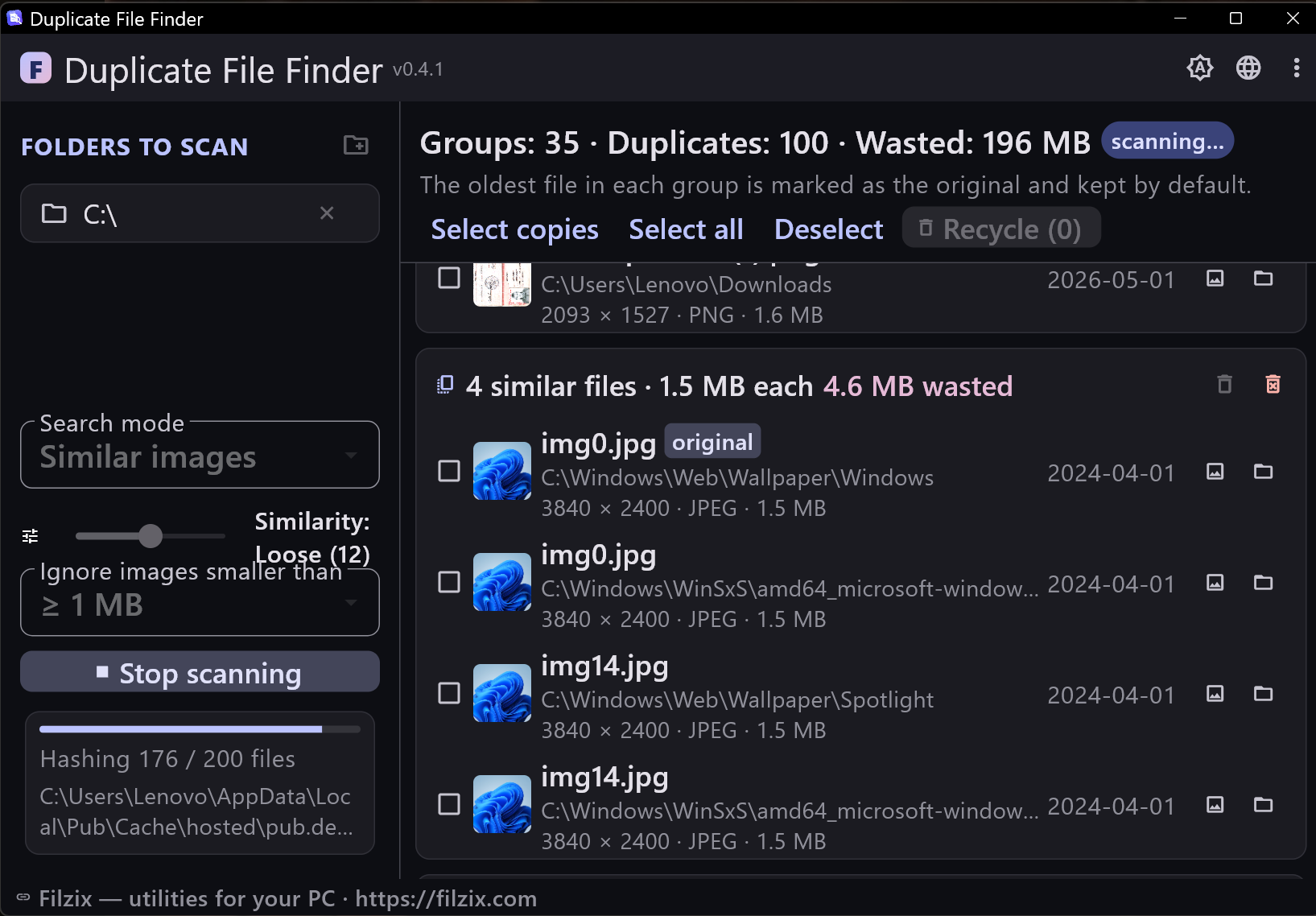
Duplicate and similar photos (pHash)
Perceptual hashing (pHash) compares what images look like, not their bytes: finds resaved, resized, re-compressed and edited copies. Previews right in the results and a fullscreen viewer with zoom, EXIF info and switching between copies.
Settings: Similarity threshold in percent (95% by default), minimum image size
Duplicate music by tags
Reads tags (title, artist, album, year, genre, duration, bitrate) from MP3, FLAC, OGG, M4A and more. Junk like “official video” or “HD” is ignored; optional fuzzy matching catches near-identical names. Files without tags fall back to the “Artist - Title” file name pattern. Tag differences from the original are highlighted.
Settings: Match by title+artist or title only, fuzzy matching with threshold, duration tolerance
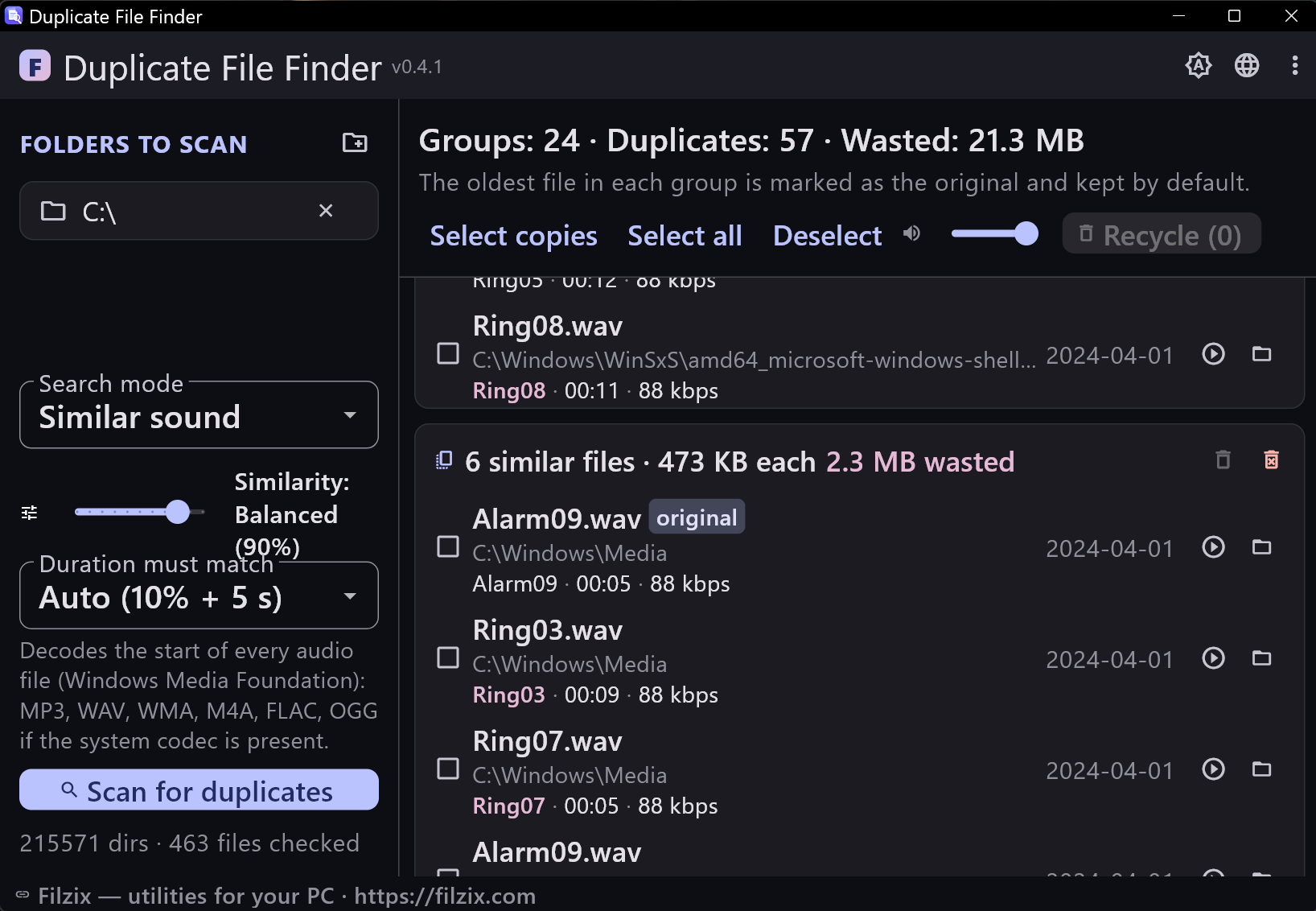
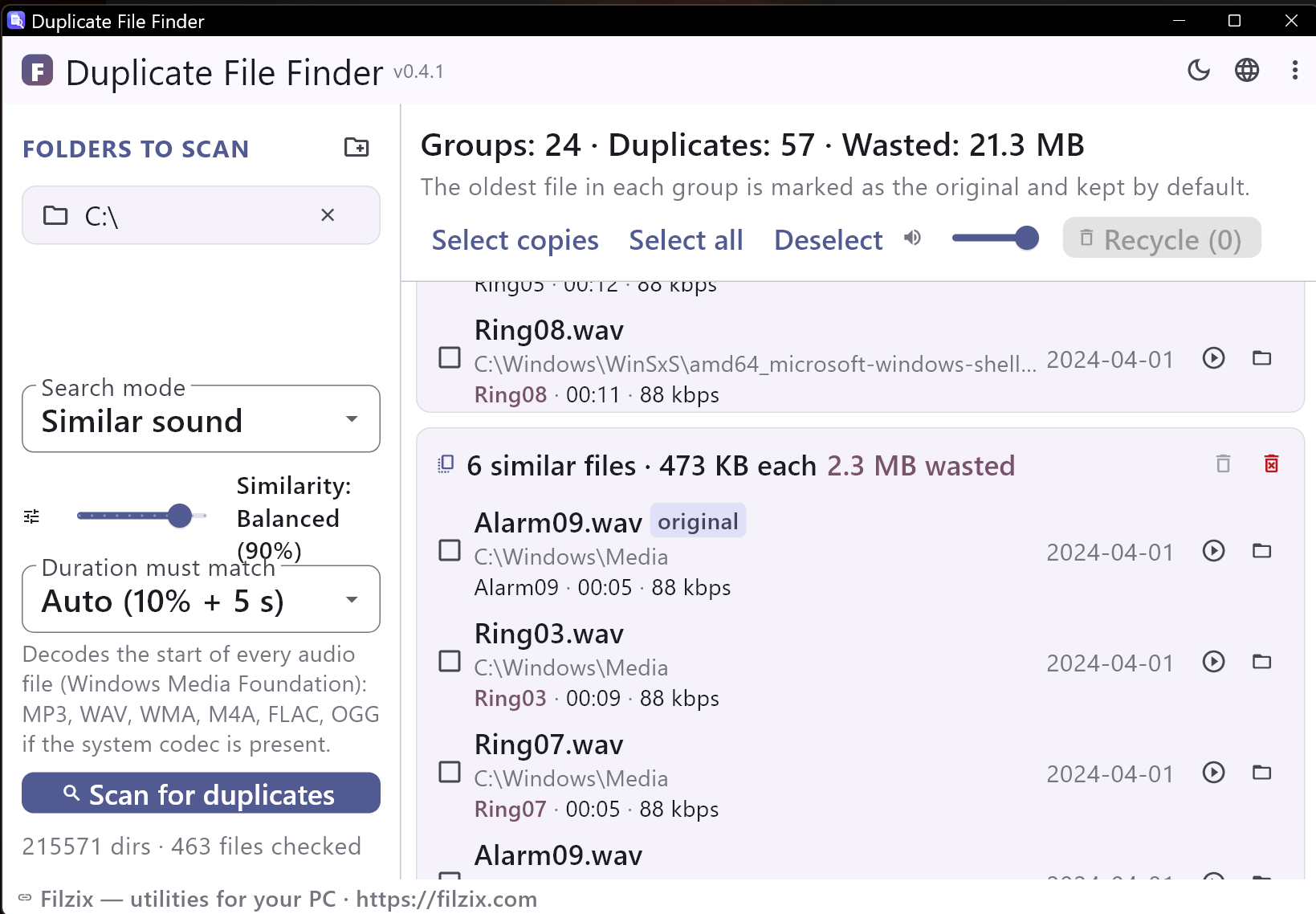
Same recording by sound (audio fingerprint)
Audio fingerprinting finds the same recording no matter the format or bitrate: MP3 copy of a WAV, 128 vs 320 kbps re-encode — still recognized. It decodes the beginning of every tune with Windows Media Foundation (MP3, WAV, WMA, M4A, FLAC, OGG when the system codec is present) and compares 12-note chroma fingerprints. Results also get play/stop buttons and a volume slider for quick listening checks.
Settings: Similarity threshold in percent (95% by default), duration tolerance (auto / fixed)
How to remove duplicate files in 3 steps
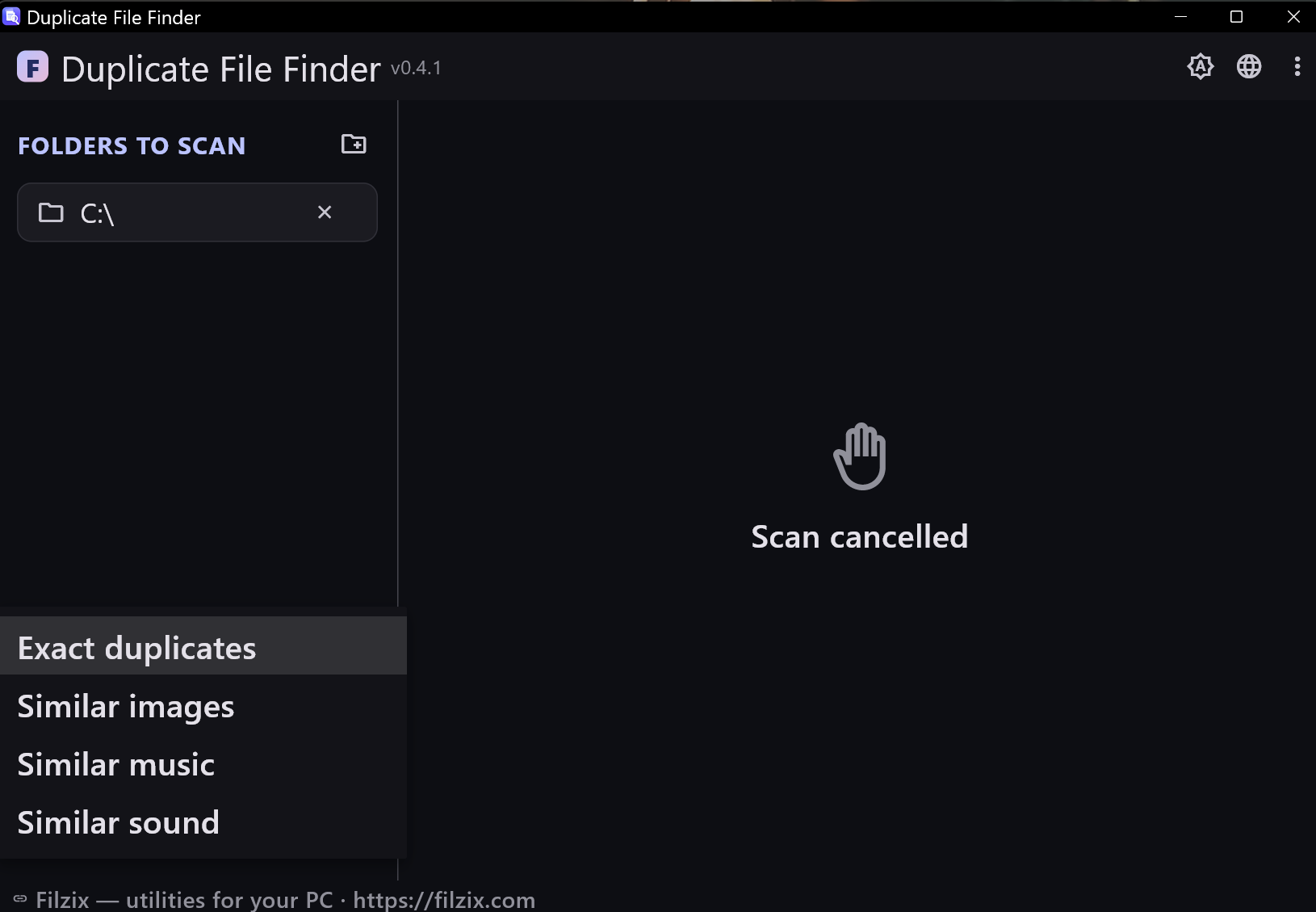
- Choose the folders to scan and a search mode — exact duplicates, similar photos, music by tags or music by sound.
- Start the scan: duplicate groups appear live while scanning is still running, and you can stop at any moment.
- Review the results and send the extra copies to the Recycle Bin — the oldest file in each group stays as the original.
Duplicate photos: resized, edited, re-saved
Byte-by-byte comparison only finds identical copies — a photo saved again at 90% quality or resized for a messenger looks the same, but hashes differently. Duplicate File Finder uses perceptual hashing (pHash): it compares what images look like, not their bytes. Set the similarity threshold in percent (95% by default), preview every copy right in the results and open the fullscreen viewer with zoom, EXIF data and switching between copies.
Duplicate music: MP3 vs FLAC, 128 vs 320 kbps
The same song often sits on a disk several times: as an MP3 and a FLAC, at different bitrates, or with a noisy “Official Video” in the title. Tag matching groups files by title, artist, album, duration and bitrate, ignores junk words and highlights tag differences from the original. If tags are a mess, the sound mode decodes the beginning of every track and compares audio fingerprints — the same recording is recognized no matter the format or bitrate. Every copy gets a play button, so you can listen before deleting.
Windows built-in tools vs Duplicate File Finder
Windows 10 and 11 have no built-in duplicate file finder. File Explorer can sort files by name or size, but it cannot compare their contents; PowerShell can hash files with Get-FileHash, yet all you get is a plain text list — no previews, no groups, no safe deletion. Duplicate File Finder does the whole job: live grouping while scanning, previews and EXIF for photos, play buttons for music, and deletion straight to the Recycle Bin. It is free, runs on Windows 10/11 (x64) and speaks both English and Russian.
Features
- Four search modes: exact SHA-256, similar images (pHash), music by tags, music by sound
- Live results: duplicate groups appear while the scan is still running
- The taskbar icon rocks while scanning, so progress is visible even when the window is minimized
- Image previews in results and a fullscreen viewer with zoom and EXIF info
- Audio player for results: play/stop per copy plus a volume slider
- Image thumbnails are decoded lazily and cached, so long result lists stay smooth
- Similarity thresholds in percent for images and sound, with strict 95% defaults to keep false positives out
- Music tag details with differences from the original highlighted
- Fast engine running in a background isolate with live progress and cancel
- Original file is detected automatically (the oldest copy is kept)
- Deletion to the Recycle Bin or permanent removal — your choice
- Dark and light themes, settings are remembered between runs
- No ads, no accounts, no telemetry
Screenshots
Guides
Step-by-step guides for Windows:
-
How to remove duplicate files on Windows 11
Built-in tools, PowerShell and a free duplicate file finder — step by step.
-
How to find duplicate and similar photos on Windows
Why byte comparison misses resaved photos and how perceptual hashing finds them.
-
How to find duplicate songs and music files on Windows
Tags vs sound: copies of one song, even MP3 vs FLAC at different bitrates.
FAQ
- Is Duplicate File Finder free?
- Yes — it is free to download and use on Windows 10/11, with no ads, no accounts and no telemetry.
- Is it safe to delete duplicate files?
- Yes: selection is always manual, deleted copies go to the Recycle Bin (or are removed permanently if you choose so), and the oldest file in each group is kept as the original.
- Does Windows 11 have a built-in duplicate file finder?
- No. File Explorer can sort files by name or size but cannot compare their contents, and PowerShell only outputs hash lists. A dedicated tool is the only practical way to remove duplicate files on Windows 10/11.
- Can it find similar photos, not just identical copies?
- Yes. Perceptual hashing compares how images look, so resized, re-saved and edited copies are found too. The similarity threshold is adjustable and set to strict 95% by default.
- Can it find the same song in another format or bitrate?
- Yes. The sound mode builds an audio fingerprint from the beginning of each track, so an MP3 copy of a WAV or a 128 vs 320 kbps re-encode is still recognized as the same recording.
- Which file formats are supported?
- Exact matching works with any file type. Photos: common image formats such as JPG, PNG and more. Music: MP3, FLAC, OGG, M4A, WAV, WMA and other formats supported by the system.
- How do I download and install it?
- Click “Download free”, run the DuplicateFileFinder-Setup.exe installer and follow the wizard. Windows 10 or 11 (x64) is required.